








- Amazon Reportedly Sends Exclusivity Warning Letters to Multiplatform SellersNov 03, 2026View details
- New TikTok Shop Cross-Border Returns Rules for Southeast Asia Take Effect on November 5Nov 03, 2026View details
- U.S. Tightens De Minimis Exemption Channel and Revises Section 321 Data PilotNov 03, 2026View details
- Amazon FBA Fuel and Logistics Surcharge in 10 European Countries to Increase to 2% on November 2Nov 02, 2026View details
- EU Customs Code reform to take effect on November 1, with new handling fees for direct-mail small parcelsNov 01, 2026View details
- EU Plans to Raise Tax on Incoming Small Parcels to €5Oct 31, 2026View details
How do you mark up product information with a Schema-enabled website builder?
A product page may already include a name, images, and price, yet search engines may not be able to identify exactly what each piece of information represents. With a website builder that supports Schema, you can map product fields on the page to structured data and then validate the published page: first confirm that the tool can output Product markup, enter information that matches the page, and finally check the code and how search engines interpret it.
When working with structured data, distinguish between “product information visible on the page” and “valid markup output by the page.” The former helps visitors read the content; the latter helps search engines understand it. Even if the markup is valid, this does not guarantee that rich results such as price or stock availability will appear.
First, confirm what your website builder supports
When looking for how to use a Schema-ready website builder, first check the product editor, SEO settings, or structured data settings. Support generally comes in two forms: the product template automatically generates markup from fields such as name and price, or the tool lets you add custom JSON-LD to the page. The specific location of these settings and the permissions required depend on the tool you use, so do not assume every platform has the same buttons.
Open a published product page, view the page source in your browser, and search for application/ld+json and Product. If you find relevant content, check that it corresponds to the current product and does not contain only website or breadcrumb information. Not finding JSON-LD does not immediately mean that there is no markup: the page may use another structured data format or generate markup dynamically with a script. Confirm this with a testing tool.
If the tool offers neither product field mapping nor the ability to add custom code, first check whether another supported integration method is available. Do not modify page code that cannot be maintained just to add markup.
Organize product information, then map the fields
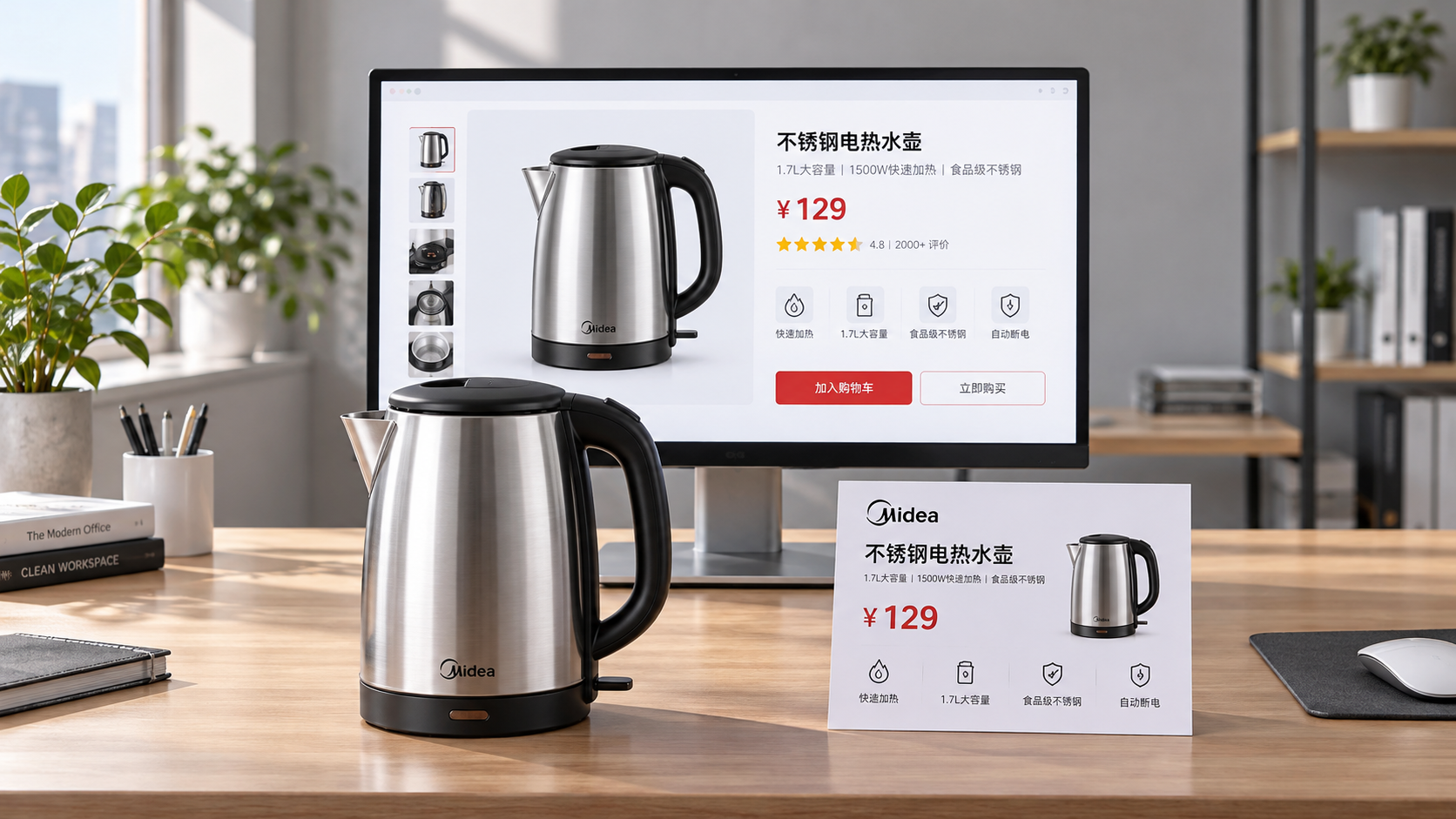
For a single product detail page, start by organizing the information actually displayed on the page. The name, description, and image should all refer to the same product. The price, currency, and stock status should reflect the actual sales terms visitors can see on that page. Field names vary between website builders, but they can usually be mapped as follows:
- Product name and description: Map these to name and description, respectively. The description should summarize the product itself; do not put the promotional copy from the entire page directly into this field.
- Product image: Map this to image. Use a publicly accessible image URL that represents the product, and make sure the image matches what is shown on the page.
- Brand and identifiers: Enter brand when the product has a clearly identified brand. Add identifiers such as SKU or GTIN only if they actually exist and apply to the product; do not make them up.
- Offer: Price, currency, and stock status are usually included in offers and correspond to price, priceCurrency, and availability, respectively. Use standard currency codes, such as USD for US dollars.
Different search features have their own required or recommended fields, so adding Product alone does not meet the requirements for every feature. If an inquiry-only page does not display a public price, do not invent an offer just to clear a warning. You can mark up the product information that genuinely exists, then check the target search engine’s requirements for the relevant feature.

Add the markup in the editor and publish
- Select the correct page type. Open the product detail page or product template and check whether Product structured data is enabled. If a listing page contains multiple products, do not mistakenly mark the entire list as one specific product.
- Fill in or bind the product fields. Where possible, bind markup fields to the name, image, price, and other details in the product database instead of re-entering them in the SEO section. This makes it easier to keep the markup in sync when product information is updated.
- Handle offers and variants. For a single variant with a clear price, enter the corresponding offer. If prices differ by color, size, model, or other variant, handle them according to the variant structure supported by the tool and the way the page displays them. Avoid assigning the same unsuitable price to every variant.
- Check the automatically generated content. Preview or publish the page and check its output to confirm that the name, image, currency, and stock information come from the current product. After copying a template, make sure no details from an old product remain.
If you can only use custom JSON-LD, first confirm that the editor will output it on the target product page, and organize the fields according to the specifications for types such as Product and Offer. If automatic markup is already present, do not simply add another set of Product data that conflicts with it. First determine whether you can edit, disable, or correct the automatically generated markup. After adding code, check that quotation marks, commas, and brackets are all in place; formatting errors can prevent the entire block from being parsed.
When validating, look beyond whether it “passes”
After publishing, test the actual page URL with a structured data testing tool. If your goal is to appear in product rich results, also use the relevant testing tool provided by the target search engine to review detected items, errors, and recommended fields. Testing the public URL is more useful than pasting code alone because it can help reveal differences introduced during publishing, by templates, or by scripts. The page must also allow the relevant crawlers to access it.
If you encounter an error, first identify the specific field, then return to the product editor and update the data. For example, if price is not a valid number, the currency is missing, or the image URL cannot be accessed, correct the source data and publish again. A warning does not necessarily mean the markup is invalid, but you should check whether the missing information actually exists and whether it affects eligibility for the results you want.
If testing shows that the markup is valid but no product rich results appear, this does not necessarily mean the setup failed. Search engines also consider whether the page can be crawled and indexed, content quality, the search query, and their own display rules. It may also take time for the page to be crawled again after publication. Check indexing and structured data status in your site management tools instead of repeatedly adding the same code.
Maintain markup after price, language, or template updates
Once the markup is live, outdated data is one of the most common problems. When a promotion ends, stock changes, or a product is discontinued, the visible page content and structured data should be updated together. Check especially carefully if a third-party script displays the price while the markup is entered manually, to make sure both use the same data source.
For multilingual or multi-region sites, check the name, description, currency, and actual offer on each page. If prices differ by region, do not simply copy an Offer from another region. If a page is for inquiries only and does not display a public price, do not reuse price markup from a shopping page.
After changing a theme, copying a product template, or updating an app or plugin, spot-check representative product pages. Confirm that the existing markup is still present and that enabling multiple features has not created conflicting offers. If the editor does not let you control where duplicate markup is output, ask the person responsible for the template or code to investigate.
Related Articles
 How do you mark up product information with a Schema-enabled website builder?
 Industry standard for large language model platforms takes effect on November 1, with implications for GEO compliance
 Caixin Weekly Reports: Black-Hat GEO Manipulation of AI Answers Raises Regulatory Challenges


Related Products
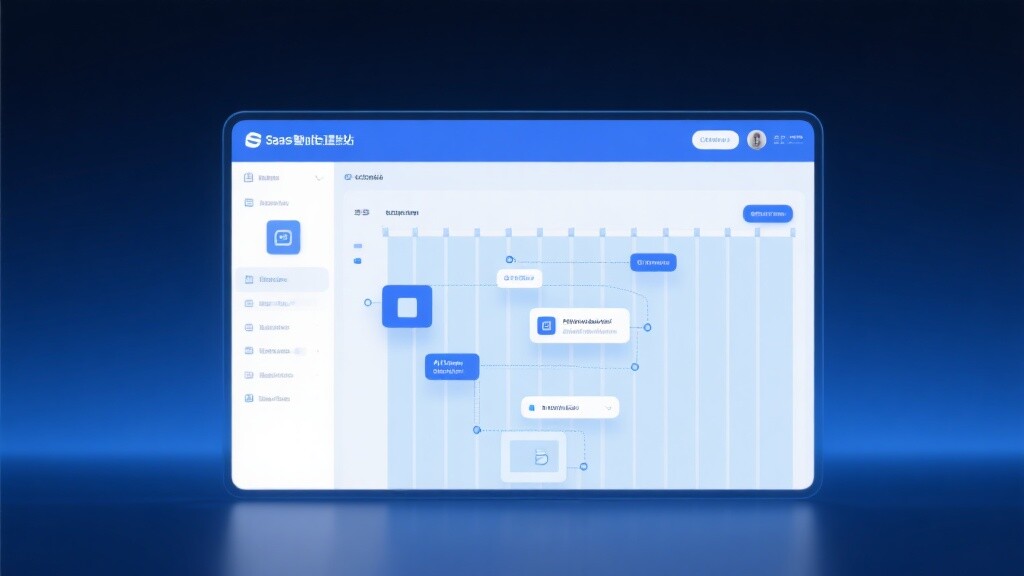
 Yiyingbao SaaS Intelligent Website Building and Marketing SystemYiyingbao SaaS Intelligent Website Building and Marketing System, AI-powered no-code website building, rapid creation of multilingual B2B international websites in 10 minutes, global server acceleration, AI-powered SEO optimization, helping businesses connect efficiently with global markets. The perfect integration of technology and operation makes building an international trade website remarkably simple
 AI+SEM Intelligent Advertising Marketing SystemAI+SEM drives intelligent ad creation, empowering full-funnel precision advertising marketing. The system automatically generates weekly/monthly reports, AI recommends keywords and target countries, monitors core metrics in real-time with intelligent alerts, and enables one-click high-conversion ad solutions to help quickly acquire customers and improve ROI.
 AI+SEO Dual-Engine System Optimization ServicesYiyingbao’s AI+SEO dual-engine optimization system helps foreign trade enterprises acquire high-quality organic traffic through AI-powered keyword research, content generation, and comprehensive technical optimization, significantly improving search rankings and conversion rates.
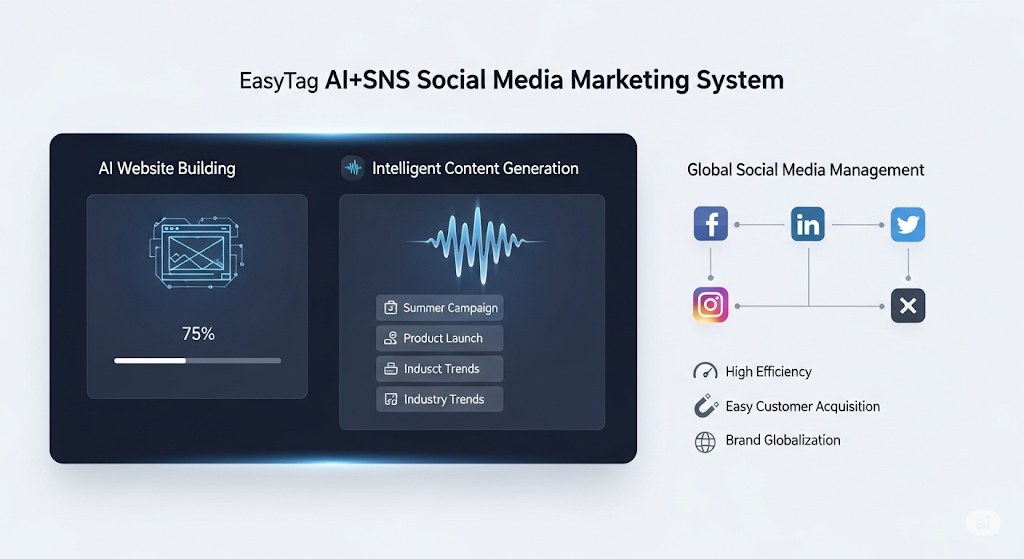
 AI+SNS Social Media Marketing SystemYingbao AI+SNS Social Media Marketing System - Precision social capture for the social media era. Supports one-click content synchronization across major platforms like Facebook and LinkedIn. AI intelligently rewrites posts for enhanced relevance. 24/7 AI customer service and user profiling analysis empower businesses to efficiently expand into global markets.
 AI+SEO营销解决方案易营宝AI+SEO营销解决方案,通过AI批量写作、智能生成TDK、精准关键词扩词等功能,全面优化网站SEO效果,提升流量与转化率。助力企业构建高效智能网站新生态。
 AI+SEM Advertising Marketing SolutionsAI+SEM Advertising Marketing Solution leverages AI technology to deeply empower SEM ad campaigns. It automatically generates weekly/monthly reports using AI, presenting account data across multiple dimensions for comprehensive insights into campaign performance and trends. The system precisely recommends keywords and target countries, intelligently generates high-conversion ad copy, and enables one-click activation of efficient campaign plans to help businesses rapidly acquire customers. Simultaneously, it monitors core metrics in real time, intelligently identifies abnormal fluctuations, and issues timely alerts to ensure stable, high-return advertising results.
 Domain Name ServicesEasyWin provides professional domain name services, including intelligent queries, one-stop registration, brand protection, and full lifecycle management, helping businesses build a digital brand image.
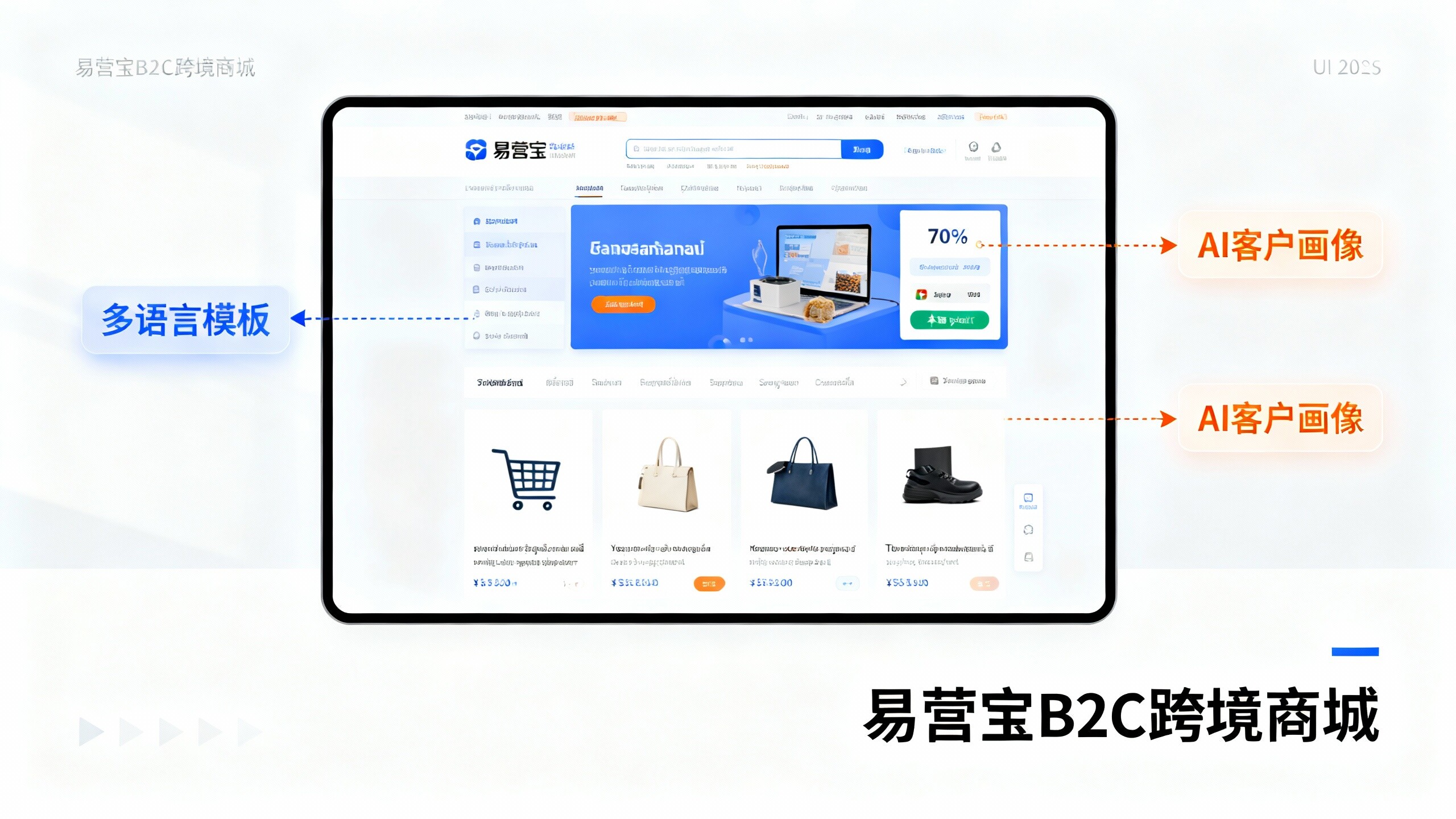
 EasyOperate B2C Cross-Border E-Commerce Platform & Independent WebsiteEasyStore B2C Cross-border E-commerce Independent Store is an intelligent website building and cross-border e-commerce integrated solution independently developed by EasyStore Information Technology (Beijing) Co., Ltd. The system is specially designed for small and medium-sized as well as large export enterprises, integrating 'website building, operation, marketing, advertising, and conversion' into one, helping enterprises quickly establish cross-border e-commerce independent stores to achieve brand globalization and global sales growth.
The platform supports multiple languages, multiple currencies, and multi-channel marketing, with built-in AI intelligent translation and SEO optimization systems, suitable for mainstream markets such as Southeast Asia, Europe and America, Latin America, and the Middle East, assisting Chinese manufacturing enterprises in efficiently deploying international e-commerce strategies. SSL证书易营宝提供专业SSL安全证书服务,包括单域名和泛域名证书,确保网站数据传输加密、身份验证和完整性保护,助力企业建立安全可信的在线业务环境。