






- APEC Shenzhen Spotlight: Cross-Border E-Commerce Orders Promote Asia-Pacific Trade and Economic CooperationNov 08, 2026View details
- China-Europe Railway Express and CIIE Hold Business Matchmaking Event, Focusing on Cross-Border E-commerce B2B ExportsNov 07, 2026View details
- China’s Ministry of Commerce Responds to Additional Charges on Low-Value Imports Imposed by the EUNov 06, 2026View details
- Two Internet Development Reports Released at the 2026 World Internet ConferenceNov 05, 2026View details
- Internet Business Revenue of Enterprises Above the Designated Size Reached RMB 1.716 Trillion in the First Three Quarters, with Profits Up 17.6%Nov 05, 2026View details
- Shopify's Third-Quarter Revenue and GMV Fall Short of Expectations, Sending Shares Tumbling Before the Market OpensNov 04, 2026View details
How do you set up a language switcher for multilingual pages in a smart website builder?
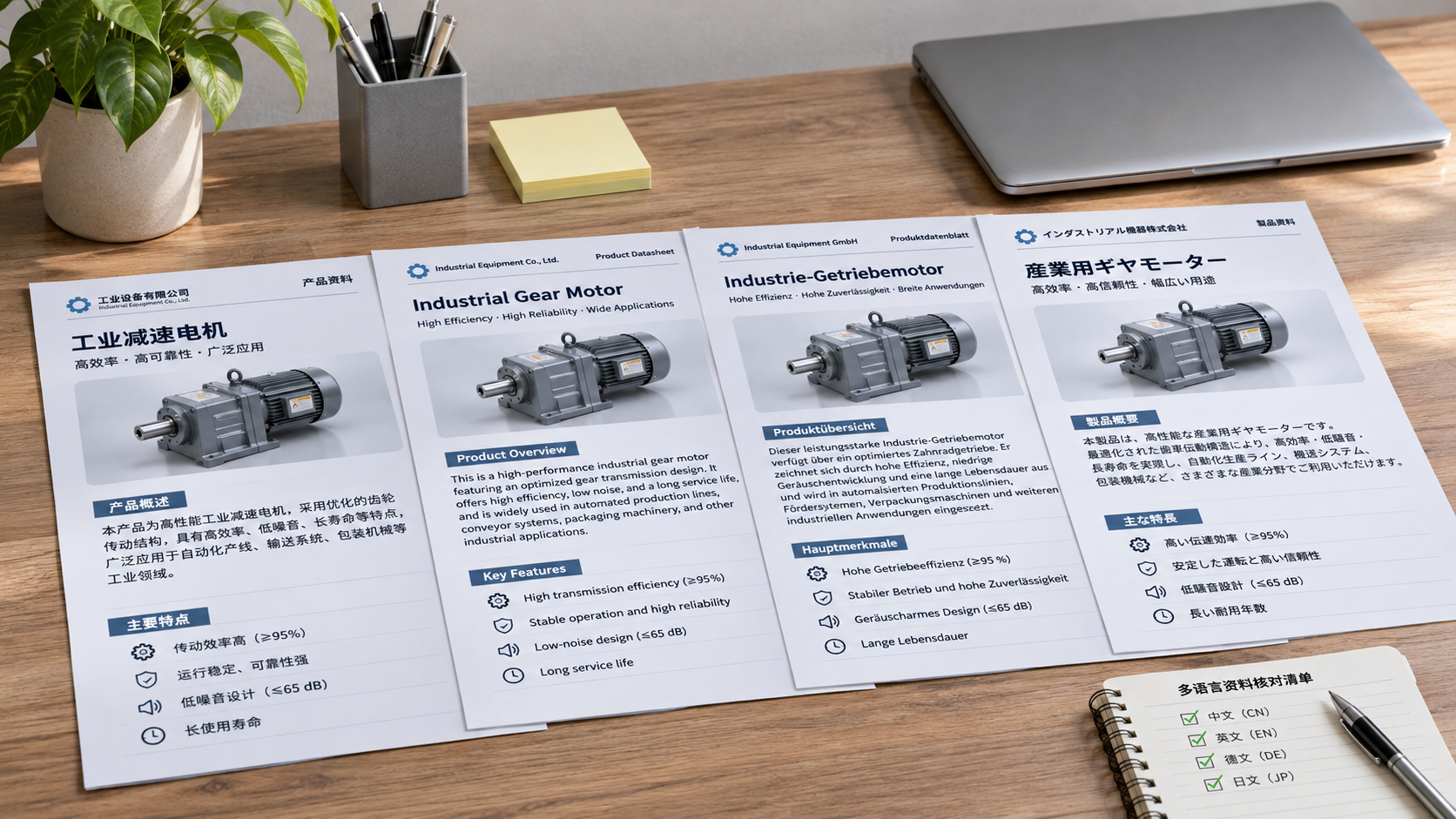
How do you set up language switching for multilingual pages on a website built with an intelligent website builder? This article explains language switcher placement, page associations, and switching procedures to help improve the browsing experience for overseas visitors.
The key to setting up language switching is to first create and publish pages in each language, then associate the corresponding versions, and finally place the language switcher somewhere visitors can easily find it. Menu names may vary across website-building platforms, so use this sequence as a guide when checking the settings.
Which multilingual pages should you prepare first?
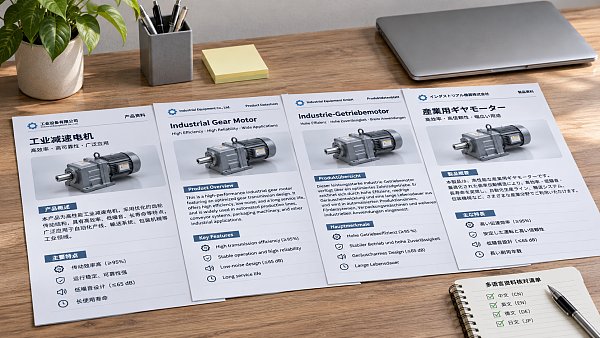
First, decide which languages your website needs to support and which pages to include in each language. Foreign trade companies can typically start with the home page, product pages, About Us, contact information, and inquiry pages, prioritizing content that overseas customers visit frequently and that is directly related to conversion.
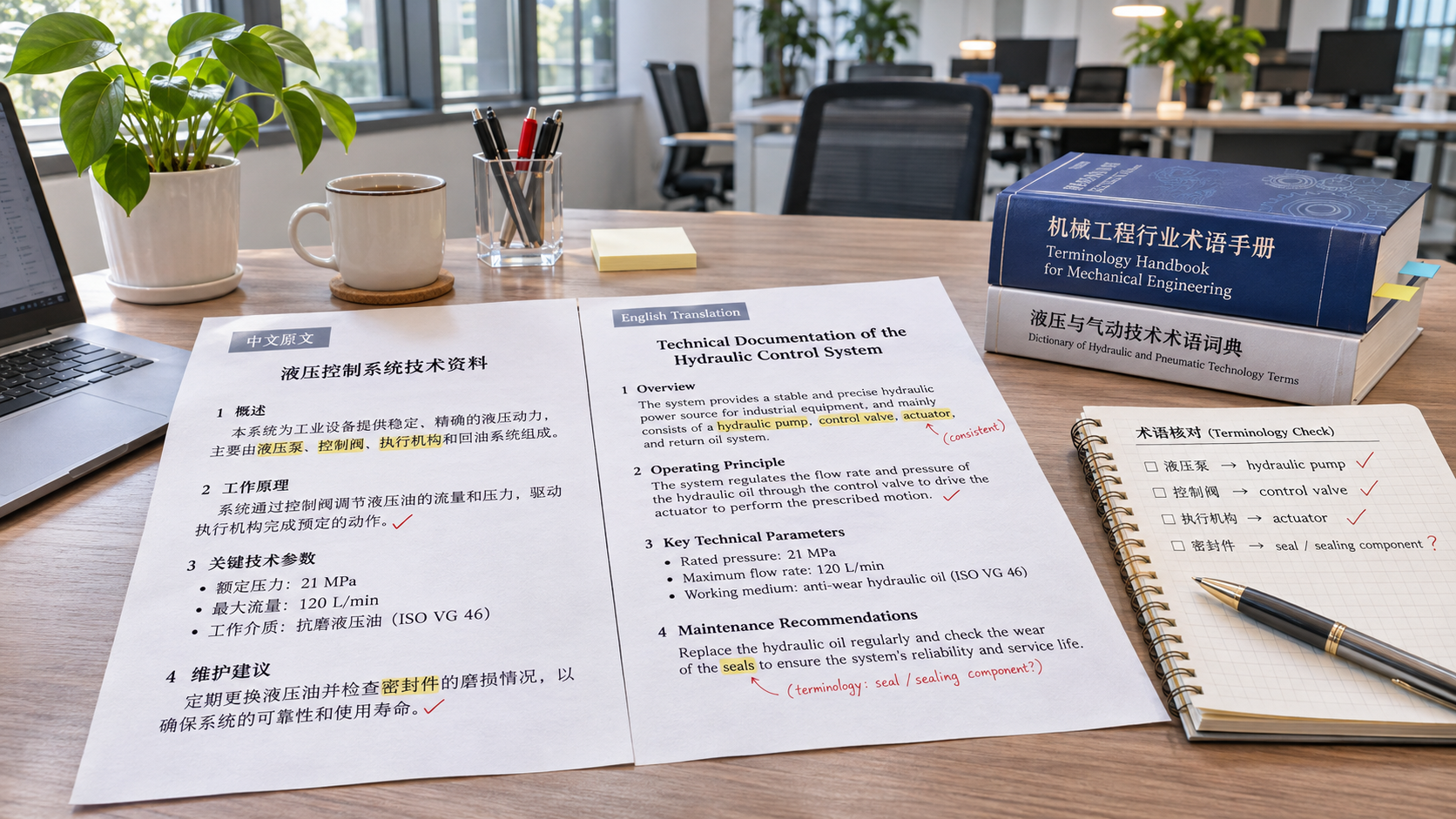
Check that pages in each language have been translated, proofread, and published, paying particular attention to product specifications, units of measurement, pricing information, and contact details. If a page is still a draft, visitors may not be able to access it properly even if the language switcher is visible.
If you use a multilingual feature in an intelligent website builder, first check whether the admin panel supports creating language versions, copying pages, and managing translation content. The feature may be called “Multilingual,” “Language Management,” or “Internationalization”; the exact name depends on the platform.
How do you add a language switcher in the website admin panel?
After opening the website editor, look for language management or website settings, add the languages you need, and set a default language. The default language is usually the version visitors see when they access the website directly. Choose it based on your primary target markets and how complete the existing content is.
Next, find the language switcher component in the page editor and add it to the shared header of the website. If the platform manages the switcher through the navigation menu, you can also add links to the pages in each language to the menu, making sure the links appear on all major pages.
Use the local-language name for each language, such as “简体中文,” “English,” and “Español.” Using only flags to represent languages can cause confusion, since the same language may be used in multiple countries. Text labels are easier to recognize.
When finished, check the desktop and mobile versions separately. On desktop, place the switcher near the top navigation. On mobile, if it is inside a collapsed menu, make sure the menu is easy to open, the options are clickable, and the text is not obscured or cut off.
How can visitors switch to the corresponding page with the same content?
Ideally, switching languages should preserve the content visitors are currently viewing. For example, if a visitor is viewing an English product detail page and switches to Chinese, they should land on the Chinese detail page for the same product, rather than being sent back to the home page each time. This reduces the need to search for the content again.
Check whether the admin panel has a “Page Association” or “Language Version Association” feature, and link the pages for the same content in each language. If you have many products, start with high-traffic product pages and advertising landing pages, then check category pages and other content pages.
If the platform does not automatically associate pages, check whether the language switcher component allows you to enter target links individually. When setting links manually, use the full URL of a published page, and recheck the links after changing page paths or product categories.
If a page is not yet available in another language, decide in advance how to handle it. You can direct visitors to a relevant category page in that language or tell them that the content is not yet available in that language. If the only option is to return to the home page, make sure visitors can easily understand where they have been taken.
What should you check for URLs and search engine settings?
Each language page should have a stable URL that can be accessed independently, for example, by using a separate language directory for each version. Avoid making all language content depend solely on a single URL and browser-script-based switching, as this may affect visitors sharing pages and search engines identifying the different versions.
If the platform supports it, configure hreflang tags for corresponding pages to specify the language or region they target, and check that the tags are consistent across versions. Language tags should match the actual page content, and region codes should be set according to the target market.
Also check that the title, description, page links, and canonical URL for each version are correct. The language switcher should provide accessible links. Automatically detecting the browser language can be useful, but it is best to retain a manual switching option so visitors can choose for themselves.
How should you test after publishing to identify common issues?
Do not test only the home page. Switch languages from the home page, product detail pages, contact page, and inquiry page to confirm that the destination page matches the current content, the links work, and menus, buttons, and form prompts display in the corresponding language after switching.
Then test once on a mobile device and once on a computer. Pay particular attention to whether the switcher is easy to find, the drop-down menu works properly, and the language remains as expected after refreshing or returning to a page. For websites with login, shopping cart, or form features, also check that users can continue their actions after switching.
If you encounter a problem, troubleshoot in this order: check whether the target page has been published, whether the page association is correct, whether the URL has changed, whether the shared header has been updated, and whether caching is affecting the display. After making changes, republish and test again in an incognito window.
What capabilities should you prioritize when choosing a website-building tool?
Check whether the platform supports multilingual page management, associations between corresponding pages, a mobile-friendly language switcher, and search engine-related settings. Also find out whether adding languages is limited by your subscription plan and whether content can be conveniently maintained and updated later.
If your company needs both website development and overseas promotion, review the actual features and service plans of platforms such as EasyYingbao to see whether their multilingual website building, SEO, and marketing services fit your current processes. Before purchasing, request a demonstration using real pages to see how switching and maintenance work.
Overall, multilingual switching on a website built with an intelligent website builder is about more than adding a button. Complete page content, accurate associations between language versions, and a clear, functional switcher are the foundation of a smooth browsing experience. Checking links and translation quality regularly after launch can also reduce ongoing maintenance issues.
Related Articles
 How can you evaluate the terminology accuracy of Yiyingbao’s AI translation engine?
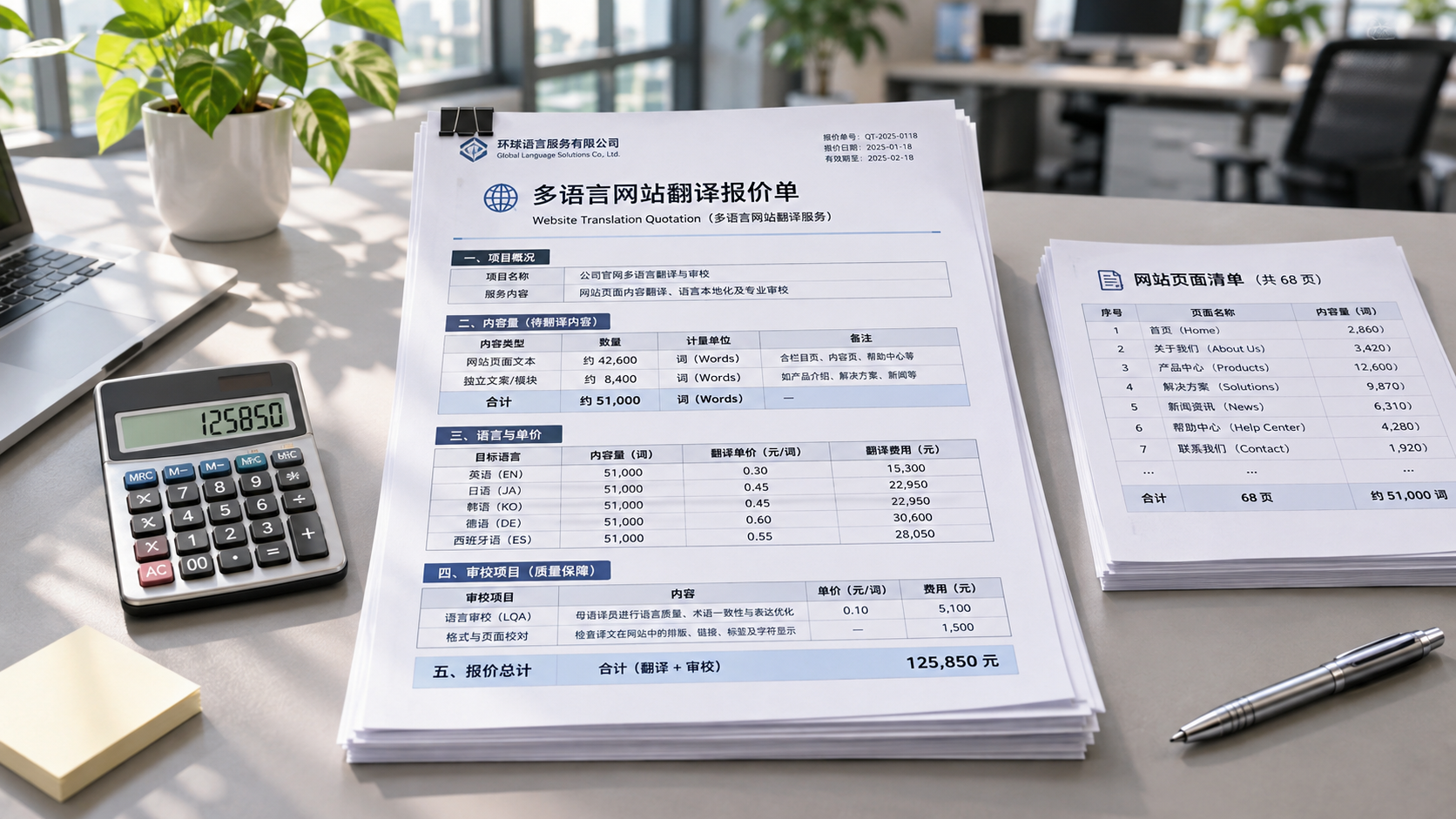
 How Are Translation Costs for Multilingual Website Solutions for International Trade Calculated?
 How do you set up a language switcher for multilingual pages in a smart website builder?
Related Products
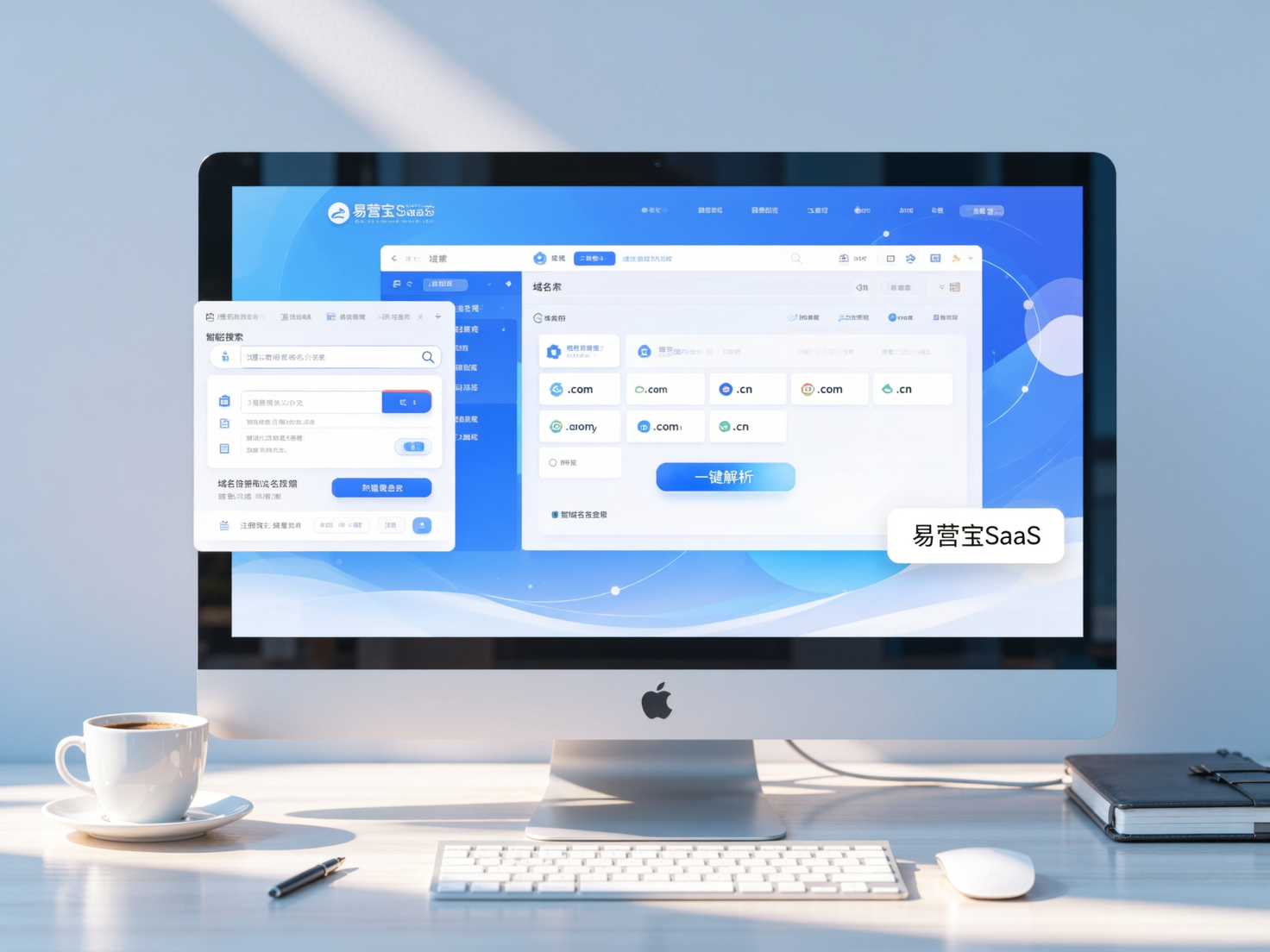
 Yiyingbao SaaS Intelligent Website Building and Marketing SystemYiyingbao SaaS Intelligent Website Building and Marketing System, AI-powered no-code website building, rapid creation of multilingual B2B international websites in 10 minutes, global server acceleration, AI-powered SEO optimization, helping businesses connect efficiently with global markets. The perfect integration of technology and operation makes building an international trade website remarkably simple
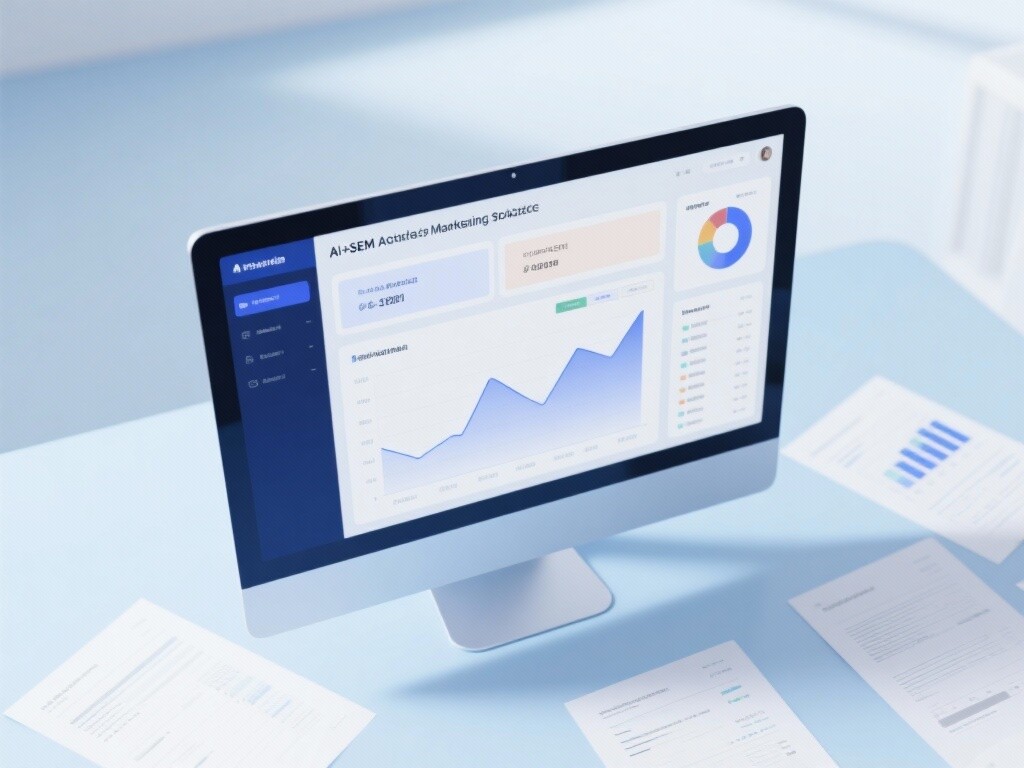
 AI+SEM Intelligent Advertising Marketing SystemAI+SEM drives intelligent ad creation, empowering full-funnel precision advertising marketing. The system automatically generates weekly/monthly reports, AI recommends keywords and target countries, monitors core metrics in real-time with intelligent alerts, and enables one-click high-conversion ad solutions to help quickly acquire customers and improve ROI.
 AI+SEO Dual-Engine System Optimization ServicesYiyingbao’s AI+SEO dual-engine optimization system helps foreign trade enterprises acquire high-quality organic traffic through AI-powered keyword research, content generation, and comprehensive technical optimization, significantly improving search rankings and conversion rates.
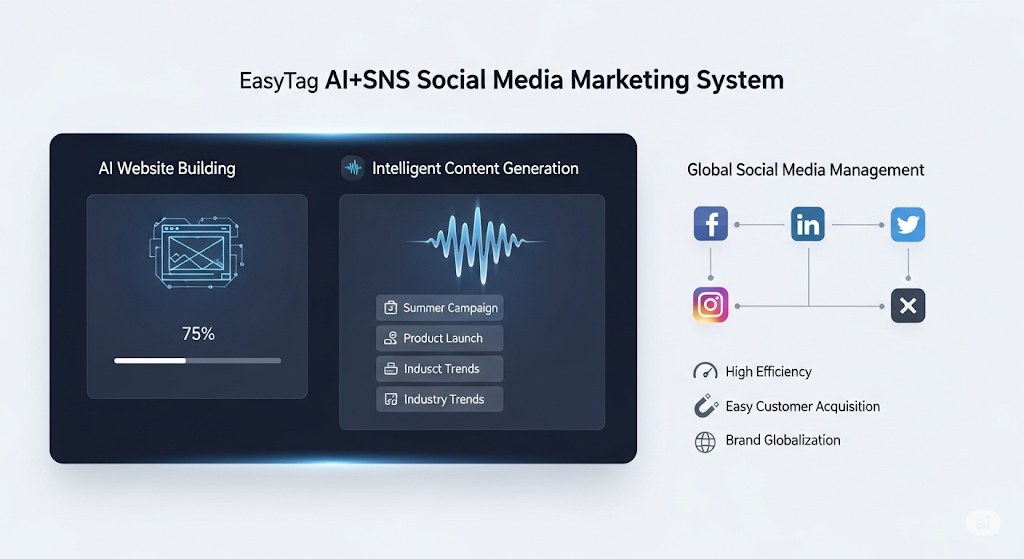
 AI+SNS Social Media Marketing SystemYingbao AI+SNS Social Media Marketing System - Precision social capture for the social media era. Supports one-click content synchronization across major platforms like Facebook and LinkedIn. AI intelligently rewrites posts for enhanced relevance. 24/7 AI customer service and user profiling analysis empower businesses to efficiently expand into global markets.
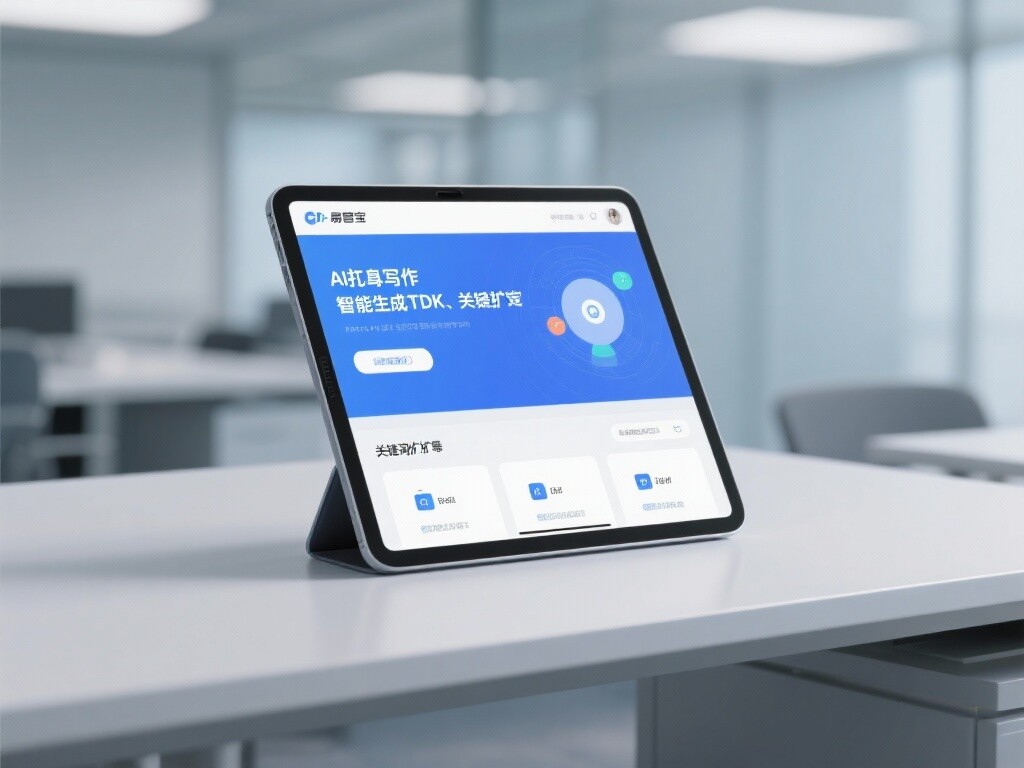
 AI+SEO营销解决方案易营宝AI+SEO营销解决方案,通过AI批量写作、智能生成TDK、精准关键词扩词等功能,全面优化网站SEO效果,提升流量与转化率。助力企业构建高效智能网站新生态。
 AI+SEM Advertising Marketing SolutionsAI+SEM Advertising Marketing Solution leverages AI technology to deeply empower SEM ad campaigns. It automatically generates weekly/monthly reports using AI, presenting account data across multiple dimensions for comprehensive insights into campaign performance and trends. The system precisely recommends keywords and target countries, intelligently generates high-conversion ad copy, and enables one-click activation of efficient campaign plans to help businesses rapidly acquire customers. Simultaneously, it monitors core metrics in real time, intelligently identifies abnormal fluctuations, and issues timely alerts to ensure stable, high-return advertising results.
 Domain Name ServicesEasyWin provides professional domain name services, including intelligent queries, one-stop registration, brand protection, and full lifecycle management, helping businesses build a digital brand image.
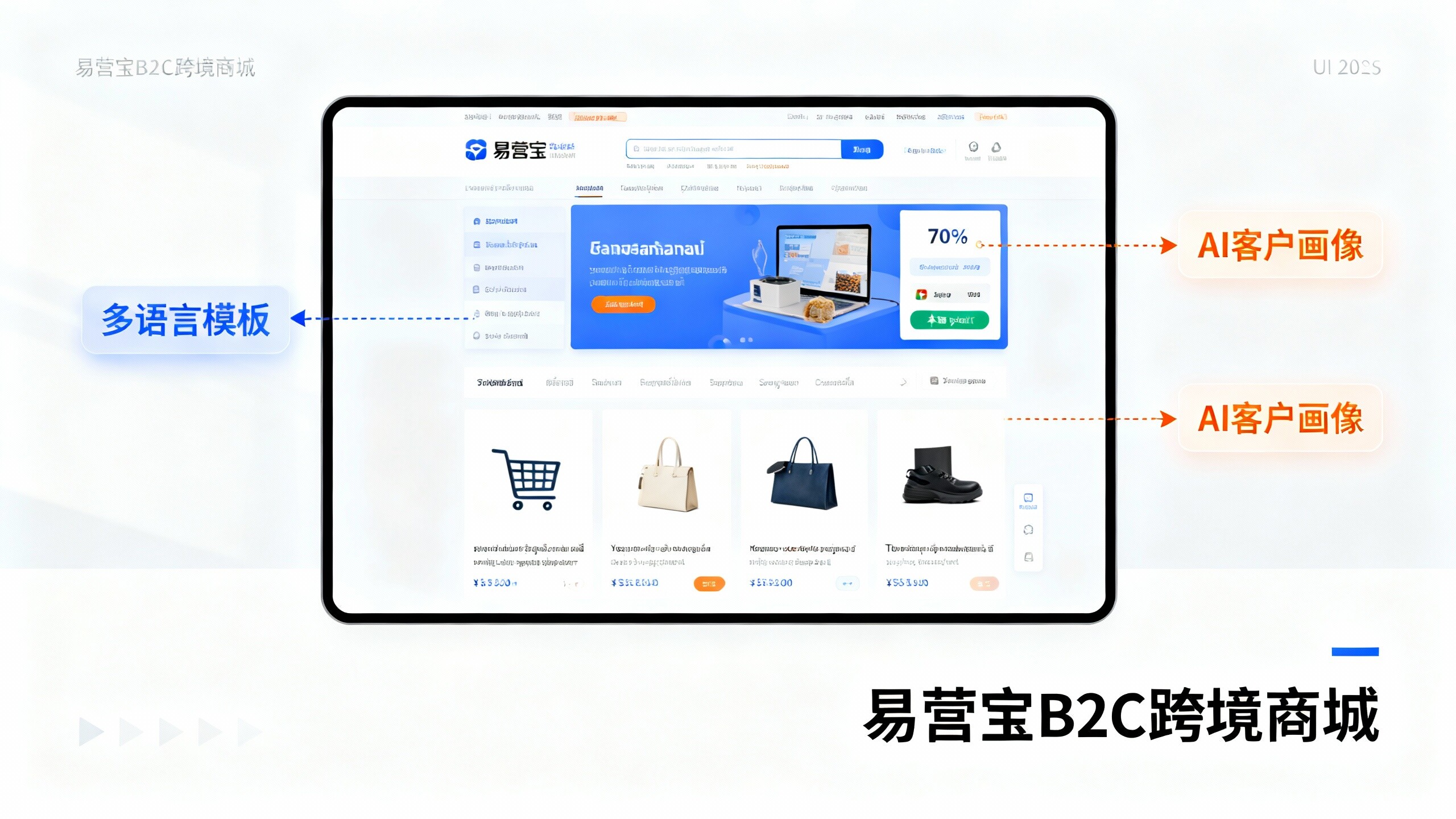
 EasyOperate B2C Cross-Border E-Commerce Platform & Independent WebsiteEasyStore B2C Cross-border E-commerce Independent Store is an intelligent website building and cross-border e-commerce integrated solution independently developed by EasyStore Information Technology (Beijing) Co., Ltd. The system is specially designed for small and medium-sized as well as large export enterprises, integrating 'website building, operation, marketing, advertising, and conversion' into one, helping enterprises quickly establish cross-border e-commerce independent stores to achieve brand globalization and global sales growth.
The platform supports multiple languages, multiple currencies, and multi-channel marketing, with built-in AI intelligent translation and SEO optimization systems, suitable for mainstream markets such as Southeast Asia, Europe and America, Latin America, and the Middle East, assisting Chinese manufacturing enterprises in efficiently deploying international e-commerce strategies. SSL证书易营宝提供专业SSL安全证书服务,包括单域名和泛域名证书,确保网站数据传输加密、身份验证和完整性保护,助力企业建立安全可信的在线业务环境。