








- What stages does the cross-border services ecosystem include? How do website building, promotion, payment, and compliance work togetherJun 22, 2026View details
- How will email marketing costs change in 2026Jun 22, 2026View details
- The China-US tariff arrangement has reached a preliminary consensus, and the trade association will be establishedJun 15, 2026View details
- Should overseas brand marketing start with ads or contentJun 21, 2026View details
- What determines B2C cross-border e-commerce website development costs? A breakdown of features, interfaces, and deployment methodsJun 17, 2026View details
- China-Morocco zero-tariff access, a breakthrough in the cost of Moroccan goods exports to ChinaJun 11, 2026View details
How to view WhatsApp linked devices?
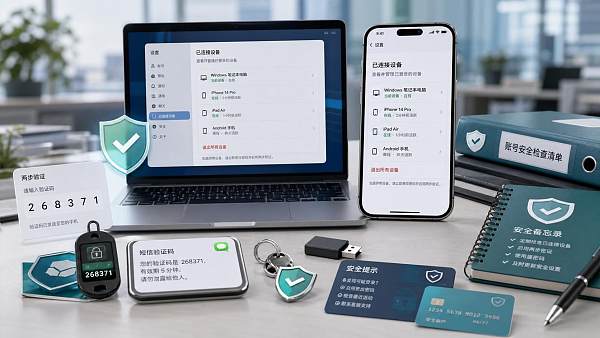
Want to know how to view WhatsApp linked devices? Whether for account security checks or for managing multi-device login status, knowing the correct way to view them is very important. This article will quickly walk you through the steps and precautions.
How to Quickly View WhatsApp Linked Devices
When users search for “how to view WhatsApp linked devices,” the core intent is usually very direct: they want to confirm which computers or browsers their account is currently logged in on, and whether there are any unfamiliar devices.
If you just want a quick check, the easiest way is to open WhatsApp on your phone, go to the “Linked Devices” page, and you can see the list of currently logged-in devices, recent activity, and the logout option.
For most users, this is not only a habit for managing multi-device usage, but also a crucial step in routine account security checks, especially for those who frequently use WhatsApp Web or the desktop version.
Specific Steps to View Linked Devices on a Phone
Different system interfaces may vary slightly, but the operating logic is basically the same. First, open the main WhatsApp app, make sure you are logged into the account you want to check, and then go to the settings page.
On iPhone, generally tap “Settings” at the bottom, then find “Linked Devices.” On Android phones, usually tap the menu in the top right corner, then enter the “Linked Devices” option to view detailed information.
After entering, you will see the names of linked computers, browsers, or desktop devices, and some devices will also show the most recent active time. This can help you determine whether these logins were all made by you.
If the page only shows devices you are familiar with, it usually means the account status is normal; if unfamiliar device names, unusual locations, or suspicious login times appear, you should deal with them immediately and not delay.
What Information You Need to See to Truly Understand Device Status
Many people can open the “Linked Devices” page, but do not know what to focus on. In fact, device names, active status, and login times are the core information for judging risk.
First, look at the device type, such as a Windows computer, Mac, browser tab, or desktop client. If you have never logged in on a certain type of device before, yet a corresponding record suddenly appears, you should be cautious.
Next, look at the recent activity. If a device shows it was active recently, but you are not using it at the moment, you need to suspect whether there is a risk of someone else accessing the account.
Finally, combine this with your own usage habits. For example, if you have logged into WhatsApp Web on a company computer before, but forgot to log out after leaving the job or changing computers, such old devices should also be removed in time.
What to Do After Discovering an Unfamiliar Device
If you find an unfamiliar device in the WhatsApp linked devices list, the safest approach is to log it out immediately, rather than waiting a few days before taking action.
On the “Linked Devices” page, tap the corresponding device and you will usually see a “Log out” or “Sign out” option. After doing so, that device will no longer be able to continue accessing your WhatsApp conversations.
If you cannot determine which device is risky, you can also choose to log out of all linked devices directly. This will require logging back in on your usual devices, but the security level will be higher and it is better suited to urgent situations.
After logging out, it is recommended to check whether the phone is abnormal, whether anyone has accessed your verification code, and enable two-step verification as soon as possible to reduce the chance of the account being abused again from the source.
Why Businesses and Cross-Border Operators Should Pay More Attention to This Feature
For ordinary users, viewing linked devices is mainly about privacy protection; but for foreign trade companies, cross-border e-commerce teams, and overseas marketing staff, it is also related to customer data, communication records, and business security.
Many teams log in to WhatsApp on multiple computers for customer service replies, lead follow-up, and order communication. Without regular checks, departing employees or shared devices may create information leakage risks.
Especially when WhatsApp is used for overseas inquiry communication, chat records often involve quotations, payment arrangements, and customer preferences—sensitive information. Once device management becomes chaotic, the consequences are not only account risk, but also business losses.
Therefore, companies are advised to incorporate linked device checks into their daily account management process, combined with permission allocation, device cleanup, and security verification mechanisms, to reduce data risks in overseas marketing channels.
How to Reduce Security Risks Brought by Multi-Device WhatsApp Logins
Checking linked devices is only the first step; what really works is building consistent security habits. Especially for people who use WhatsApp for long-term business communication, avoid the problem of “logging in only, not managing.”
A practical approach is to regularly check linked devices, such as once a week or once a month, to confirm whether there are old computers, public devices, or browser sessions that are no longer in use.
At the same time, try not to log in to WhatsApp Web on internet cafes, temporary exhibition computers, or shared devices. If you must use them, be sure to log out on the spot after finishing, and then confirm through your phone that the logout was successful.
In addition, enabling two-step verification, protecting the phone unlock permission, and avoiding exposure of SMS verification codes are all basic but effective protective actions that can significantly reduce the chance of the account being stolen and logged in.
Final Note: It Is More Important to Manage Than to View
How to view WhatsApp linked devices is actually not complicated; the key is whether, after checking, you can correctly determine whether the device is safe and take action in time.
If you are only using it personally, regular checks are enough; if you use WhatsApp for foreign trade lead generation, cross-border e-commerce customer service, or overseas customer communication, then you need to manage it as part of business security.
Developing the habit of checking, identifying, logging out, and protecting comprehensively is the only way to truly reduce the risks brought by multi-device logins, allowing WhatsApp to improve communication efficiency while still maintaining sufficient security.
Related Articles
Related Products
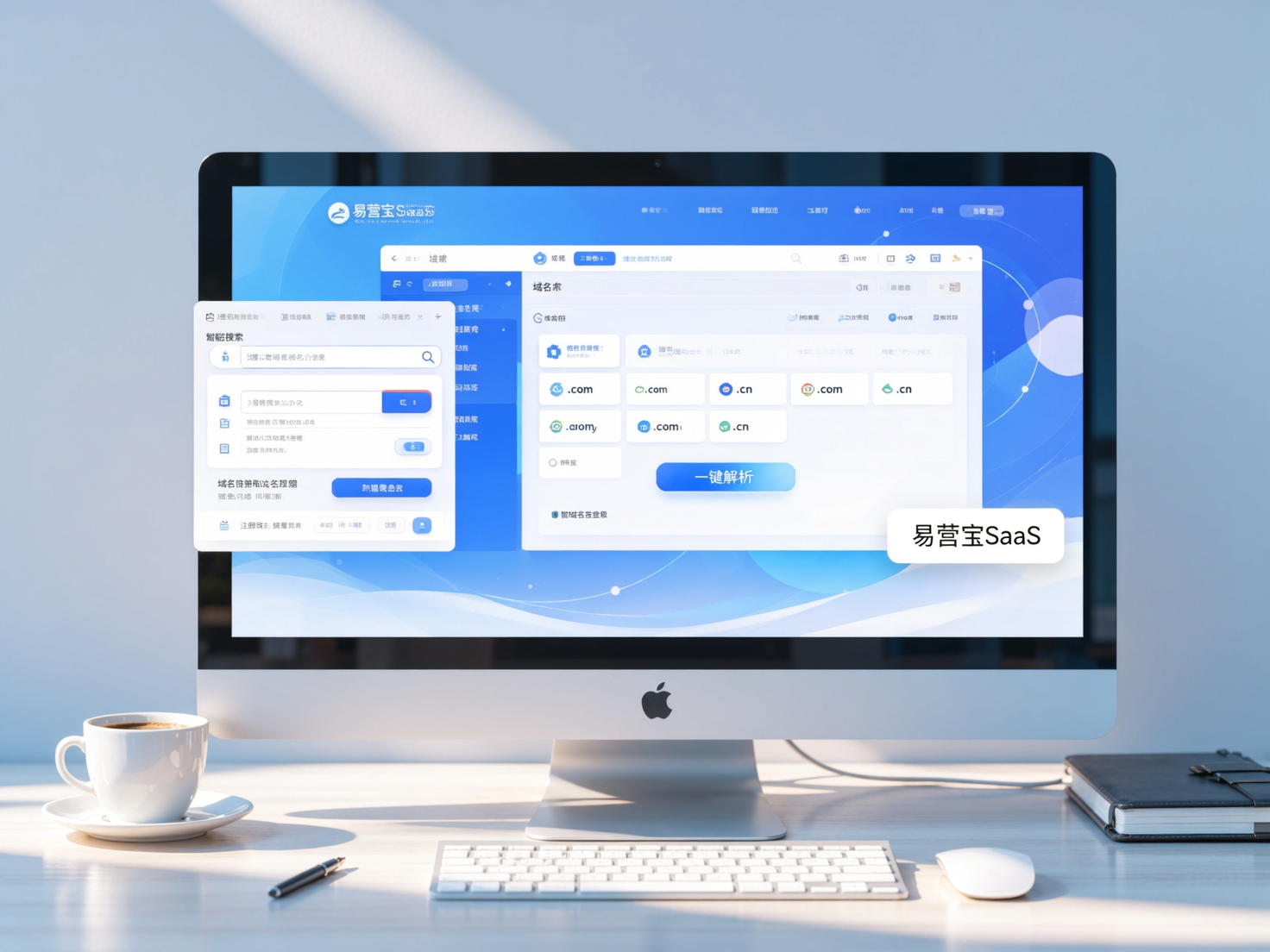
 EasyCamp SaaS Smart Website Marketing SystemE-Yingbao SaaS Smart Website Marketing System: AI-powered, zero-code website building. Rapidly launch multilingual independent e-commerce sites in just 10 minutes. Global server acceleration and AI-driven SEO optimization empower businesses to efficiently connect with global markets. The seamless integration of technology and user-friendly operation makes building e-commerce sites incredibly simple.
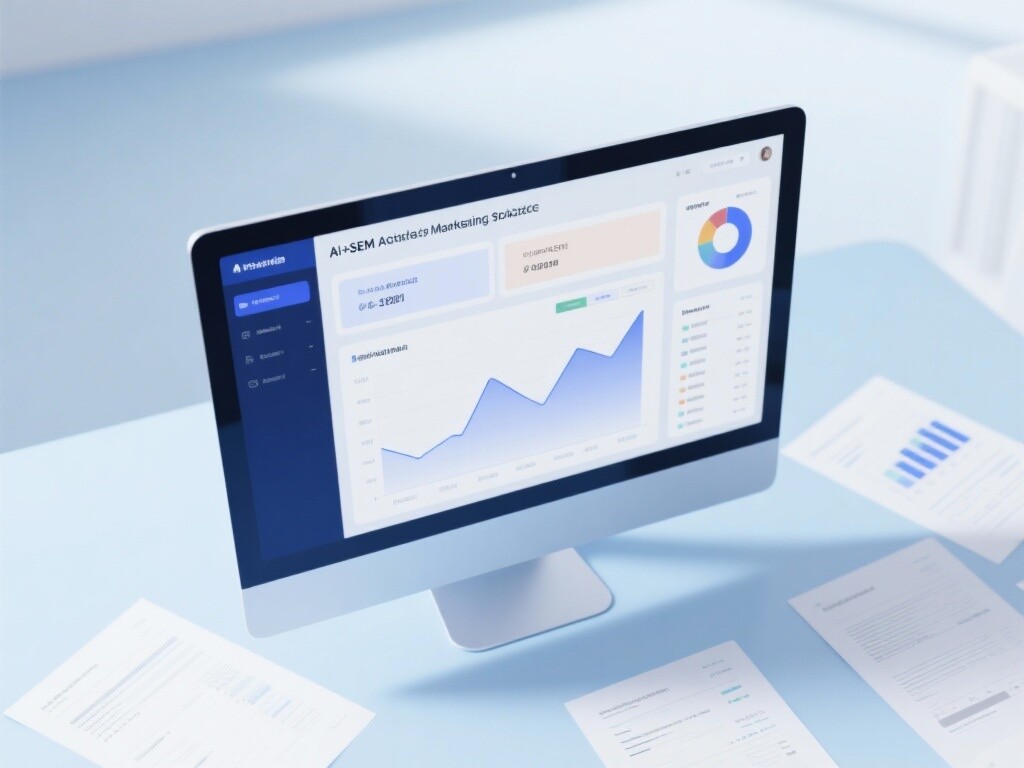
 AI+SEM Intelligent Advertising Marketing SystemAI+SEM drives intelligent ad creation, empowering full-funnel precision advertising marketing. The system automatically generates weekly/monthly reports, AI recommends keywords and target countries, monitors core metrics in real-time with intelligent alerts, and enables one-click high-conversion ad solutions to help quickly acquire customers and improve ROI.
 AI+SEO Dual Engine Optimization ServiceEasyWin AI+SEO Dual Engine Optimization System leverages AI-powered keyword mining, content generation, and comprehensive technical optimization to help foreign trade enterprises acquire high-quality organic traffic, significantly improving search rankings and conversion rates.
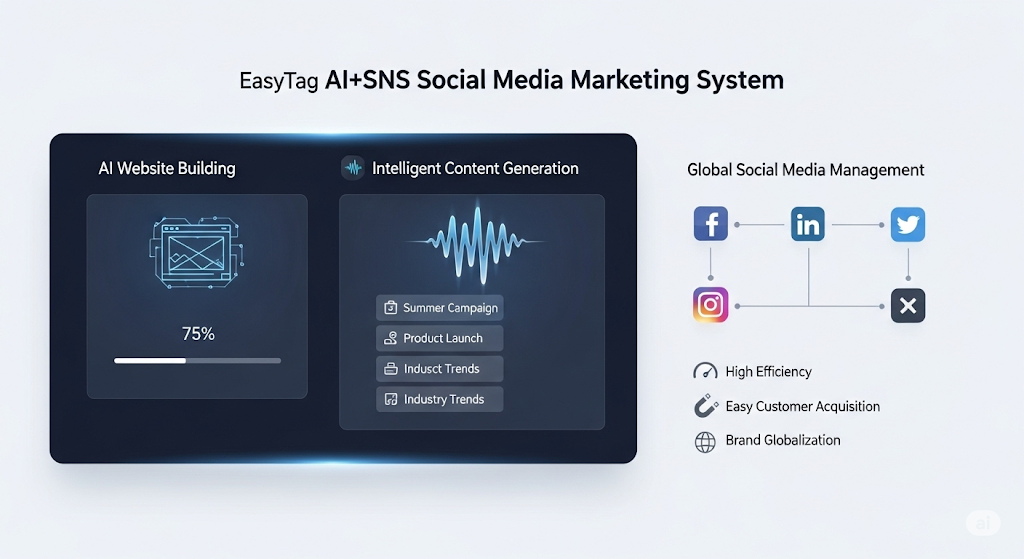
 AI+SNS Social Media Marketing SystemYingbao AI+SNS Social Media Marketing System - Precision social capture for the social media era. Supports one-click content synchronization across major platforms like Facebook and LinkedIn. AI intelligently rewrites posts for enhanced relevance. 24/7 AI customer service and user profiling analysis empower businesses to efficiently expand into global markets.
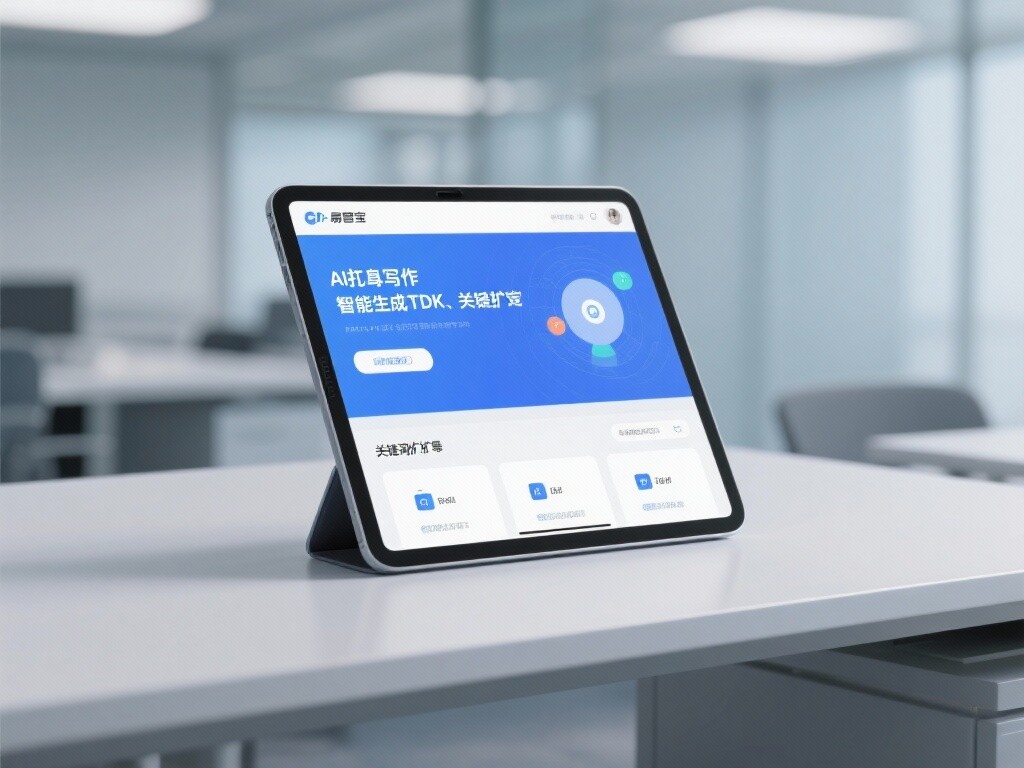
 AI+SEO营销解决方案易营宝AI+SEO营销解决方案,通过AI批量写作、智能生成TDK、精准关键词扩词等功能,全面优化网站SEO效果,提升流量与转化率。助力企业构建高效智能网站新生态。
 AI+SEM Advertising Marketing SolutionsAI+SEM Advertising Marketing Solution leverages AI technology to deeply empower SEM ad campaigns. It automatically generates weekly/monthly reports using AI, presenting account data across multiple dimensions for comprehensive insights into campaign performance and trends. The system precisely recommends keywords and target countries, intelligently generates high-conversion ad copy, and enables one-click activation of efficient campaign plans to help businesses rapidly acquire customers. Simultaneously, it monitors core metrics in real time, intelligently identifies abnormal fluctuations, and issues timely alerts to ensure stable, high-return advertising results.
 Domain Name ServicesEasyWin provides professional domain name services, including intelligent queries, one-stop registration, brand protection, and full lifecycle management, helping businesses build a digital brand image.
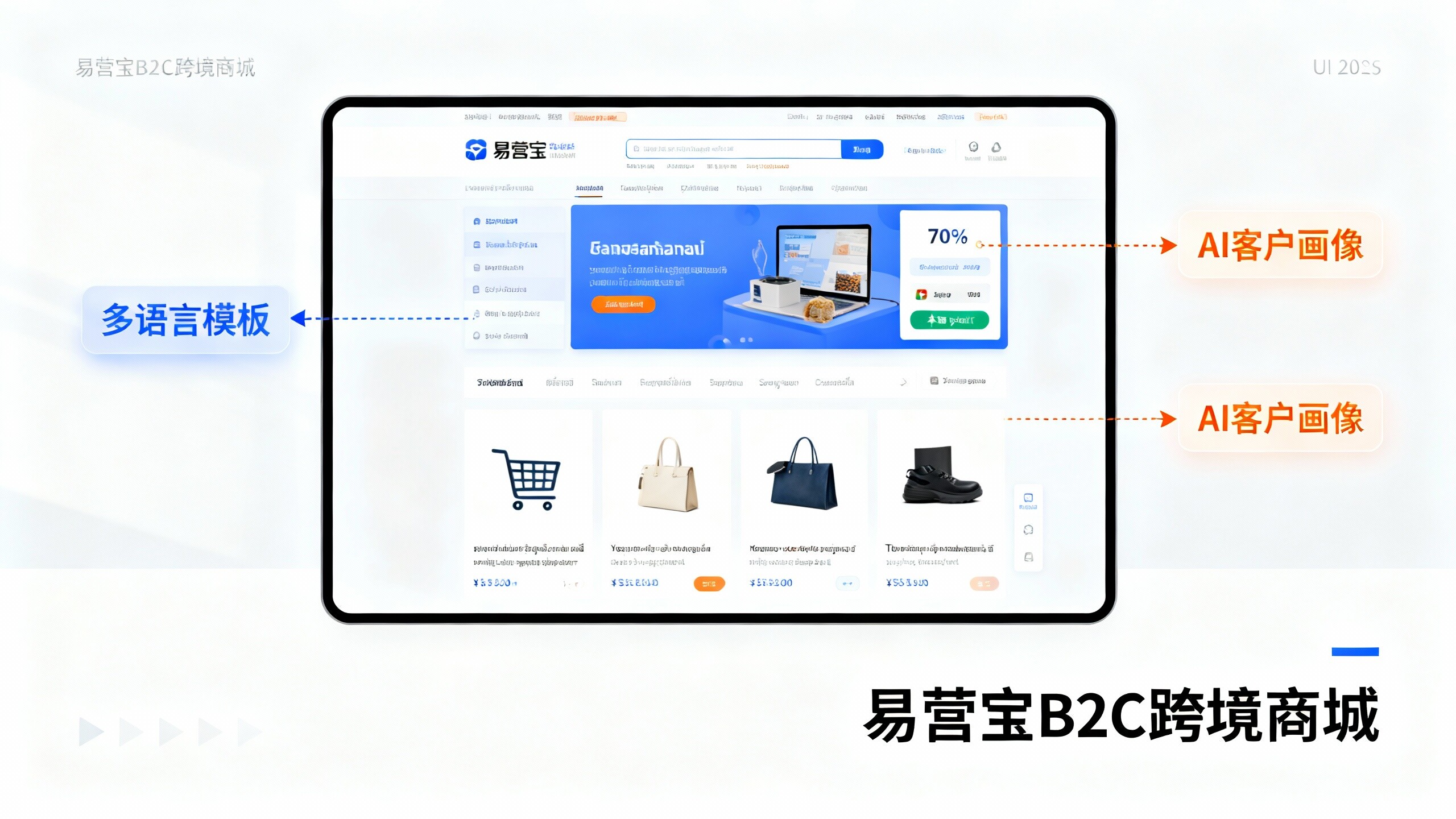
 EasyOperate B2C Cross-Border E-Commerce Platform & Independent WebsiteEasyStore B2C Cross-border E-commerce Independent Store is an intelligent website building and cross-border e-commerce integrated solution independently developed by EasyStore Information Technology (Beijing) Co., Ltd. The system is specially designed for small and medium-sized as well as large export enterprises, integrating 'website building, operation, marketing, advertising, and conversion' into one, helping enterprises quickly establish cross-border e-commerce independent stores to achieve brand globalization and global sales growth.
The platform supports multiple languages, multiple currencies, and multi-channel marketing, with built-in AI intelligent translation and SEO optimization systems, suitable for mainstream markets such as Southeast Asia, Europe and America, Latin America, and the Middle East, assisting Chinese manufacturing enterprises in efficiently deploying international e-commerce strategies. SSL证书易营宝提供专业SSL安全证书服务,包括单域名和泛域名证书,确保网站数据传输加密、身份验证和完整性保护,助力企业建立安全可信的在线业务环境。