








- Maersk Adjusts Middle East Emergency Operating Cost Recovery Surcharge to USD 2,000 per ContainerOct 30, 2026View details
- Ministry of Commerce: Online retail sales grew 4.4% in the first three quarters, while cross-border e-commerce maintained relatively rapid growthOct 29, 2026View details
- CCTV reports: AI-powered smart hardware is expanding overseas at a faster pace, with orders for some best-selling products booked through next yearOct 29, 2026View details
- Alphabet Q3 Earnings: Google Search Advertising Revenue Rises 10.5% to $82 BillionOct 29, 2026View details
- AliExpress Announces New Service Rules for Russia, Linked to Wildberries Product IntegrationOct 28, 2026View details
- Black Friday Preparations Enter the Final Sprint Week as Cross-Border E-Commerce Platforms Roll Out Their PlansOct 28, 2026View details
How to Create a Facebook Page for Your Business: Profile Setup, Contact Options, and Pre-Launch Checklist
Successfully creating a company Facebook Page does not mean it is ready to handle customer inquiries. A Page is truly ready to go live when customers can find the correct brand, understand its core business, and reach the right person through messages, the website, or other contact channels—and when the company can manage the Page on an ongoing basis without relying on one employee’s account.
When setting up a company Facebook Page (configurer facebook pour une entreprise), focus on the Page information, contact paths, and access permissions. You do not need to run ads before creating a Page. Meta Business tools are not the Page itself; they are primarily used to centrally manage assets such as Pages, people, and ads.
Before creating a Page, confirm account and information ownership
Use a personal account that complies with the platform’s requirements to create and manage the Page. Do not rename a personal account as the company to use it in place of a business Page, and do not share one login password among multiple people. The personal account is used for login and access management; the company Page is the public-facing presence for customers.
Prepare the public-facing brand name, business category, description, website URL, business email address, phone number, and brand images. Ideally, the name, domain, and email address should corroborate one another. If your website uses an English brand name but the Page only lists the company’s full Chinese name, overseas customers may find it difficult to confirm that they are the same business.
Before creating a Page, search for any existing Pages with the same name. If a usable Page already exists, first confirm who has access to manage it. This helps prevent the creation of duplicate Pages with two points of contact and two message inboxes.
Create the Page from the Pages section and choose the name and category carefully
After logging in to Facebook, find “Pages” in the menu and open the option to create a new Page. Follow the on-screen instructions to enter the name, category, and description. The entry point may differ between desktop and mobile devices and across account versions, so follow the current interface. If you cannot find the create button, try opening the Pages menu in a desktop browser.
- Page name: Use the genuine, established name of your public-facing brand. Do not pack the name with product terms, country names, contact details, or promotional slogans.
- Business category: Choose the available category that most closely matches your actual business, such as manufacturer, supplier, or the relevant product or service category. Options depend on the interface, and a category cannot replace a description of your core business.
- Description: Explain what you supply, its main applications, and the services you offer. Describe customization, wholesale, or after-sales capabilities only when they reflect your actual business. Avoid vague claims such as “high-quality products, professional service.”
After creating the Page, check its username and URL. The username differs from the display name and should align with your website brand and other social media accounts where possible, making the Page easier to find and share. Whether a username is available and can be set immediately depends on platform rules and account status.
Set up the Page information so customers can quickly assess whether your business is a fit
Use a brand logo for the profile picture that remains clear when displayed at a small size. The cover image can show core products, applications, or business positioning, but avoid placing key contact details near the edges, as cropping may vary across devices. After uploading, check how it appears on both mobile and desktop.
Add your website, email, phone number, address, and business hours in the Page’s “Intro,” “About,” or profile editing section. If you do not receive visitors at a public-facing location, do not invent a storefront address just to fill in the information. When setting business hours, account for time-zone differences so customers do not assume they will receive an immediate reply at any time.
Choose languages to suit your primary markets. For a Page targeting English-speaking customers, use clear English for the core introduction and contact information. If you need to serve multiple markets, you can prepare content in different languages, but avoid stacking several languages in a single description. Product names and service offerings on the Page should also match those on your website.
Make sure contact buttons lead to channels that are actively monitored
Edit the Page’s action button and select an option that matches how you actually handle inquiries. Available buttons may vary by region, category, and interface version. You do not need to enable every option; what matters is that customers can take the next step after clicking.
- Send Message: Suitable for inquiries that require an initial discussion of specifications, quantities, or customization requirements. After enabling it, check your message settings, notifications, and inbox permissions, and make clear who is responsible for replying.
- Visit Website: Link to a relevant product or inquiry page rather than simply to the homepage. The destination should work on mobile, the form should submit successfully, and the notification should reach the correct inbox.
- WhatsApp: If the option is available in the interface, link your business number as instructed and complete verification. Before making it public, confirm number ownership, the international dialing code, and your arrangements for handling inquiries.
- Phone or email: Use business contact details that will remain valid over time, so the contact channel does not stop working if an employee leaves.
An automated reply can state your service hours and ask customers to provide details such as product, quantity, and destination, but it cannot replace human follow-up. Do not promise a response time you cannot meet, and do not ask customers to post sensitive order details in public comments.

Before going live, test the entire customer journey as a visitor
Do not rely solely on the administrator interface to confirm that “the information has been saved.” Switch to a visitor view or ask a colleague who is not involved in managing the Page to visit it and check the public content and buttons. Also test it on a mobile device to ensure that it works beyond the desktop view.
- Can customers identify the business? Search for the brand and check whether the correct Page appears, the profile picture, cover, and description are clear, and the Page name matches the website.
- Can customers get in touch? Send a test message and click the website and other contact buttons to confirm that the links, numbers, and receiving channels are correct.
- Can customers submit an inquiry? Submit a test inquiry and check the success message, email notification, and reply path. Do not treat “the form opens” as a complete test.
- Are there any restrictions? Check for inadvertently enabled age or location restrictions and any platform alerts about the information, account, or Page status.
Before promoting the Page publicly, publish a clear introduction to your core business, along with genuine product or application information, so visitors do not have to rely on the cover image to understand what the company does. Claims about specifications, qualifications, and delivery commitments should be substantiated.
Access permissions are also part of the launch check. Enable two-factor authentication for administrators, assign permissions according to responsibilities through “Page access” or tools such as Meta Business Suite, and never share passwords. Give external collaborators only the permissions they need, and remove them promptly when they leave or the engagement ends. People with full control should also confirm that account recovery methods work, so the Page is not left without an administrator if a single account becomes unavailable.
A Page is ready for public promotion only when visitors can understand the business, contact channels have been tested end to end, and internal access can be handed over on an ongoing basis. If a button does not work, messages are not being received, or the website form cannot be submitted, fix the issue before directing traffic to the Page.
Related Articles
 Can you acquire overseas customers cost-effectively on TikTok without running ads?
 How can you track website inquiries generated by LinkedIn B2B campaigns?
 How can you troubleshoot inaccurate inquiries from EasyYingbao TikTok campaigns targeting overseas customers?

Related Products
 Yiyingbao SaaS Intelligent Website Building and Marketing SystemYiyingbao SaaS Intelligent Website Building and Marketing System, AI-powered no-code website building, rapid creation of multilingual B2B international websites in 10 minutes, global server acceleration, AI-powered SEO optimization, helping businesses connect efficiently with global markets. The perfect integration of technology and operation makes building an international trade website remarkably simple
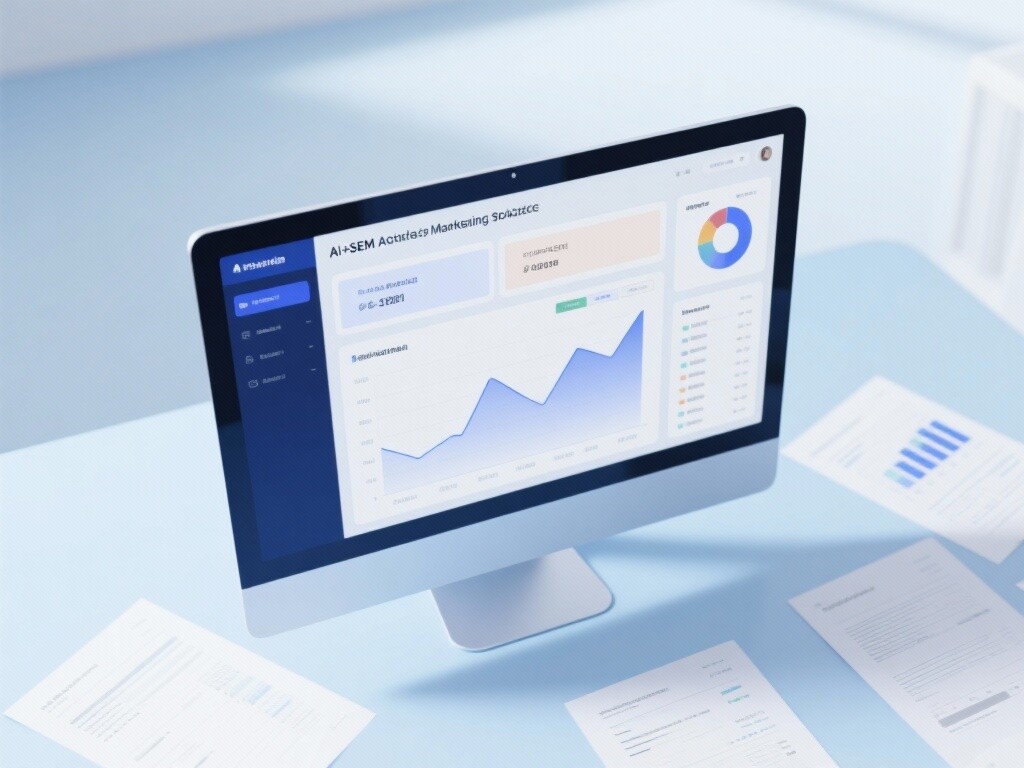
 AI+SEM Intelligent Advertising Marketing SystemAI+SEM drives intelligent ad creation, empowering full-funnel precision advertising marketing. The system automatically generates weekly/monthly reports, AI recommends keywords and target countries, monitors core metrics in real-time with intelligent alerts, and enables one-click high-conversion ad solutions to help quickly acquire customers and improve ROI.
 AI+SEO Dual-Engine System Optimization ServicesYiyingbao’s AI+SEO dual-engine optimization system helps foreign trade enterprises acquire high-quality organic traffic through AI-powered keyword research, content generation, and comprehensive technical optimization, significantly improving search rankings and conversion rates.
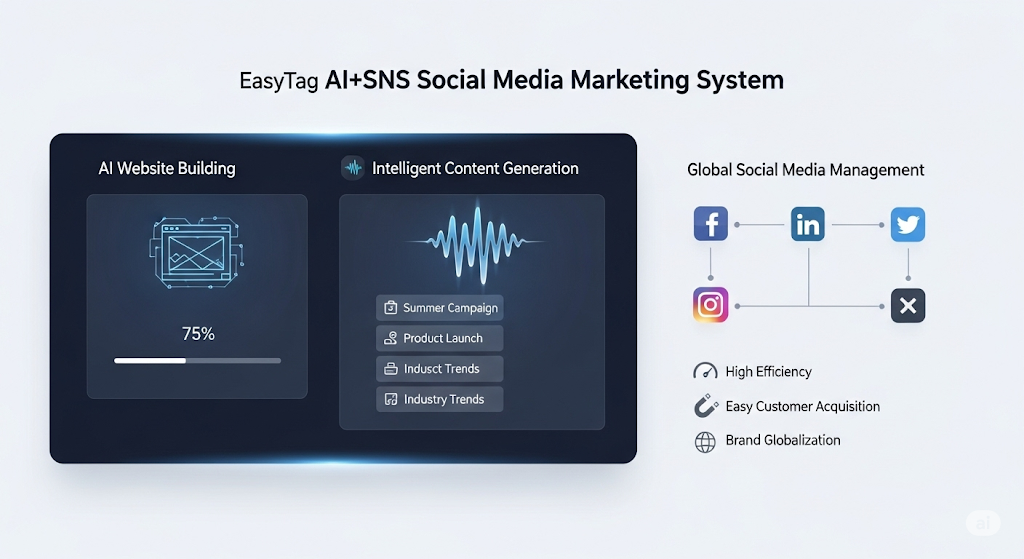
 AI+SNS Social Media Marketing SystemYingbao AI+SNS Social Media Marketing System - Precision social capture for the social media era. Supports one-click content synchronization across major platforms like Facebook and LinkedIn. AI intelligently rewrites posts for enhanced relevance. 24/7 AI customer service and user profiling analysis empower businesses to efficiently expand into global markets.
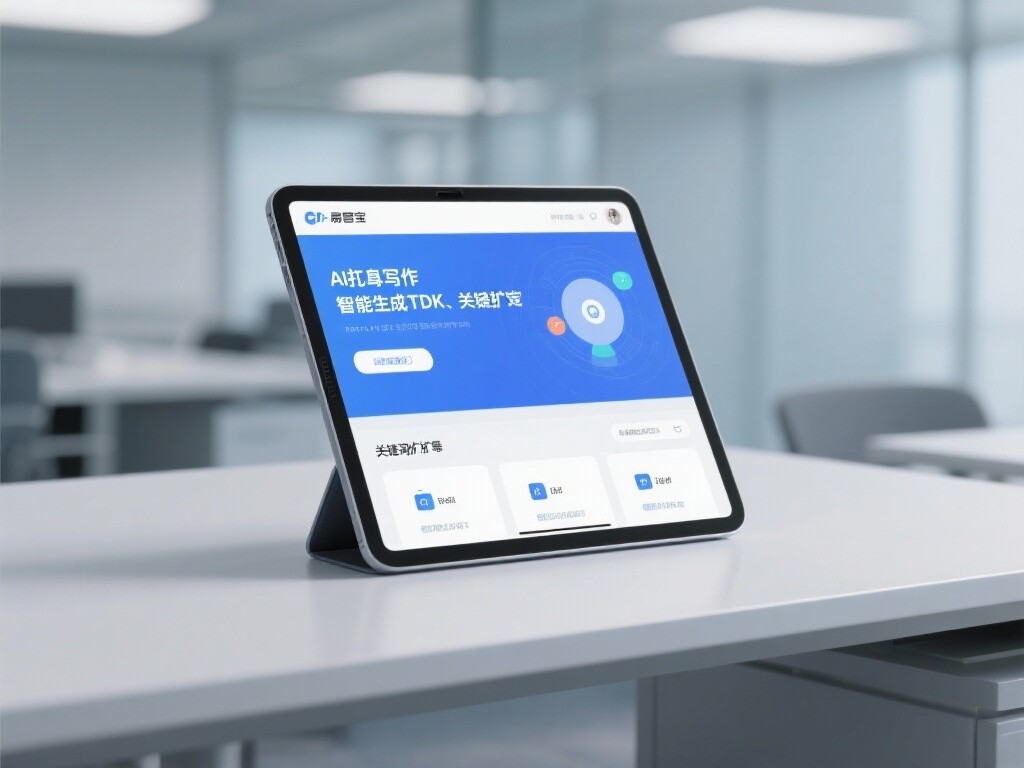
 AI+SEO营销解决方案易营宝AI+SEO营销解决方案,通过AI批量写作、智能生成TDK、精准关键词扩词等功能,全面优化网站SEO效果,提升流量与转化率。助力企业构建高效智能网站新生态。
 AI+SEM Advertising Marketing SolutionsAI+SEM Advertising Marketing Solution leverages AI technology to deeply empower SEM ad campaigns. It automatically generates weekly/monthly reports using AI, presenting account data across multiple dimensions for comprehensive insights into campaign performance and trends. The system precisely recommends keywords and target countries, intelligently generates high-conversion ad copy, and enables one-click activation of efficient campaign plans to help businesses rapidly acquire customers. Simultaneously, it monitors core metrics in real time, intelligently identifies abnormal fluctuations, and issues timely alerts to ensure stable, high-return advertising results.
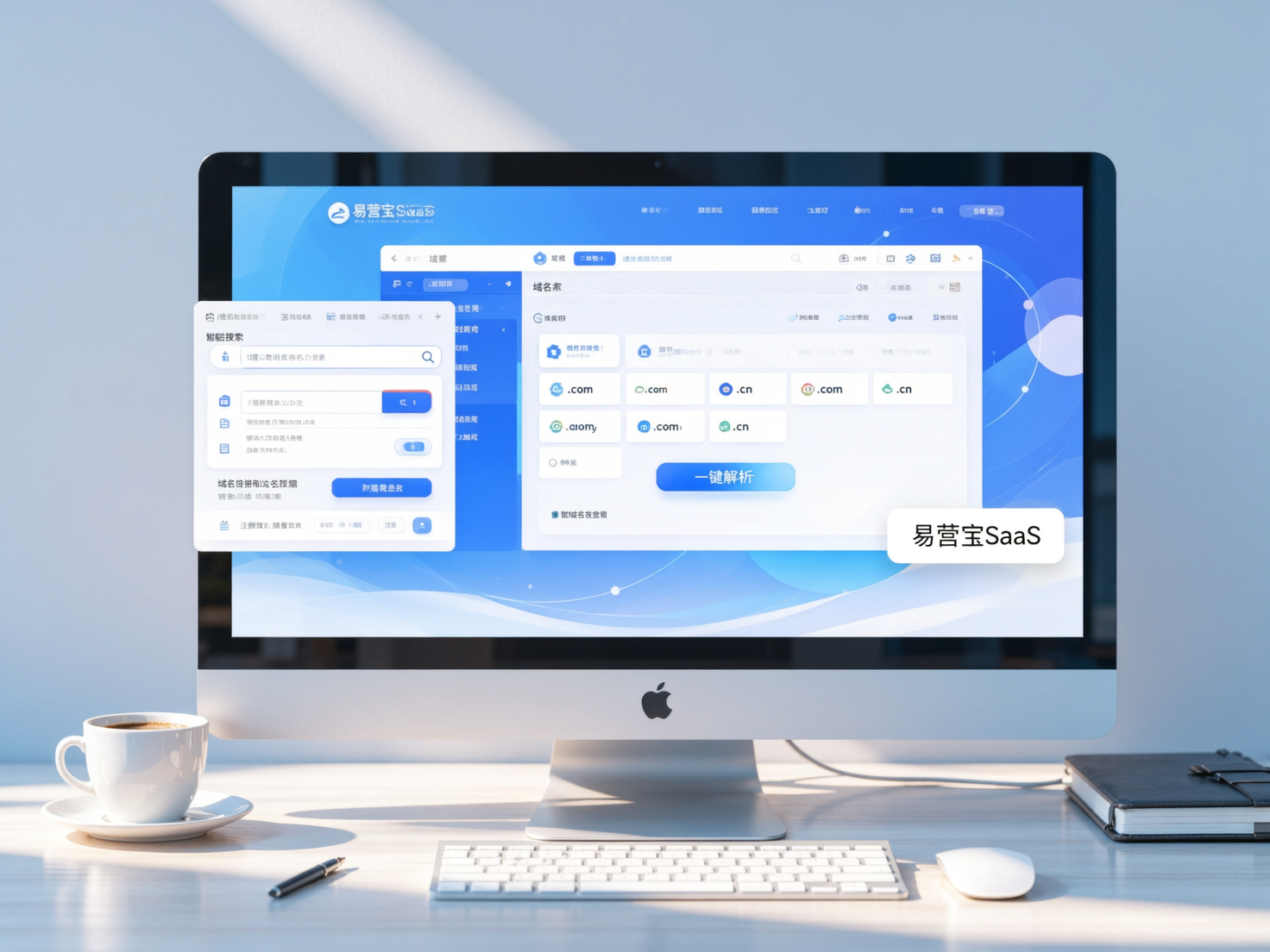
 Domain Name ServicesEasyWin provides professional domain name services, including intelligent queries, one-stop registration, brand protection, and full lifecycle management, helping businesses build a digital brand image.
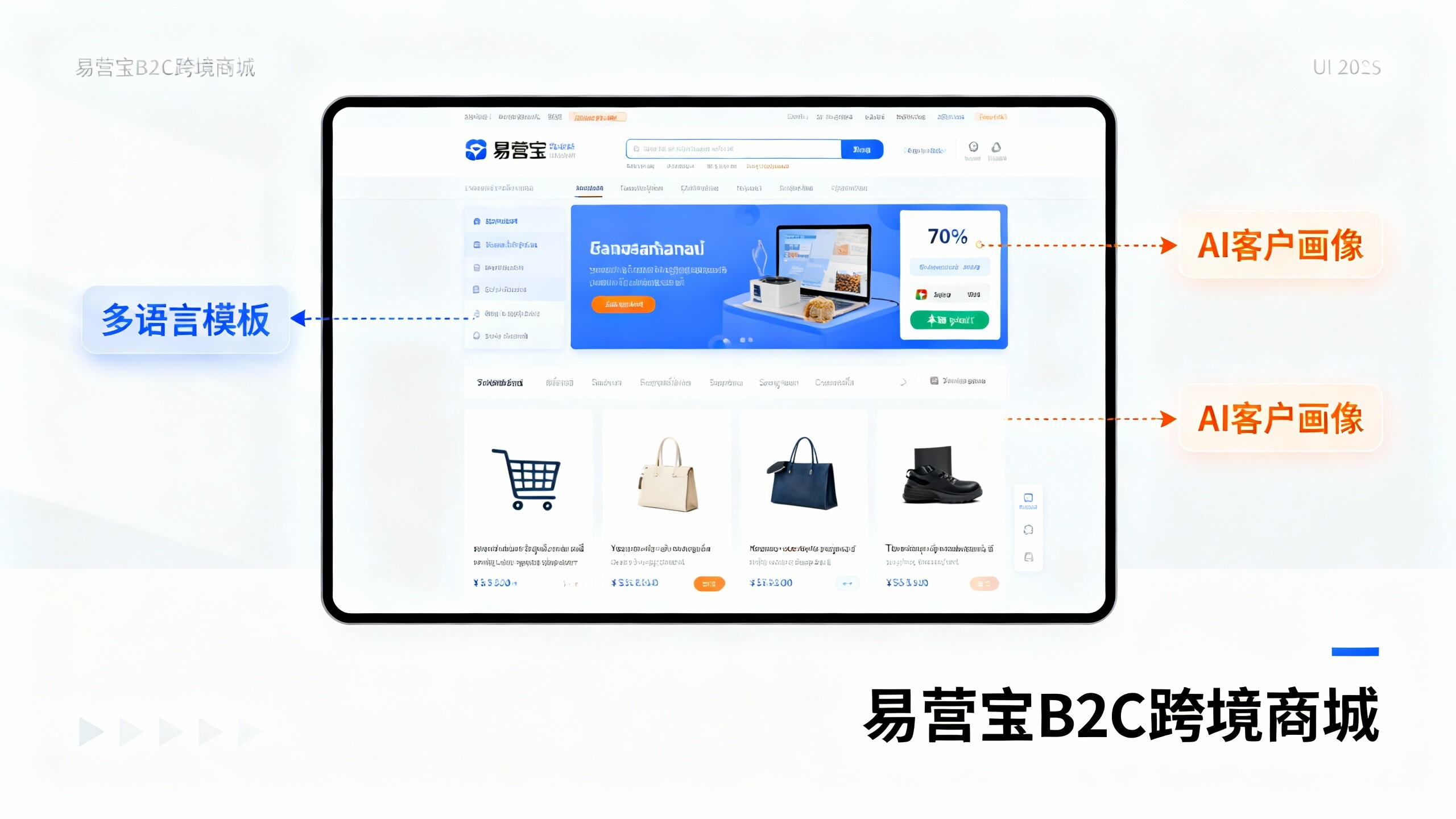
 EasyOperate B2C Cross-Border E-Commerce Platform & Independent WebsiteEasyStore B2C Cross-border E-commerce Independent Store is an intelligent website building and cross-border e-commerce integrated solution independently developed by EasyStore Information Technology (Beijing) Co., Ltd. The system is specially designed for small and medium-sized as well as large export enterprises, integrating 'website building, operation, marketing, advertising, and conversion' into one, helping enterprises quickly establish cross-border e-commerce independent stores to achieve brand globalization and global sales growth.
The platform supports multiple languages, multiple currencies, and multi-channel marketing, with built-in AI intelligent translation and SEO optimization systems, suitable for mainstream markets such as Southeast Asia, Europe and America, Latin America, and the Middle East, assisting Chinese manufacturing enterprises in efficiently deploying international e-commerce strategies. SSL证书易营宝提供专业SSL安全证书服务,包括单域名和泛域名证书,确保网站数据传输加密、身份验证和完整性保护,助力企业建立安全可信的在线业务环境。