




- 21st Century Business Herald: AI and CTV Become Core Growth Engines for Digital Marketing in Overseas MarketsNov 18, 2026View details
- China Presents 25 Cooperation Outcomes in Areas Including Cross-Border E-Commerce During APECNov 18, 2026View details
- AI Products Drive Hong Kong Exports Up 64.9% in September, Fastest Growth in Over 40 YearsNov 17, 2026View details
- National Bureau of Statistics: Foreign trade grew rapidly in October, providing stable support for global tradeNov 17, 2026View details
- The U.S. has ended the $800 de minimis exemption for non-postal shipments; express courier packages must be formally declared.Nov 16, 2026View details
- ASEAN Signs Digital Economy Framework Agreement, Moving Toward Harmonized Cross-Border E-Commerce RulesNov 15, 2026View details
How to troubleshoot when your website isn’t indexed by Google?
If your website is still not appearing in Google search results, first confirm whether the specific page is actually not indexed, then check crawling, indexing settings, and page content. When searching for “google индексировать сайт,” the most common misjudgment is to assume that the entire website is not indexed just because it cannot be found by searching for the website name. In fact, the page may already be indexed but rank lower for the current keyword.
First confirm which URL is not indexed
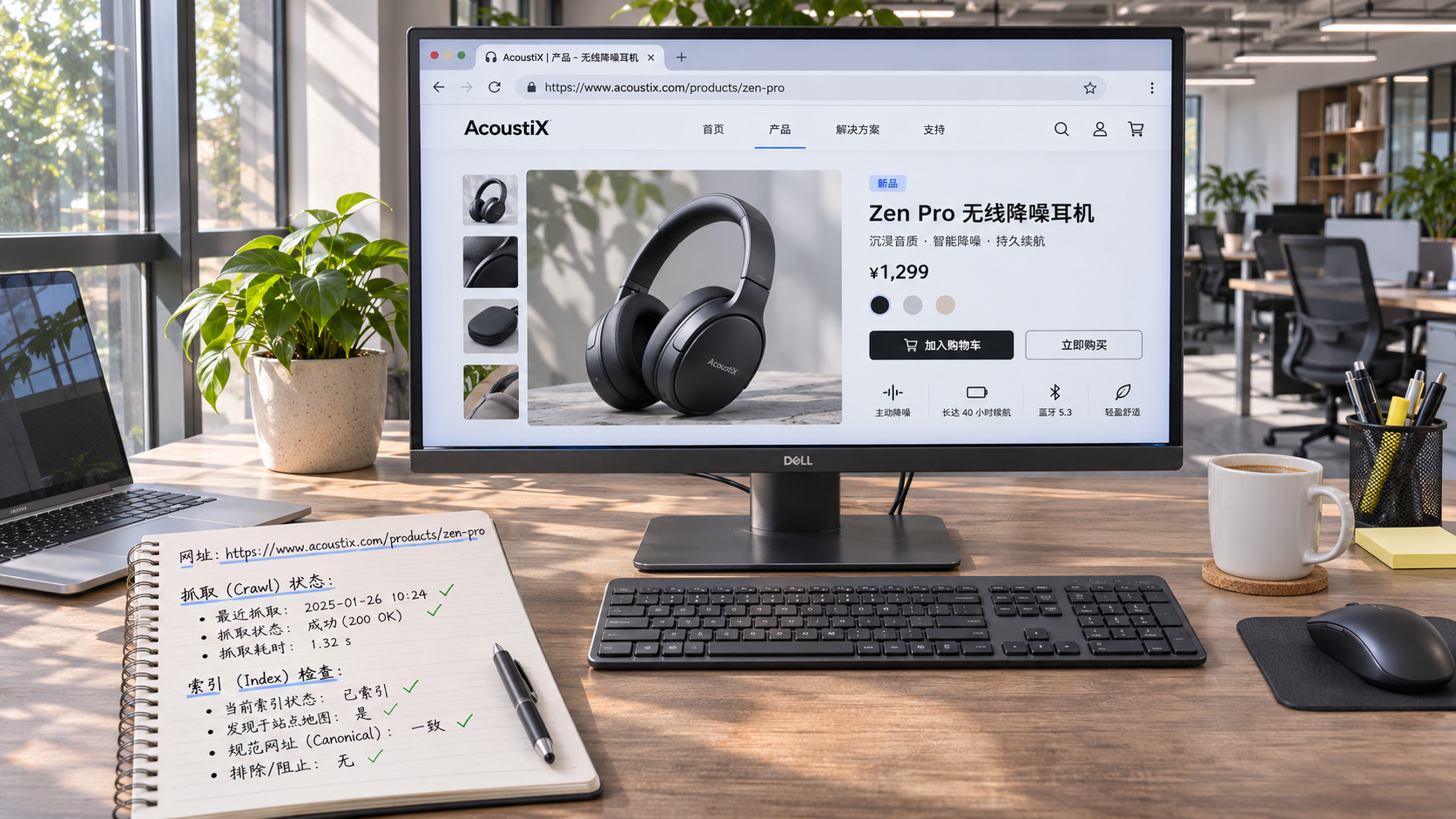
In Google Search Console, select the relevant property and paste the full URL into the “URL Inspection” tool at the top. Pay attention to the protocol, domain, path, and trailing slash: http and https, and URLs with and without www, may be treated as different URLs. Finding the homepage does not mean that product pages or multilingual pages have also been indexed.
If the result says “URL is on Google,” the page has been indexed. Next, focus on the relevance of the search terms to the page content, rankings, and how the page appears in search results. If it says “URL is not on Google,” expand the page indexing details to see the specific reason and the date of the last crawl.
You can also use site:example.com as a supplementary check, but results from this search operator are not guaranteed to be complete, and the result count is not an accurate total of indexed pages. For a single page, refer first to the URL Inspection tool. For the website as a whole, check the “Page indexing” report and bear in mind that report data may lag behind the status of live pages.

Can the page be accessed and crawled?
First, open the target URL in an incognito window and confirm that it can be accessed without logging in, completing a CAPTCHA, or using a network in a specific region. The page should return a normal 200 status. If it returns 404 or 5xx, or repeatedly redirects to an incorrect URL, fix the page and server response first. For pages that have been permanently moved, set up a permanent redirect to the final valid URL, avoiding long redirect chains or loops.
In the URL Inspection tool, run “Test Live URL” to check the live crawl results and the rendered page. This test shows whether the page can be accessed now, while the indexing status reflects information Google has already stored. It is not unusual for the two to temporarily differ just after an issue has been fixed. If the server serves a verification page or denies access to search engine requests, check the firewall, access rate limits, and server logs.
Next, check the robots.txt file in the website’s root directory. If a rule blocks crawling of the target path, search engines may be unable to read the page content and indexing directives on the page. After removing any incorrectly configured blocking rule, test the specific URL again. Note the important distinction: robots.txt controls crawling; blocking crawling by itself cannot reliably prevent a URL from appearing in search results.
If the page relies on JavaScript to display its main content, also check the content rendered by the testing tool: confirm that the product name, description, and key links are present. If the browser displays content but the crawled page is almost empty, check for script-loading, API request, and rendering errors, and make the main content and links accessible to search engines wherever possible.
Check for accidentally added signals that prevent indexing
Check the meta robots tag in the page source and the X-Robots-Tag in the server response headers. If either contains noindex, the page is instructed to be excluded from the index. Staging sites, filter pages, and admin pages sometimes use this setting. If it is copied directly to a live page during launch, it can affect indexing.
To fix this, first ensure that the target page can be crawled, then remove any unnecessary noindex directive so search engines can read the updated instructions. If the page is also blocked from crawling by robots.txt, search engines may not be able to see the noindex directive. Therefore, do not end the investigation after changing just one of these settings.
Also check the canonical URL. It indicates the preferred version. If all product pages incorrectly point to the homepage, search engines may select the homepage as the canonical page instead of indexing those product URLs separately. The “User-declared canonical” and “Google-selected canonical” shown in the URL Inspection tool can help identify discrepancies. A difference between the two does not necessarily indicate a problem; assess it alongside page content, redirects, and internal links.
Why has a page been crawled but not indexed?
The “Crawled – currently not indexed” status in the report means that a search engine visited the page but did not add it to the index at that time. Open the page and check whether the main content is complete, whether it largely duplicates other pages, and whether it consists of only a title and a few parameters. For product detail pages, adding specifications, uses, selection criteria, and frequently asked questions that are directly relevant to the product is more valuable than repeating the same description across multiple pages.
If the status is “Discovered – currently not indexed,” the search engine knows about the URL but has not yet crawled it. Check that the server is stable, that the site does not contain a large number of duplicate or low-value URLs, and that clickable links from relevant category pages point to it. A new page that is only included in the sitemap, with no links from navigation or related pages, can be harder to discover and understand.
For multilingual websites, also check that each language version actually provides content in the corresponding language. Each language page should have its own stable URL, with the relationships between versions indicated using hreflang. This annotation does not guarantee indexing and cannot replace a correctly configured canonical URL. If multiple URLs have almost identical content, first decide which version you want to keep, then align the canonical tags, internal links, and URLs in the sitemap.
How to submit and check again after fixing the issue
After fixing an important individual page, test the live URL again in the URL Inspection tool. Confirm that access, indexing directives, and the canonical URL are as expected, then select “Request Indexing.” For multiple pages, update the XML sitemap to include only URLs that you want indexed, can be accessed normally, and return canonical content, then submit or resubmit it in Search Console.
If the “Page indexing” report shows a relevant issue, use “Validate Fix” after correcting the affected pages. Validation and recrawling take time. Requesting indexing or submitting a sitemap does not guarantee that a page will be indexed, and there is no fixed processing time. While waiting, record the issue types, example URLs, and test results from before and after the changes. When checking again, focus on whether the old directives are still present and whether the website continues to serve the correct page content.
Related Articles
 How to troubleshoot when your website isn’t indexed by Google?
 How to Add Structured Data to Product Pages with JSON-LD
 How Long Does It Take to See an Increase in Inquiries from SEO for Your Website?

Related Products
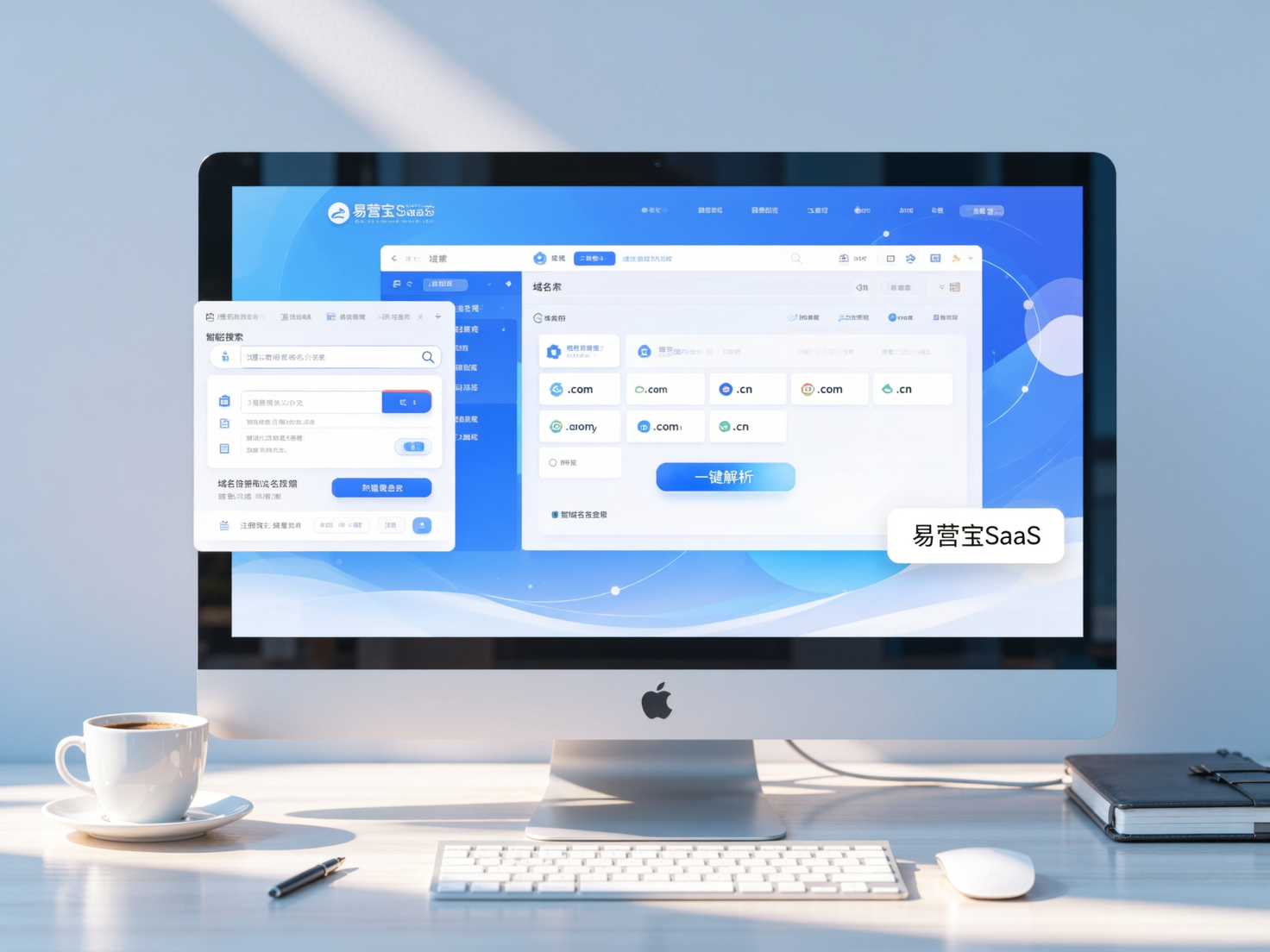
 Yiyingbao SaaS Intelligent Website Building and Marketing SystemYiyingbao SaaS Intelligent Website Building and Marketing System, AI-powered no-code website building, rapid creation of multilingual B2B international websites in 10 minutes, global server acceleration, AI-powered SEO optimization, helping businesses connect efficiently with global markets. The perfect integration of technology and operation makes building an international trade website remarkably simple
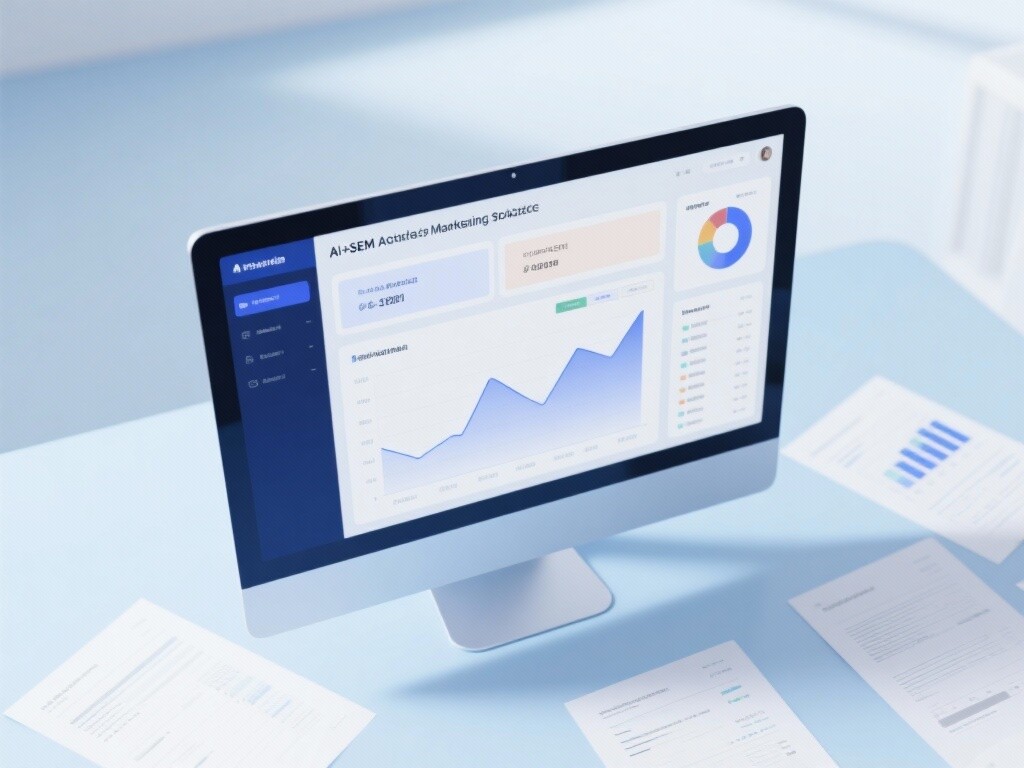
 AI+SEM Intelligent Advertising Marketing SystemAI+SEM drives intelligent ad creation, empowering full-funnel precision advertising marketing. The system automatically generates weekly/monthly reports, AI recommends keywords and target countries, monitors core metrics in real-time with intelligent alerts, and enables one-click high-conversion ad solutions to help quickly acquire customers and improve ROI.
 AI+SEO Dual-Engine System Optimization ServicesYiyingbao’s AI+SEO dual-engine optimization system helps foreign trade enterprises acquire high-quality organic traffic through AI-powered keyword research, content generation, and comprehensive technical optimization, significantly improving search rankings and conversion rates.
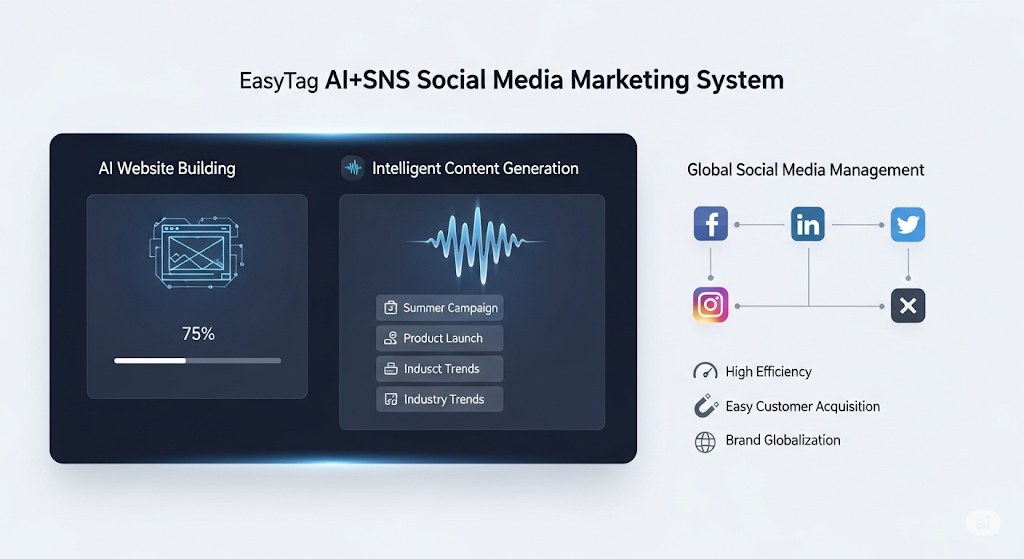
 AI+SNS Social Media Marketing SystemYingbao AI+SNS Social Media Marketing System - Precision social capture for the social media era. Supports one-click content synchronization across major platforms like Facebook and LinkedIn. AI intelligently rewrites posts for enhanced relevance. 24/7 AI customer service and user profiling analysis empower businesses to efficiently expand into global markets.
 AI+SEO营销解决方案易营宝AI+SEO营销解决方案,通过AI批量写作、智能生成TDK、精准关键词扩词等功能,全面优化网站SEO效果,提升流量与转化率。助力企业构建高效智能网站新生态。
 AI+SEM Advertising Marketing SolutionsAI+SEM Advertising Marketing Solution leverages AI technology to deeply empower SEM ad campaigns. It automatically generates weekly/monthly reports using AI, presenting account data across multiple dimensions for comprehensive insights into campaign performance and trends. The system precisely recommends keywords and target countries, intelligently generates high-conversion ad copy, and enables one-click activation of efficient campaign plans to help businesses rapidly acquire customers. Simultaneously, it monitors core metrics in real time, intelligently identifies abnormal fluctuations, and issues timely alerts to ensure stable, high-return advertising results.
 Domain Name ServicesEasyWin provides professional domain name services, including intelligent queries, one-stop registration, brand protection, and full lifecycle management, helping businesses build a digital brand image.
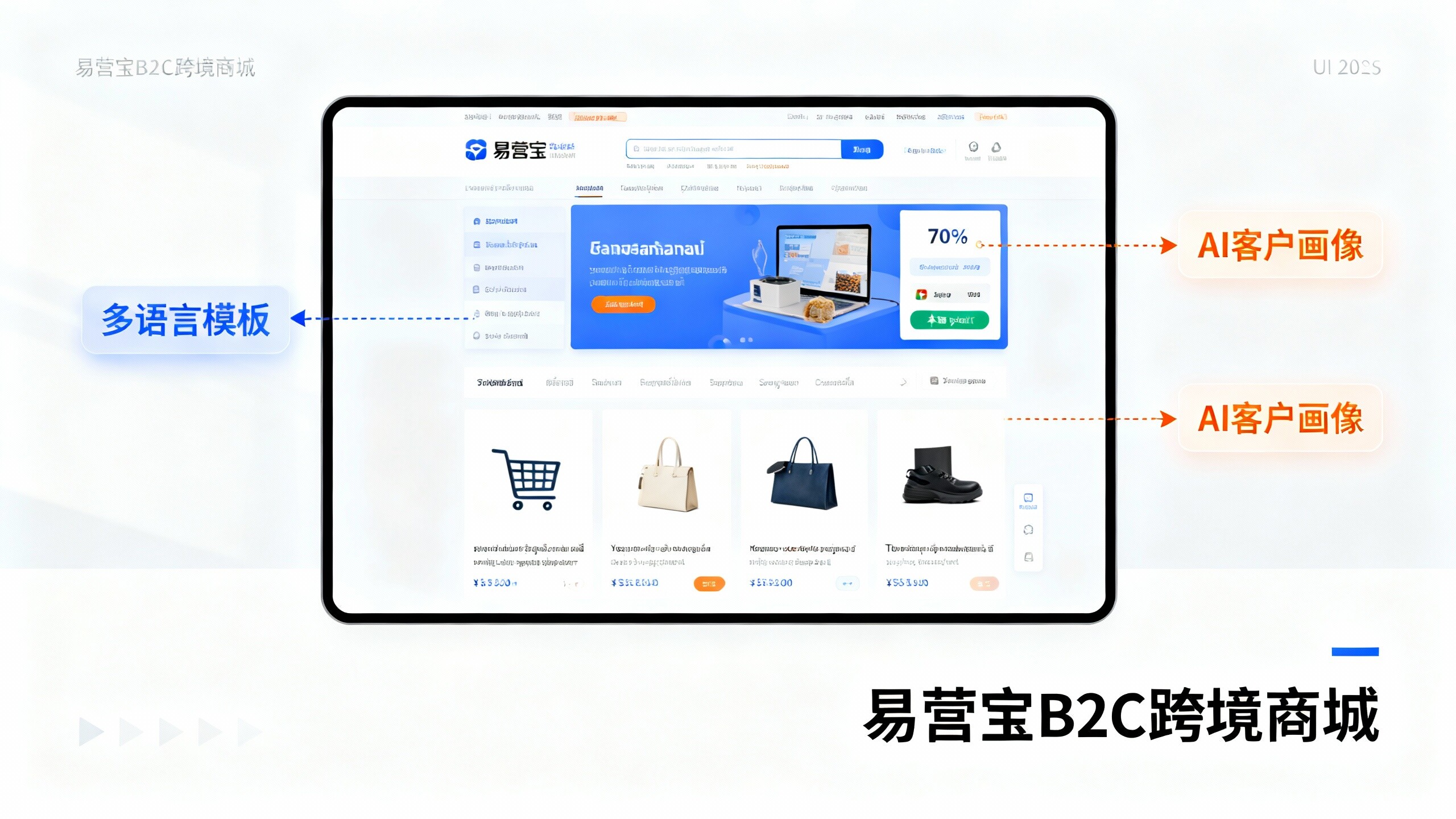
 EasyOperate B2C Cross-Border E-Commerce Platform & Independent WebsiteEasyStore B2C Cross-border E-commerce Independent Store is an intelligent website building and cross-border e-commerce integrated solution independently developed by EasyStore Information Technology (Beijing) Co., Ltd. The system is specially designed for small and medium-sized as well as large export enterprises, integrating 'website building, operation, marketing, advertising, and conversion' into one, helping enterprises quickly establish cross-border e-commerce independent stores to achieve brand globalization and global sales growth.
The platform supports multiple languages, multiple currencies, and multi-channel marketing, with built-in AI intelligent translation and SEO optimization systems, suitable for mainstream markets such as Southeast Asia, Europe and America, Latin America, and the Middle East, assisting Chinese manufacturing enterprises in efficiently deploying international e-commerce strategies. SSL证书易营宝提供专业SSL安全证书服务,包括单域名和泛域名证书,确保网站数据传输加密、身份验证和完整性保护,助力企业建立安全可信的在线业务环境。