








- EU Plans to Raise Tax on Incoming Small Parcels to €5Oct 31, 2026View details
- Maersk Adjusts Middle East Emergency Operating Cost Recovery Surcharge to USD 2,000 per ContainerOct 30, 2026View details
- Ministry of Commerce: Online retail sales grew 4.4% in the first three quarters, while cross-border e-commerce maintained relatively rapid growthOct 29, 2026View details
- CCTV reports: AI-powered smart hardware is expanding overseas at a faster pace, with orders for some best-selling products booked through next yearOct 29, 2026View details
- Alphabet Q3 Earnings: Google Search Advertising Revenue Rises 10.5% to $82 BillionOct 29, 2026View details
- AliExpress Announces New Service Rules for Russia, Linked to Wildberries Product IntegrationOct 28, 2026View details
How can you troubleshoot buttons that are too close together during a mobile-friendliness check?
If you tap “Send Inquiry” on a phone but hit the WhatsApp icon next to it, or open a menu and accidentally select an adjacent item, troubleshoot the issue by checking three things: the actual clickable area, the distance between adjacent areas, and the page layout. A visible gap between buttons does not necessarily mean their touch targets are separate; an icon that looks small may already have a sufficiently large clickable area.
When looking for ways to check whether a site is mobile-friendly, don’t stop at a tool’s pass or error result. First identify which page, screen width, and interaction state are prone to accidental taps. Then inspect element dimensions in the browser and verify the result on a real device. This will help you determine whether to add padding, increase spacing, or rearrange the entire group of buttons.
Find where and when accidental taps occur
When troubleshooting an international trade website or marketing landing page, start with actions that directly affect inquiries and purchases: the top navigation, product filters, form submission, shopping cart quantity controls, and fixed phone, chat, and inquiry links at the bottom of the page. Pay particular attention when floating customer service widgets, cookie notices, and bottom action bars appear at the same time, as they may cover buttons that would otherwise be clickable.
Don’t check only the initial view of the home page. Open a product detail page, expand a menu, open a filter panel, and trigger form validation messages. The spacing between a group of buttons may be sufficient in its default state, but newly displayed content may push them together when the page expands. Multilingual sites should also be checked in versions with longer text to ensure that translated labels do not wrap or bring adjacent links too close together.
When documenting an issue, record at least the page URL, screen width, steps to reproduce, and the element that was tapped by mistake. For example, “After opening the bottom inquiry bar on a product detail page, tapping the close button often activates the chat link” is more useful for developers to reproduce than “Mobile buttons are too crowded.”
Check the clickable boundaries before assessing their size
Switch to the mobile device emulation view in your browser’s developer tools, use the element picker to locate the button, and inspect its box model, width, height, and surrounding elements. Measure the link or button that actually receives the click—not just its icon or text, and not the dimensions of a decorative container around it.
For example, if an icon sits in the center of a large colored block but only the icon itself is clickable, the block has not enlarged the touch target. Conversely, adding padding to a button makes it easier to tap even if the icon remains unchanged. Also check absolutely positioned elements and transparent overlays to confirm that other controls are not occupying what appears to be empty space.

When assessing target size, refer to the WCAG 2.2 “Target Size (Minimum)” criterion: pointer input targets should generally be at least 24 × 24 CSS pixels, subject to exceptions such as spacing and inline links. Whether a smaller target qualifies for the spacing exception must be assessed using the circular area specified by the standard; it cannot be reduced to the simple rule that “a fixed number of pixels between two buttons is enough.”
For frequent actions such as submitting an inquiry or adding an item to the cart, consider aiming for close to or at least 44 × 44 CSS pixels, leaving extra room for finger taps. Meeting the size requirement does not replace interaction testing: the more easily adjacent buttons’ actions can be confused, the more important clear spacing and visual distinction become.
Address the cause without making the layout more crowded
If buttons are too close together, simply increasing their margins may not be enough. First determine whether the touch targets are too small, the container lacks space, or an overlay is blocking them, then choose the appropriate fix.
- Only a small part of an icon or label is clickable: Add padding to the link or button and set an appropriate minimum width and height. Make the space around the icon part of the same click target.
- A row of buttons already fills the screen: Allow the buttons to wrap, arrange them vertically, or show fewer secondary actions at once. Enlarging the buttons further may cause horizontal overflow.
- Adjacent targets are easy to confuse: Increase the distance between them using layout spacing or margins, and check that their enlarged click areas do not overlap. Increasing the space between labels alone may not improve the clickable boundaries.
- A floating link blocks page controls: Adjust its position, reserved space, or display conditions so the customer service link, bottom bar, and system safe area work together appropriately.
For those performing the checks, small links in navigation menus, pagination, and near forms are easy to overlook. Inline links in body paragraphs have different evaluation criteria and do not all need to be turned into large buttons. However, check the click area of each standalone action placed alongside others, such as “Back,” “Submit,” and “Clear.”
When making changes, preserve a clear hierarchy of actions. If the submit and reset buttons in an inquiry form are positioned too close together, enlarging both may increase the chance of mistakes. First consider whether the secondary action is necessary, then adjust the layout. Don’t enlarge every button uniformly and stop just because the page passes a check.
Retest real interactions, not just screenshots
Browser emulation is useful for identifying layout issues, but mouse clicks are more precise than finger taps. After making changes, complete the main tasks on a real device: open the navigation, switch products, fill out a form, close a dialog, and submit it. Check the position of fixed bars after scrolling and whether the submit button is obscured when the on-screen keyboard appears.
Retesting should cover narrow screens, wider phone screens, and language versions with longer text. Check for horizontal scrolling, wrapped button labels, page scaling, and layout changes when switching between portrait and landscape. If the page does not have a properly configured viewport, or the entire page has been scaled down to fit more content, address these fundamental issues first; adding spacing to individual elements will not be enough to improve the experience.
Automated reports can help identify some size and layout issues, but they cannot fully assess the experience of tapping with a finger and may miss controls that appear only after an interaction. The Google Mobile-Friendly Test tool mentioned in older tutorials is no longer available. When troubleshooting, use a combination of browser developer tools, accessibility checkers, and testing on real devices.
At handoff, replace “button spacing adjusted” with reproducible test results: specify which pages, screen widths, and languages were tested, which actions were completed, and whether the accidental taps stopped. For pages that drive ad traffic or inquiry conversions, fixing obstacles in the submission, contact, and purchase paths before addressing secondary links makes the order of work more closely reflect the impact on the business.
Related Articles
 Is It Normal for Multilingual Website Maintenance to Take Up 35% of the Technical Team’s Time?
 Overseas customers report that websites load slowly in some regions. How can we identify the cause?
 Does the EasyYingbao B2B Website Package Include Multilingual Setup?

Related Products
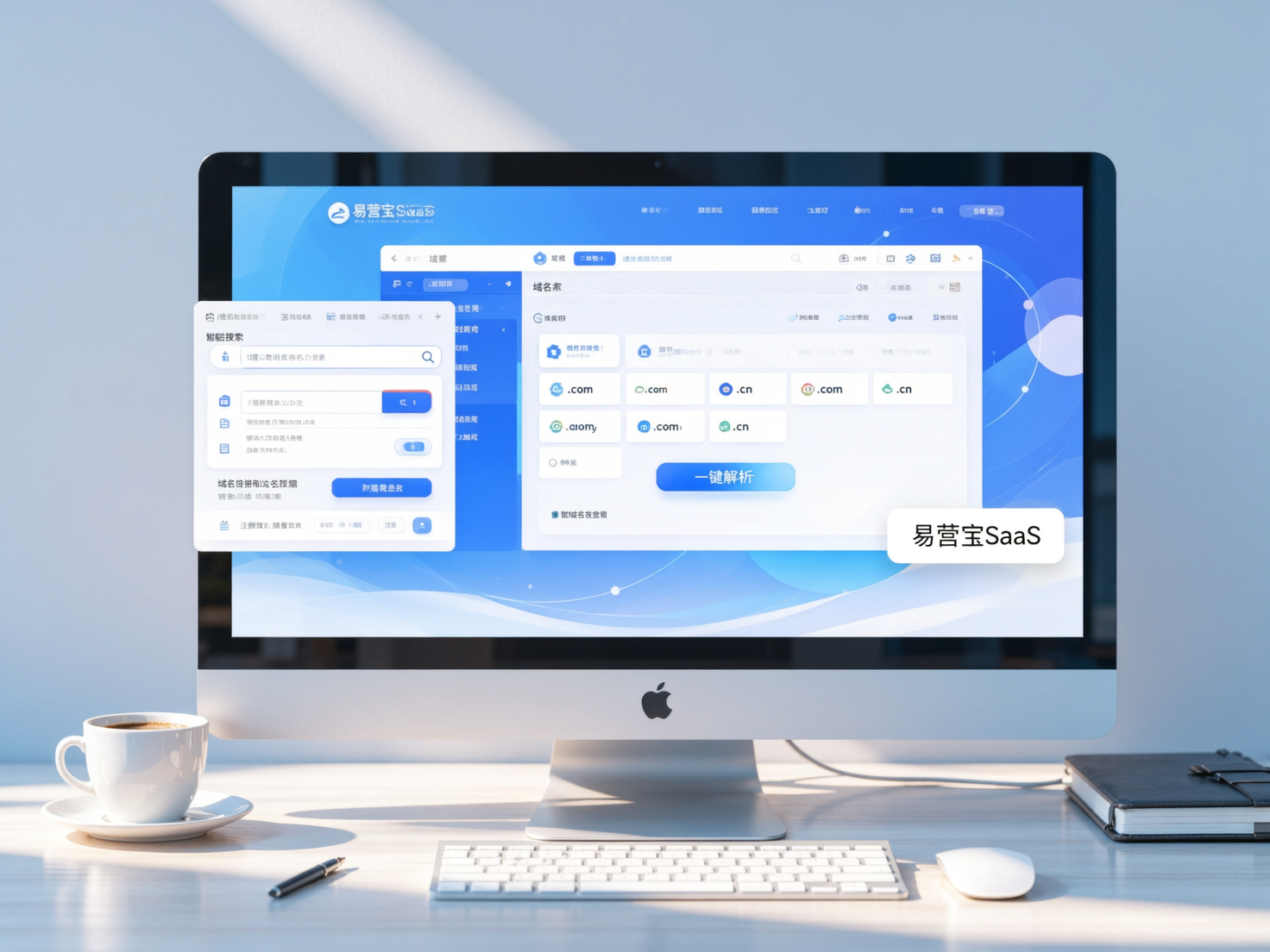
 Yiyingbao SaaS Intelligent Website Building and Marketing SystemYiyingbao SaaS Intelligent Website Building and Marketing System, AI-powered no-code website building, rapid creation of multilingual B2B international websites in 10 minutes, global server acceleration, AI-powered SEO optimization, helping businesses connect efficiently with global markets. The perfect integration of technology and operation makes building an international trade website remarkably simple
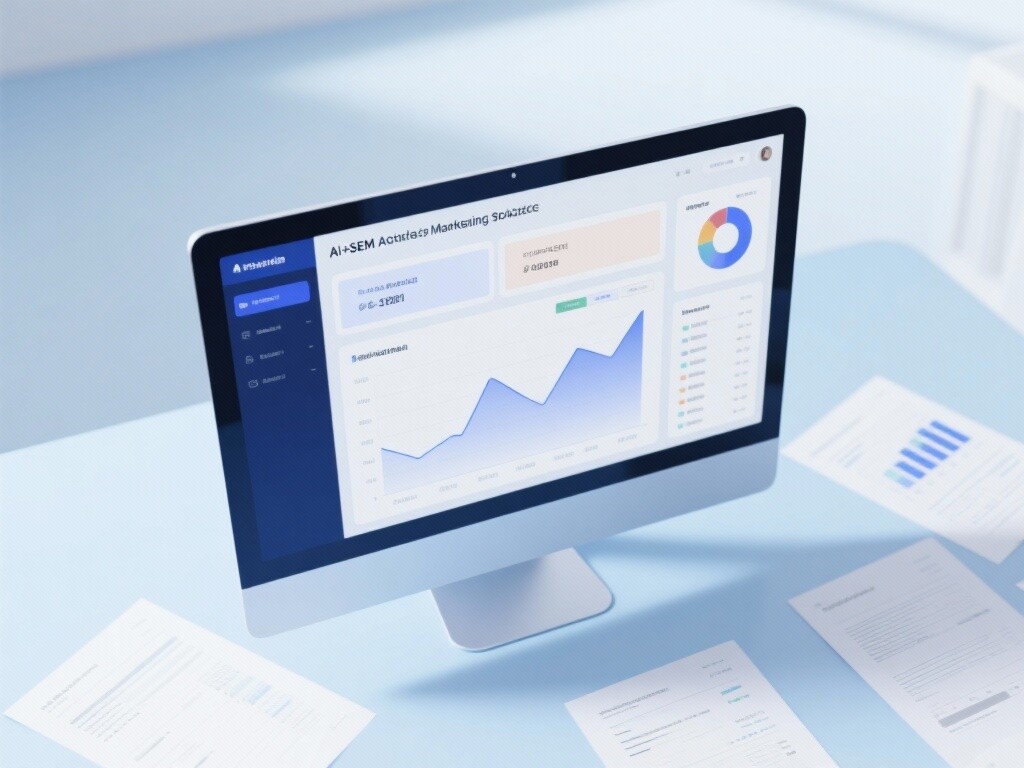
 AI+SEM Intelligent Advertising Marketing SystemAI+SEM drives intelligent ad creation, empowering full-funnel precision advertising marketing. The system automatically generates weekly/monthly reports, AI recommends keywords and target countries, monitors core metrics in real-time with intelligent alerts, and enables one-click high-conversion ad solutions to help quickly acquire customers and improve ROI.
 AI+SEO Dual-Engine System Optimization ServicesYiyingbao’s AI+SEO dual-engine optimization system helps foreign trade enterprises acquire high-quality organic traffic through AI-powered keyword research, content generation, and comprehensive technical optimization, significantly improving search rankings and conversion rates.
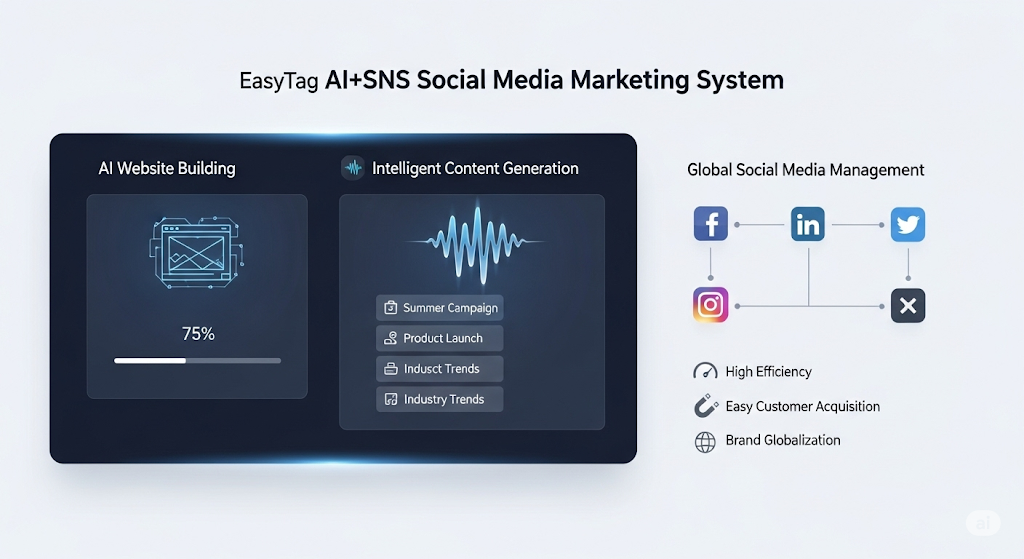
 AI+SNS Social Media Marketing SystemYingbao AI+SNS Social Media Marketing System - Precision social capture for the social media era. Supports one-click content synchronization across major platforms like Facebook and LinkedIn. AI intelligently rewrites posts for enhanced relevance. 24/7 AI customer service and user profiling analysis empower businesses to efficiently expand into global markets.
 AI+SEO营销解决方案易营宝AI+SEO营销解决方案,通过AI批量写作、智能生成TDK、精准关键词扩词等功能,全面优化网站SEO效果,提升流量与转化率。助力企业构建高效智能网站新生态。
 AI+SEM Advertising Marketing SolutionsAI+SEM Advertising Marketing Solution leverages AI technology to deeply empower SEM ad campaigns. It automatically generates weekly/monthly reports using AI, presenting account data across multiple dimensions for comprehensive insights into campaign performance and trends. The system precisely recommends keywords and target countries, intelligently generates high-conversion ad copy, and enables one-click activation of efficient campaign plans to help businesses rapidly acquire customers. Simultaneously, it monitors core metrics in real time, intelligently identifies abnormal fluctuations, and issues timely alerts to ensure stable, high-return advertising results.
 Domain Name ServicesEasyWin provides professional domain name services, including intelligent queries, one-stop registration, brand protection, and full lifecycle management, helping businesses build a digital brand image.
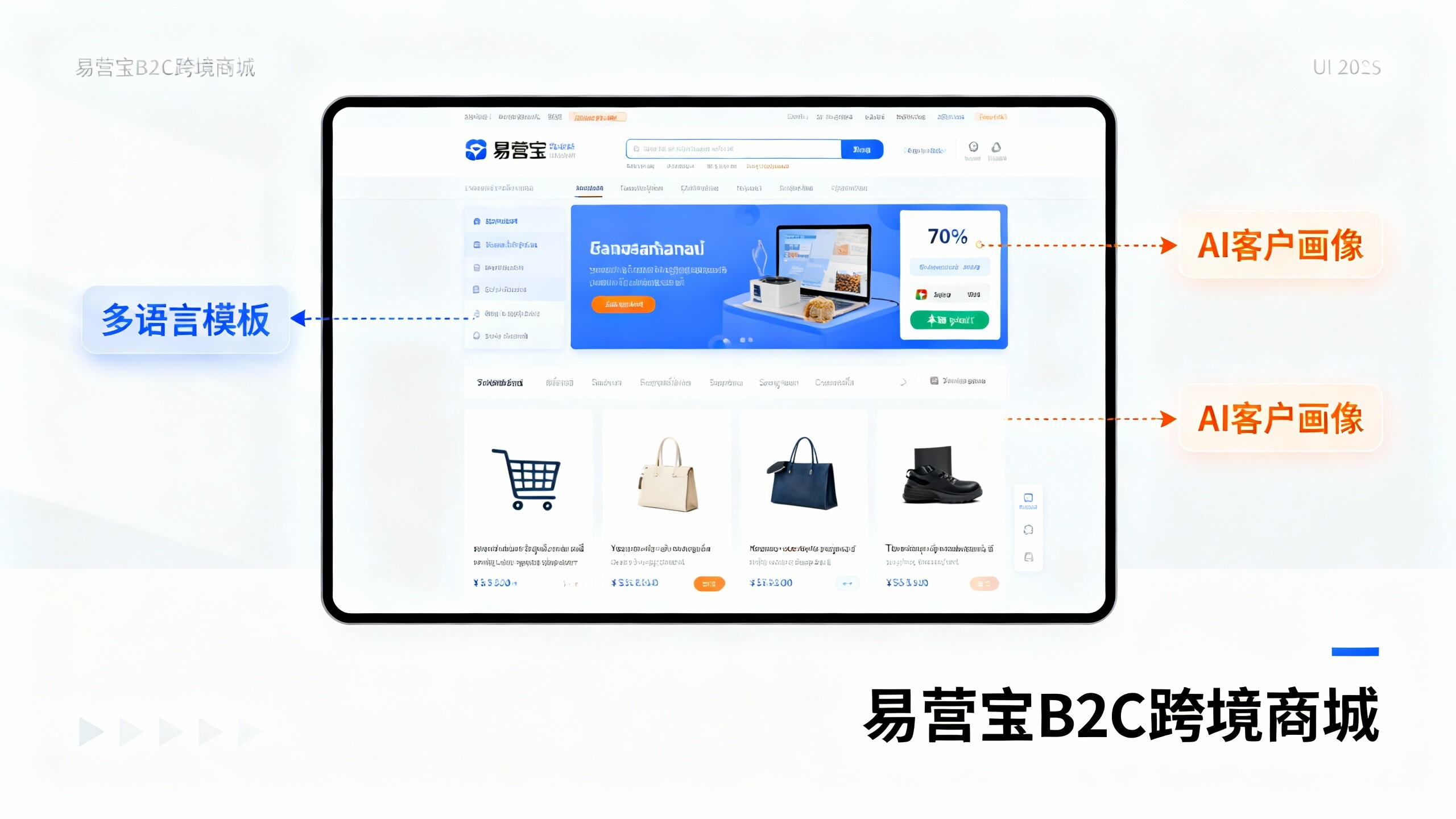
 EasyOperate B2C Cross-Border E-Commerce Platform & Independent WebsiteEasyStore B2C Cross-border E-commerce Independent Store is an intelligent website building and cross-border e-commerce integrated solution independently developed by EasyStore Information Technology (Beijing) Co., Ltd. The system is specially designed for small and medium-sized as well as large export enterprises, integrating 'website building, operation, marketing, advertising, and conversion' into one, helping enterprises quickly establish cross-border e-commerce independent stores to achieve brand globalization and global sales growth.
The platform supports multiple languages, multiple currencies, and multi-channel marketing, with built-in AI intelligent translation and SEO optimization systems, suitable for mainstream markets such as Southeast Asia, Europe and America, Latin America, and the Middle East, assisting Chinese manufacturing enterprises in efficiently deploying international e-commerce strategies. SSL证书易营宝提供专业SSL安全证书服务,包括单域名和泛域名证书,确保网站数据传输加密、身份验证和完整性保护,助力企业建立安全可信的在线业务环境。