








- Amazon Raises Fulfillment Fees Twice, Yet the Median Platform Fee Remains Around 40%Oct 22, 2026View details
- AliExpress and YouTube Partner to Expand Marketing Opportunities for Chinese Brands Going GlobalOct 22, 2026View details
- Publicis says AI marketing is developing at two speeds, with agentic AI helping win clientsOct 21, 2026View details
- Salesforce Plans to Acquire Braze for $5.66 Billion to Enhance AI Marketing CapabilitiesOct 21, 2026View details
- Levanta’s Inaugural China Summit Held in Shenzhen, Focusing on AI and Cross-Border Brand GrowthOct 20, 2026View details
- The October Edition of the 2026 GGE Shenzhen Cross-Border E-Commerce Expo OpensOct 20, 2026View details
Ads Stopped Running Because the Website SSL Certificate Expired: How Can You Restore Them?
After an SSL certificate expires, restoring your ads requires three steps in sequence: renew and deploy the certificate, confirm that the ad landing page and conversion path are working again, and address any disapproval or paused status on the ad platform. Renewing the certificate in the management console or confirming that the homepage opens is not enough to prove that ads are ready to run again.
First, check the specific notice in your ad account. If it points to a landing page issue such as “Destination URL not working,” you can troubleshoot the certificate problem. If there are also account, payment, or other policy issues, fixing the certificate will resolve only part of the problem. Platform reviews and the resumption of ad delivery also take time, so do not promise that traffic will resume immediately after the certificate is replaced.
Confirm the scope of the issue first to avoid sending more traffic to a broken page
Copy the actual final URL used in your ads from the ad account and open it in a private browsing window. Do not just enter your company homepage manually: ads for international trade websites may direct visitors to product pages, multilingual directories, or separate subdomains. A working homepage does not mean these URLs are working. If the platform has already disapproved the ad, keep the original error message. Pause any ads that are still running and directing visitors to the broken page.
If the browser shows an expired certificate warning, check the certificate’s validity period. If it reports a domain name mismatch, an untrusted certificate, or a similar issue, also check the certificate’s coverage and chain. Different browser errors call for different fixes, so do not assume that every problem can be resolved by “buying a new certificate.”
Also check the URL redirects. An ad may first go through a tracking domain, then redirect to the www version of the main site, and finally lead to a language page. A certificate issue at any HTTPS step can affect access. Record the affected URLs, error messages, and ad status so that the website and advertising teams can work from the same access path.
After renewal, confirm that the new certificate is actually in use online
Certificate renewal involves two steps: issuance and deployment. A common oversight during recovery is that the new certificate has been issued, but the server is still loading the old one. Businesses using a hosted website platform should check the HTTPS status of their custom domain. Businesses that maintain their own websites need to deploy the new certificate and its corresponding private key to the service that actually handles the requests, then reload the configuration as required by the service.
When deploying the certificate, focus on the following areas:
- Domain coverage: Check the main domain, the www domain, and any subdomains used in ads. Do not assume one certificate covers every address.
- Certificate chain: Configure the complete certificate chain as required by the hosting platform or server to avoid cases where some browsers can access the site but other clients still report an error.
- CDN and origin server: If you use a CDN, reverse proxy, or load balancer, check each relevant node. Even after the edge certificate is updated, connections to the origin server may still fail because of an old certificate.
- Multi-node deployment: If the website is served by multiple servers, confirm that the certificate has been updated on every node to prevent inconsistent access.
Once deployment is complete, access the site again from the public internet and check the validity period and domain information of the certificate actually returned. A “renewed” status in the console only confirms that the management process is complete; the results of online access are what you need before requesting a review. Do not resume advertising by disabling HTTPS or asking visitors to ignore security warnings. This will continue to harm the user experience and will not resolve the platform’s checks.

Walk through the ad landing page and inquiry path before requesting a review
Restoring the certificate is only the first check. The ad platform must be able to access the destination page, and visitors must be able to submit an inquiry or complete a purchase. For a B2B international trade website, check at least the advertised product page, inquiry form, and submission confirmation page. For an online store, also check the product, cart, and checkout paths.
Test the complete URL used in the ad, keeping the original tracking parameters. Check that redirects work properly, the final page is correct, and the main page content loads completely. Some issues are caused by redirect loops, missing pages, or access restrictions; updating the certificate will not automatically resolve them.
Websites advertising overseas should also check access from a network available in the target market. Do not submit a review based only on one successful test from the office network. If the website uses a firewall or bot blocking, check that it is not mistakenly blocking legitimate visitors or ad platform review requests. Do not disable all security measures just to pass the check.
Then submit a test inquiry or complete the necessary purchase flow checks to confirm that forms can be submitted, notifications are delivered, and conversion events are triggered. Mark test data and exclude it from business reporting. If the inquiry process is still broken after ads resume, click costs will continue to accrue without restoring lead generation.
Resume ads according to their account status, then monitor delivery and conversions
Once the technical checks are complete, return to the ad account and address the relevant status. On platforms such as Google Ads, open the policy or diagnostic details for the affected ad and use the option provided in the interface to request a review or submit an appeal, explaining that the destination URL issue has been fixed. The available procedures may vary by platform and disapproval reason.
If an ad was paused manually, you will also need to unpause it after the page is restored. If it was disapproved because of a destination URL issue, unpausing it does not replace the review process. There is also no need to duplicate ads in bulk or change unrelated creative assets to “refresh the status”; such actions make it harder to assess whether recovery has been effective.
After the review is approved, continue checking whether the ad is eligible to run, whether it is being shown, and whether clicks and conversions have resumed. If the ad is approved but receives no traffic, also check the budget, bids, schedule, and account status. Do not immediately increase the budget to make up for lost traffic. First confirm that the access and conversion paths are stable, then adjust the campaign pace.
If the review is still unsuccessful, use the latest error message to troubleshoot again. Keep a record of the affected URL, repair time, certificate check results, and page access results, and provide specific information to platform support. Avoid repeatedly submitting the same request without resolving an ongoing access issue.
To close out the recovery, clarify ownership and monitoring: define who maintains the certificate, who checks the renewal result, and who handles ad issues; set expiration reminders and verify that automatic renewal has actually succeeded. For businesses where website and advertising responsibilities sit with different teams, treat “certificate updated,” “landing page verified,” and “ads delivering again” as three separate handoff items to reduce delays and misjudgments during the next incident.
Related Articles
 How can duplicate charges be prevented after integrating payment processing into a cross-border e-commerce store?
 Why Are Website ICP Filings Usually Rejected?
 How to troubleshoot a website that won’t open after setting up a 301 redirect?



Related Products
 Yiyingbao SaaS Intelligent Website Building and Marketing SystemYiyingbao SaaS Intelligent Website Building and Marketing System, AI-powered no-code website building, rapid creation of multilingual B2B international websites in 10 minutes, global server acceleration, AI-powered SEO optimization, helping businesses connect efficiently with global markets. The perfect integration of technology and operation makes building an international trade website remarkably simple
 AI+SEM Intelligent Advertising Marketing SystemAI+SEM drives intelligent ad creation, empowering full-funnel precision advertising marketing. The system automatically generates weekly/monthly reports, AI recommends keywords and target countries, monitors core metrics in real-time with intelligent alerts, and enables one-click high-conversion ad solutions to help quickly acquire customers and improve ROI.
 AI+SEO Dual-Engine System Optimization ServicesYiyingbao’s AI+SEO dual-engine optimization system helps foreign trade enterprises acquire high-quality organic traffic through AI-powered keyword research, content generation, and comprehensive technical optimization, significantly improving search rankings and conversion rates.
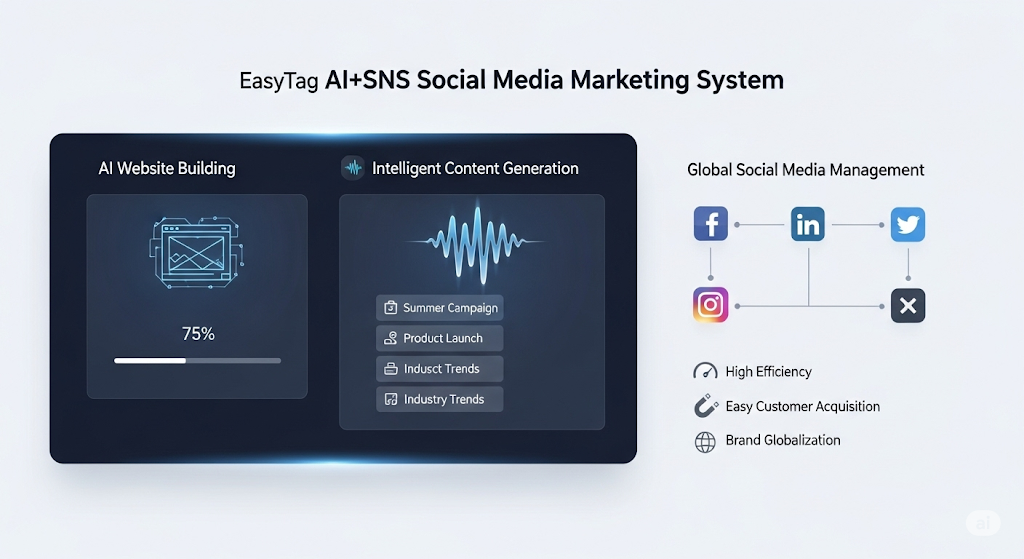
 AI+SNS Social Media Marketing SystemYingbao AI+SNS Social Media Marketing System - Precision social capture for the social media era. Supports one-click content synchronization across major platforms like Facebook and LinkedIn. AI intelligently rewrites posts for enhanced relevance. 24/7 AI customer service and user profiling analysis empower businesses to efficiently expand into global markets.
 AI+SEO营销解决方案易营宝AI+SEO营销解决方案,通过AI批量写作、智能生成TDK、精准关键词扩词等功能,全面优化网站SEO效果,提升流量与转化率。助力企业构建高效智能网站新生态。
 AI+SEM Advertising Marketing SolutionsAI+SEM Advertising Marketing Solution leverages AI technology to deeply empower SEM ad campaigns. It automatically generates weekly/monthly reports using AI, presenting account data across multiple dimensions for comprehensive insights into campaign performance and trends. The system precisely recommends keywords and target countries, intelligently generates high-conversion ad copy, and enables one-click activation of efficient campaign plans to help businesses rapidly acquire customers. Simultaneously, it monitors core metrics in real time, intelligently identifies abnormal fluctuations, and issues timely alerts to ensure stable, high-return advertising results.
 Domain Name ServicesEasyWin provides professional domain name services, including intelligent queries, one-stop registration, brand protection, and full lifecycle management, helping businesses build a digital brand image.
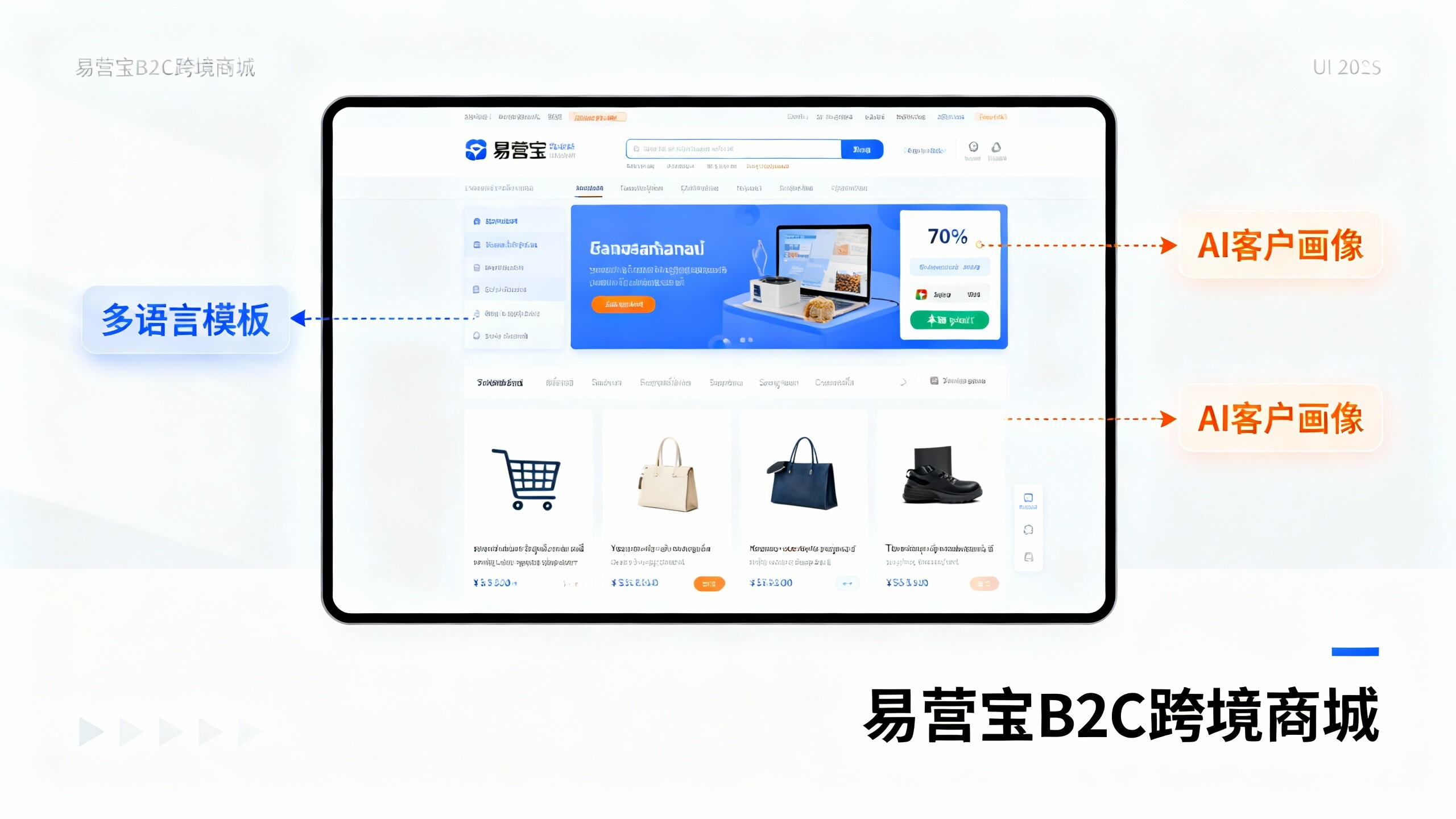
 EasyOperate B2C Cross-Border E-Commerce Platform & Independent WebsiteEasyStore B2C Cross-border E-commerce Independent Store is an intelligent website building and cross-border e-commerce integrated solution independently developed by EasyStore Information Technology (Beijing) Co., Ltd. The system is specially designed for small and medium-sized as well as large export enterprises, integrating 'website building, operation, marketing, advertising, and conversion' into one, helping enterprises quickly establish cross-border e-commerce independent stores to achieve brand globalization and global sales growth.
The platform supports multiple languages, multiple currencies, and multi-channel marketing, with built-in AI intelligent translation and SEO optimization systems, suitable for mainstream markets such as Southeast Asia, Europe and America, Latin America, and the Middle East, assisting Chinese manufacturing enterprises in efficiently deploying international e-commerce strategies. SSL证书易营宝提供专业SSL安全证书服务,包括单域名和泛域名证书,确保网站数据传输加密、身份验证和完整性保护,助力企业建立安全可信的在线业务环境。