








- CBP Finalizes Electronic Rail Export Manifest Rule, Effective October 26, 2026Oct 26, 2026View details
- Amazon’s 2026 peak season surcharge takes effect on October 25Oct 26, 2026View details
- AI Is Eating SaaS: Three Real-World Cases in One AfternoonOct 25, 2026View details
- Exiger CEO: The SaaS Apocalypse Is Real, but It Means Something DifferentOct 25, 2026View details
- Hengqin Cooperation Zone Shares Cross-Border E-Commerce Developments, Focusing on Macao-Hengqin Collaboration and International MarketsOct 24, 2026View details
- A Shenyang study highlights the development of the “cross-border e-commerce + industrial cluster” modelOct 24, 2026View details
How Can Website UX Improvements Reduce Inquiry Form Abandonment?
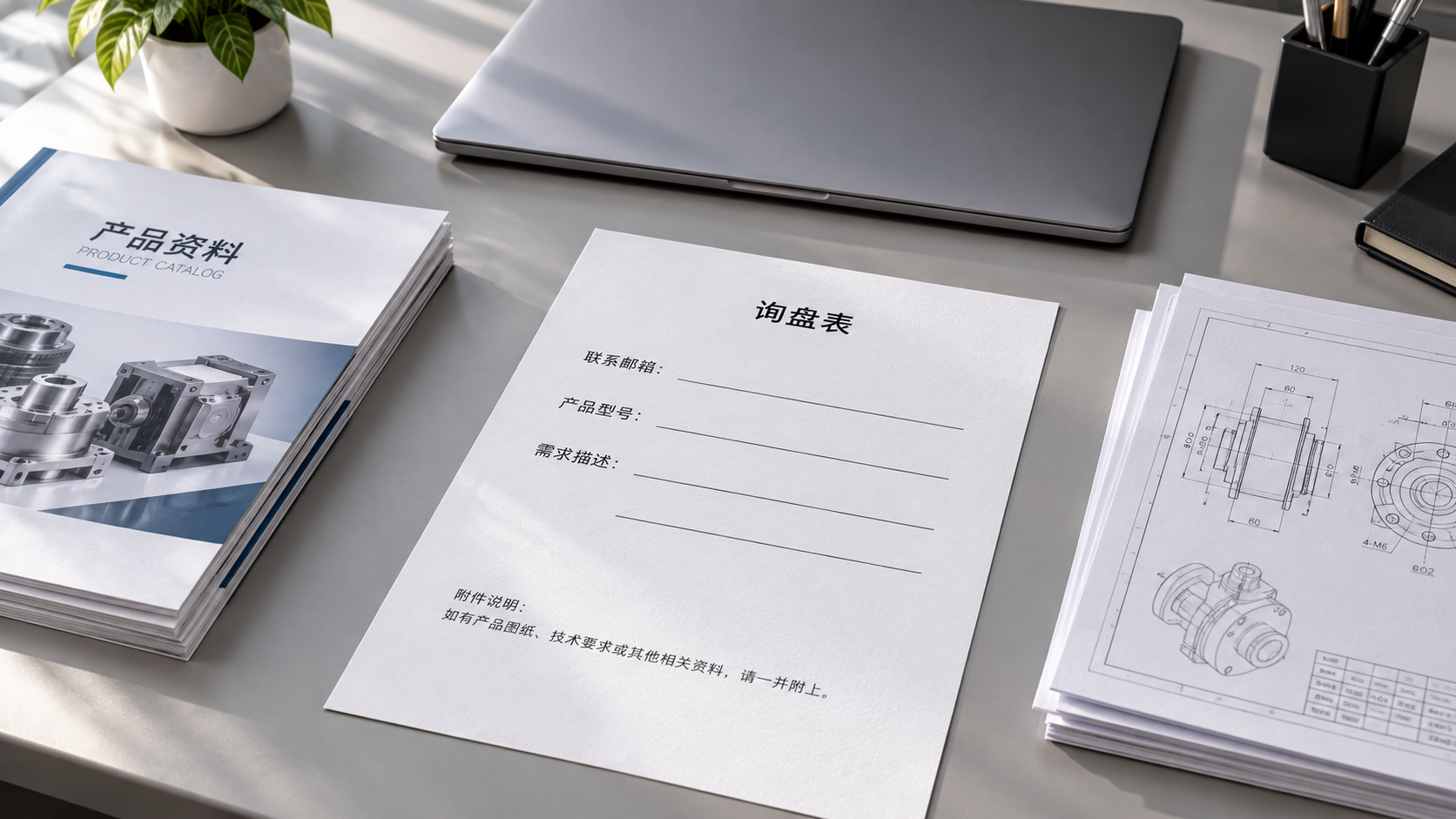
Customers may start filling out an inquiry form but leave before submitting it. The problem could be too many fields, unclear error messages, or all entered information being erased after an upload fails. To optimize website interactions, first identify where users encounter obstacles, then reduce the effort required to complete the form and provide clear feedback so customers know what will happen next.
When evaluating results, don't look only at the number of submissions. If shortening the form brings in many leads who cannot be contacted or have unclear requirements, sales teams may still find them difficult to follow up with. A more appropriate goal is to help customers with genuine needs submit their inquiries successfully while retaining the information needed to start a conversation.
Find out where customers get stuck before deciding what to change
Track “form opened,” “filling started,” “error occurred,” “submit clicked,” and “submission successful” as separate steps. If visitors open the form but don't start filling it out, review the call to action, required fields, and page credibility. If errors occur frequently during completion, check the validation rules. If visitors click submit but the form isn't sent successfully, investigate the interface, network, and verification components.
When recording errors, distinguish between invalid email formats, missing required fields, attachment upload failures, and submission timeouts. Avoid classifying every failure as “user abandonment.” Behavioral analytics only needs to record field names, error types, and action outcomes. Do not send email addresses, phone numbers, inquiry text, or other such content directly to analytics tools.
You should also review results by device (mobile or desktop), language, and traffic source. Visitors from an advertising landing page may just be learning about your products, while those on a product detail page may already have specific requirements. Using the same complex form for both groups may not create the same level of friction.
Simplify fields based on whether you can start following up
Ask yourself for each item: without this information, can we reply to the customer and start a conversation? If so, consider making it optional or asking for it later. For a general product inquiry, you can request a contact email, product or model, and a description of the customer's needs. An address, annual purchasing volume, and complete company details usually don't all need to be prerequisites for an initial inquiry.
For custom manufacturing, equipment selection, and similar services, however, specifications, materials, or application conditions may directly affect the quotation. Keep these fields when necessary, but explain why the information is needed—for example, “Please enter the operating voltage so we can determine the appropriate model.” Customers are more likely to cooperate when they understand why they need to provide the information than when faced with a string of required-field asterisks.
When a visitor opens the form from a product detail page, you can prefill the product name or model and allow them to edit it. If the purchase quantity is not yet known, offer an option such as “To be confirmed” so customers don't have to enter an arbitrary value just to proceed.
Multi-step forms are suitable for complex inquiries with clear branches—for example, selecting a standard product or a custom product first, then displaying the relevant fields. When there are only a few fields, a single-page form is usually more straightforward. If you use a multi-step design, show the customer's progress and ensure their information is retained when they return to a previous step.
Show users what needs to be corrected as they fill out the form
Keep field labels visible at all times. Don't rely solely on light-colored placeholder text inside input fields, because it disappears once users start typing. Place format examples, required-field indicators, and additional instructions near the relevant fields. Show errors next to the affected fields rather than only displaying a message at the top of the page saying “There is an error with your information.”
If an email address is clearly incomplete, you can display a prompt when the user leaves the field. Don't require names to contain English letters only. International phone number fields should accept common formats, including country codes and spaces. Overly strict rules can prevent valid customers from submitting their inquiries.
When users upload drawings, explain the supported file formats and size limits before they select a file. Show upload progress, offer a retry option if the upload fails, and retain other information already entered. After users have invested time in filling out a form, having to start over can be more discouraging than being asked to complete one additional field.

The submit button should also make the purpose of the action clear. “Send Inquiry” or “Get a Quote” is more specific than “Submit.” After the button is clicked, display “Sending” and prevent repeated clicks. If submission fails, explain the reason and how to try again. Show a success message only after the server confirms receipt.
Check the full process on mobile and for overseas visitors
On mobile, don't just check whether the page fits on the screen. Try entering information, switching between fields, opening the keyboard, and uploading an attachment. Make sure fixed contact bars, floating buttons, and pop-ups don't cover input fields or the submit button.
Use an appropriate keyboard for email fields and a suitable input method for phone fields. Reduce the need to scroll through long drop-down menus repeatedly. Testing should also cover slow loading and unstable network conditions. Check whether users can resume the process after a submission fails.
For multilingual forms, translate the fields, error messages, upload instructions, and success page as well. If only the page body is translated while validation messages remain in another language, users may not know how to correct their information. When serving different overseas markets, also check that third-party CAPTCHA services and attachment uploads load properly.
Make it clear what happens after submission
New customers may worry about receiving irrelevant sales messages after submitting an inquiry, or be unsure whether anyone will handle it. Briefly explain near the button how the information will be used, and provide a link to your privacy policy. Information about how you will respond and whether customers need to provide drawings later should also reflect your actual business process.
The success page can confirm that the inquiry has been received, explain how you will get in touch, and tell customers whether they should look out for an email. Don't promise response times that your team can't consistently meet. If you provide an alternative contact channel, such as an email address, make it easy to find when customers run into problems.
You should also check whether the inquiry has actually reached your backend and whether notifications and lead assignment are working properly. Showing a success message on the page while the inquiry fails to enter the follow-up process can also result in lost business. When using an integrated website building and overseas marketing service such as 易营宝, include form interactions, source tracking, and inquiry handoff in the joint acceptance criteria, and define how each step will be verified.
After the update, evaluate results based on qualified inquiries
Fix issues such as failed submissions, lost information, and mobile elements covering the form before changing fields or instructions. Make each change to address one clearly defined problem, keep a record of the changes, and monitor completion rates after users start filling out the form, error types, and whether sales teams can contact customers and understand their needs.
When comparing results before and after an update, also pay attention to changes in advertising channels, visitor devices, and customer locations. If submissions increase but qualified inquiries decrease, this may mean too much essential information was removed. For the next step, address the most common obstacle so customers can complete the form more easily and your team has the information needed for follow-up.
Related Articles
 How Can Website UX Improvements Reduce Inquiry Form Abandonment?
 How to Evaluate Mobile Responsiveness for a B2C E-commerce Website
 How do you disable legacy TLS protocols in an HTTPS-compliant configuration?


Related Products
 Yiyingbao SaaS Intelligent Website Building and Marketing SystemYiyingbao SaaS Intelligent Website Building and Marketing System, AI-powered no-code website building, rapid creation of multilingual B2B international websites in 10 minutes, global server acceleration, AI-powered SEO optimization, helping businesses connect efficiently with global markets. The perfect integration of technology and operation makes building an international trade website remarkably simple
 AI+SEM Intelligent Advertising Marketing SystemAI+SEM drives intelligent ad creation, empowering full-funnel precision advertising marketing. The system automatically generates weekly/monthly reports, AI recommends keywords and target countries, monitors core metrics in real-time with intelligent alerts, and enables one-click high-conversion ad solutions to help quickly acquire customers and improve ROI.
 AI+SEO Dual-Engine System Optimization ServicesYiyingbao’s AI+SEO dual-engine optimization system helps foreign trade enterprises acquire high-quality organic traffic through AI-powered keyword research, content generation, and comprehensive technical optimization, significantly improving search rankings and conversion rates.
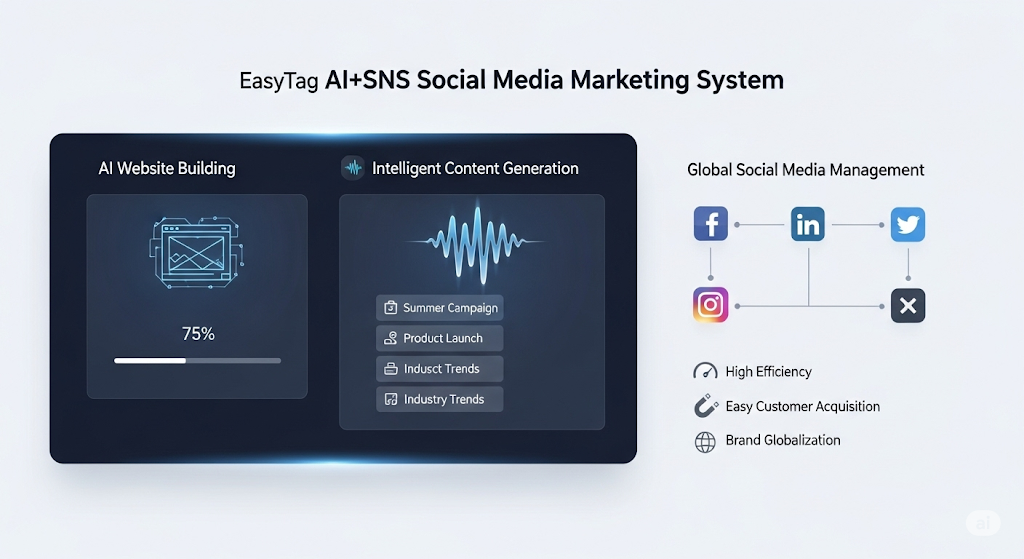
 AI+SNS Social Media Marketing SystemYingbao AI+SNS Social Media Marketing System - Precision social capture for the social media era. Supports one-click content synchronization across major platforms like Facebook and LinkedIn. AI intelligently rewrites posts for enhanced relevance. 24/7 AI customer service and user profiling analysis empower businesses to efficiently expand into global markets.
 AI+SEO营销解决方案易营宝AI+SEO营销解决方案,通过AI批量写作、智能生成TDK、精准关键词扩词等功能,全面优化网站SEO效果,提升流量与转化率。助力企业构建高效智能网站新生态。
 AI+SEM Advertising Marketing SolutionsAI+SEM Advertising Marketing Solution leverages AI technology to deeply empower SEM ad campaigns. It automatically generates weekly/monthly reports using AI, presenting account data across multiple dimensions for comprehensive insights into campaign performance and trends. The system precisely recommends keywords and target countries, intelligently generates high-conversion ad copy, and enables one-click activation of efficient campaign plans to help businesses rapidly acquire customers. Simultaneously, it monitors core metrics in real time, intelligently identifies abnormal fluctuations, and issues timely alerts to ensure stable, high-return advertising results.
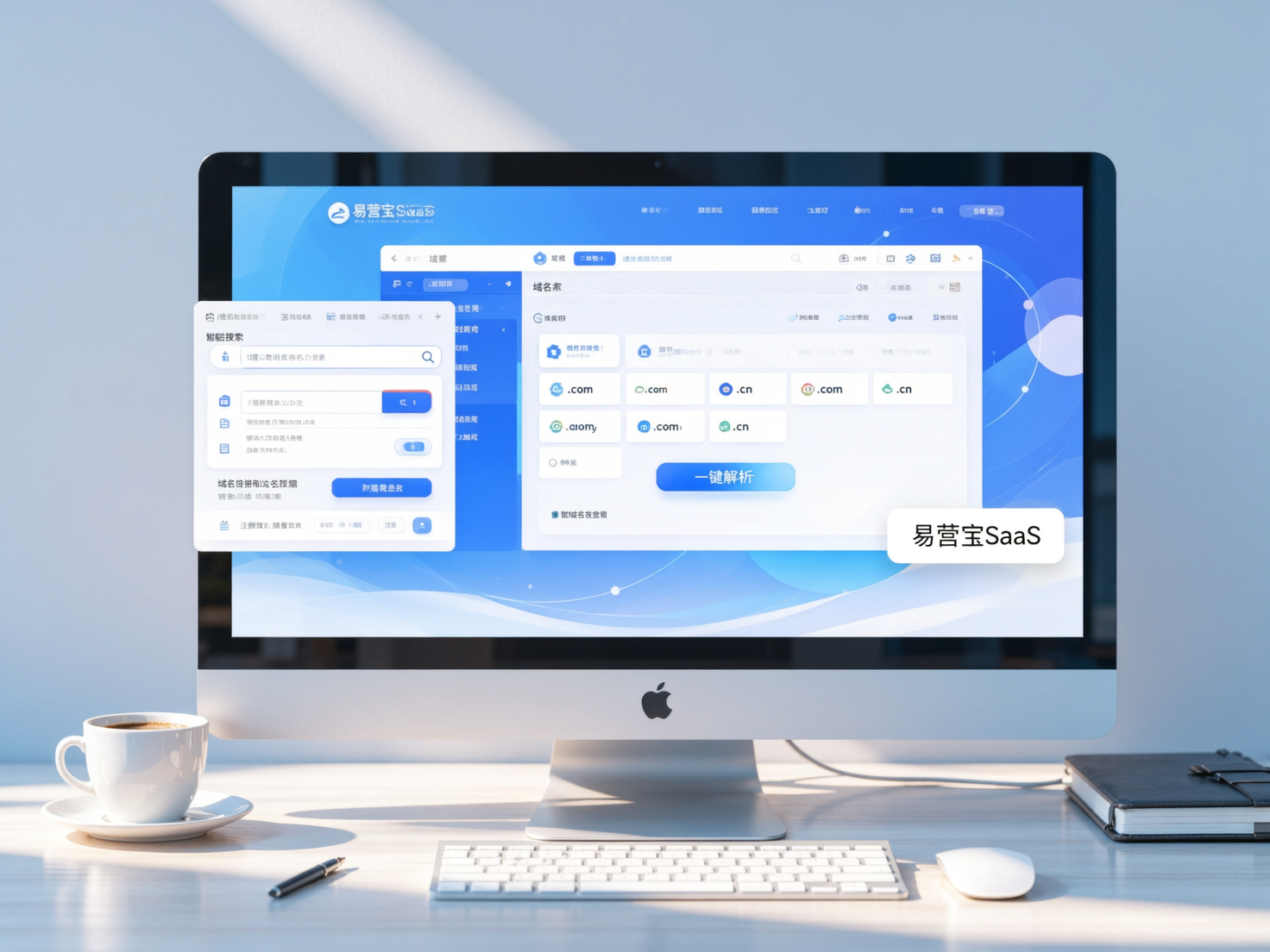
 Domain Name ServicesEasyWin provides professional domain name services, including intelligent queries, one-stop registration, brand protection, and full lifecycle management, helping businesses build a digital brand image.
 EasyOperate B2C Cross-Border E-Commerce Platform & Independent WebsiteEasyStore B2C Cross-border E-commerce Independent Store is an intelligent website building and cross-border e-commerce integrated solution independently developed by EasyStore Information Technology (Beijing) Co., Ltd. The system is specially designed for small and medium-sized as well as large export enterprises, integrating 'website building, operation, marketing, advertising, and conversion' into one, helping enterprises quickly establish cross-border e-commerce independent stores to achieve brand globalization and global sales growth.
The platform supports multiple languages, multiple currencies, and multi-channel marketing, with built-in AI intelligent translation and SEO optimization systems, suitable for mainstream markets such as Southeast Asia, Europe and America, Latin America, and the Middle East, assisting Chinese manufacturing enterprises in efficiently deploying international e-commerce strategies. SSL证书易营宝提供专业SSL安全证书服务,包括单域名和泛域名证书,确保网站数据传输加密、身份验证和完整性保护,助力企业建立安全可信的在线业务环境。