








- Hengqin Cooperation Zone Shares Cross-Border E-Commerce Developments, Focusing on Macao-Hengqin Collaboration and International MarketsOct 24, 2026View details
- A Shenyang study highlights the development of the “cross-border e-commerce + industrial cluster” modelOct 24, 2026View details
- Three China Advertising Association GEO group standards take effect on October 23Oct 24, 2026View details
- Amazon Raises Fulfillment Fees Twice, Yet the Median Platform Fee Remains Around 40%Oct 22, 2026View details
- AliExpress and YouTube Partner to Expand Marketing Opportunities for Chinese Brands Going GlobalOct 22, 2026View details
- Publicis says AI marketing is developing at two speeds, with agentic AI helping win clientsOct 21, 2026View details
Why does the site still show as insecure after installing an SSL certificate?

After installing an SSL certificate, if the browser still displays “Connection is not secure,” “Certificate invalid,” or no padlock icon appears in the address bar, the issue is usually not that the certificate file itself has expired. Instead, it is often caused by an incomplete deployment chain, a mismatch in the accessed domain name, pages still loading HTTP resources, or HTTPS not being properly enabled on the server. Such issues can affect visitors’ trust in the website and may also cause browsers to block or warn about login, form submission, payment redirects, and other processes.
When troubleshooting, do not only check whether “the certificate has been purchased or uploaded.” Use the certificate actually accessed by the browser, the access path, and page resources as the basis: first confirm the error type, then verify the domain name, certificate chain, ports, and redirect rules, and finally address mixed content. This avoids repeatedly replacing certificates without resolving the issue.
Check the browser message first to identify which layer the issue is in
Click the “Not secure” notice or padlock icon in the browser address bar to view the certificate details and specific error message. Different symptoms indicate different troubleshooting directions.
The browser console is also important. If “Mixed Content” appears in the console, it means the main page has been opened through HTTPS, but some resources are still requested through HTTP. If it shows a certificate name error or certificate chain validation failure, return to the server deployment layer for inspection.
Domain name mismatch is the most easily overlooked issue after SSL certificate installation
A certificate is valid only for the domain names listed in it and does not automatically cover all variations. For example, if a certificate is issued only for www.example.com, directly accessing example.com may still cause an error. A standard single-domain certificate issued for the primary domain also usually cannot cover subdomains such as shop.example.com and en.example.com.
Check the “Subject Alternative Name (SAN)” or “Subject Alternative Name” in the certificate details, and compare each item with the actual access entry point. At a minimum, confirm the following:
- Whether both the domain name with
wwwand withoutwwware covered, or whether redirects have been standardized; - Whether multilingual sites, store sub-sites, download sites, admin backends, and similar services use independent subdomains;
- Whether users may directly access the site through an old domain name, test domain name, or IP address;
- Whether the certificate is deployed in the domain binding or virtual host configuration currently serving external traffic.
Do not attempt to conceal a name mismatch by “redirecting all domains to HTTPS.” Redirection occurs after the TLS handshake, and the browser must first validate the certificate for the current domain. If the certificate name does not match, a warning will still appear first. The correct approach is to extend certificate coverage for actual entry points, or standardize domain names at the DNS, site entry, and promotional link levels.
When the certificate chain is missing, the server may appear properly configured, but clients cannot validate it
An SSL certificate usually consists of more than just one server certificate. The browser also needs intermediate certificates to establish a validation path to a trusted root certificate. If only the domain certificate is uploaded during deployment and the intermediate certificate bundle provided by the CA is not configured, some browsers or older devices may indicate that the certificate is untrusted.
In an Nginx environment, a common issue is that ssl_certificate points to a separate certificate file rather than a full chain file containing both the server certificate and intermediate certificates. For Apache, confirm that the corresponding certificate chain configuration complies with the requirements of the current version. In a control panel environment, use the “complete certificate chain,” “fullchain,” or “CA Bundle” file provided by the certificate authority instead of pasting only the first certificate block.
Also prevent incorrect chain ordering. Normally, the site certificate should be placed first, followed by the intermediate certificates in sequence; the root certificate generally does not need to be actively delivered by the server. After replacing files, reload the Web service configuration and verify again from an external network instead of only checking whether the files exist on the server itself.
HTTPS is enabled, so why does the page still display as insecure?
This situation is often related to mixed content. The page HTML is transmitted through HTTPS, but images, JavaScript, CSS, videos, fonts, analytics code, iframes, or API addresses are still written as http://. Modern browsers directly block some active content, such as scripts and XHR requests. For some images or media resources, they may allow loading but reduce the security status.
Start with the page source code and browser console, identify the specific resource addresses, and then check the resource sources in the following order:
- Static resources on the site should be changed to HTTPS absolute URLs or use relative paths appropriate for the current site;
- Hard-coded HTTP links in templates, rich-text content, product details, and historical articles should be checked in batches;
- Third-party scripts, maps, customer service widgets, embedded videos, and form components must be confirmed to support HTTPS;
- API domains, file storage domains, and image CDNs should also deploy valid certificates; changing only the homepage domain is not sufficient;
- After modification, clear site cache, CDN cache, and browser cache, then retest.
It is not recommended to rely solely on the browser’s “automatically upgrade insecure requests” policy. It can serve as a temporary measure, but it cannot ensure that all resources load correctly. If third-party resources do not support HTTPS, it may still result in missing styles, malfunctioning features, or failed data requests.
Check server listening, redirects, and multi-node configurations
Having the correct certificate does not mean that port 443 is already handled by the correct site. Confirm that the server firewall, security group, and Web service all allow access to port 443, and that this port is bound to the certificate corresponding to the target domain. In shared IP and multi-site environments, abnormal SNI configuration may cause the server to return another site’s certificate, resulting in a domain name mismatch.
Redirects from HTTP to HTTPS should also be checked. Ideally, after accessing the http:// version, users should be redirected to the canonical HTTPS address through a single 301 or 308 redirect. Avoid loops where HTTP redirects to HTTPS and HTTPS redirects back to HTTP, and do not allow different pages to repeatedly redirect between versions with and without www. Login pages, form submission pages, payment callback pages, and admin entry points should be verified separately in particular.
If the website uses a CDN, load balancer, or reverse proxy, also confirm the edge-node certificates and origin-server certificates separately. If edge nodes are normal but the origin server has an issue, some origin-fetch scenarios may fail. If the origin server has been updated but the CDN still retains an old certificate, external visitors may not see the new certificate either. Where both IPv4 and IPv6 resolution are used, the nodes corresponding to both address types should be tested.
Avoid recurring issues where an error appears again immediately after renewal
If an old certificate is still shown after renewal, the cause is often that the configured reference path was not updated, the service was not reloaded, or a node did not synchronize the new file. When creating certificate change records, also record the domains covered by the certificate, expiration date, private key storage location, complete chain file location, deployment nodes, and reload operations. Check the serial number and validity period from the external network both before and after updating to confirm that the browser is actually receiving the new certificate.
For marketing landing pages, standalone websites, and multilingual pages, HTTPS checks should also be incorporated into the release process: check external resource protocols before new pages go live, confirm whether newly added subdomains are included in the certificate, and verify the embed code of newly integrated third-party tools. This helps control “Not secure” warnings before release rather than fixing them one by one after receiving visitor feedback.
Related Articles
 Is the data security of digital marketing SaaS guaranteed?
 How to Choose an SSL Certificate: Application Scenarios for DV, OV, and EV Certificates
 What Is the Difference in Identity Verification Strength Between DV and EV SSL?



Related Products
 Yiyingbao SaaS Intelligent Website Building and Marketing SystemYiyingbao SaaS Intelligent Website Building and Marketing System, AI-powered no-code website building, rapid creation of multilingual B2B international websites in 10 minutes, global server acceleration, AI-powered SEO optimization, helping businesses connect efficiently with global markets. The perfect integration of technology and operation makes building an international trade website remarkably simple
 AI+SEM Intelligent Advertising Marketing SystemAI+SEM drives intelligent ad creation, empowering full-funnel precision advertising marketing. The system automatically generates weekly/monthly reports, AI recommends keywords and target countries, monitors core metrics in real-time with intelligent alerts, and enables one-click high-conversion ad solutions to help quickly acquire customers and improve ROI.
 AI+SEO Dual-Engine System Optimization ServicesYiyingbao’s AI+SEO dual-engine optimization system helps foreign trade enterprises acquire high-quality organic traffic through AI-powered keyword research, content generation, and comprehensive technical optimization, significantly improving search rankings and conversion rates.
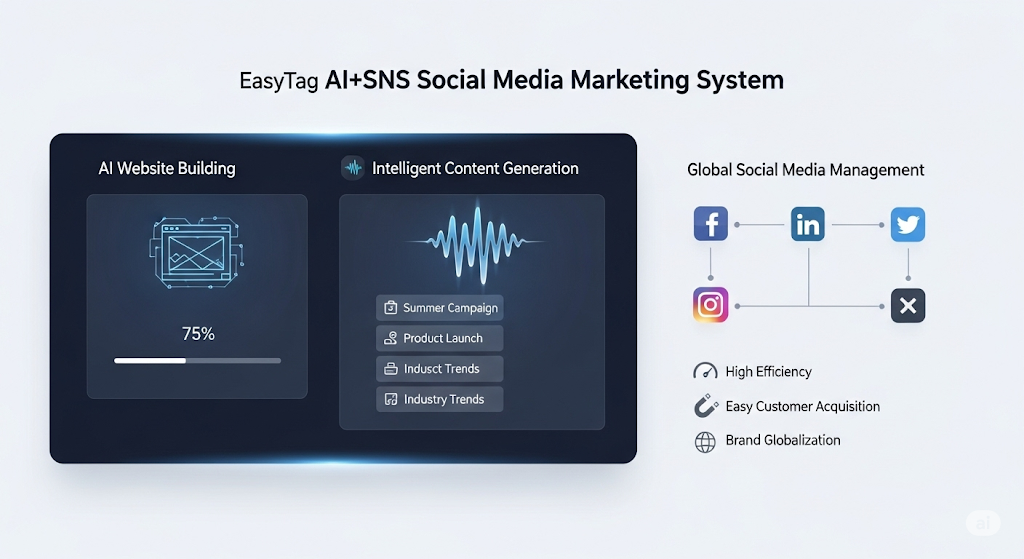
 AI+SNS Social Media Marketing SystemYingbao AI+SNS Social Media Marketing System - Precision social capture for the social media era. Supports one-click content synchronization across major platforms like Facebook and LinkedIn. AI intelligently rewrites posts for enhanced relevance. 24/7 AI customer service and user profiling analysis empower businesses to efficiently expand into global markets.
 AI+SEO营销解决方案易营宝AI+SEO营销解决方案,通过AI批量写作、智能生成TDK、精准关键词扩词等功能,全面优化网站SEO效果,提升流量与转化率。助力企业构建高效智能网站新生态。
 AI+SEM Advertising Marketing SolutionsAI+SEM Advertising Marketing Solution leverages AI technology to deeply empower SEM ad campaigns. It automatically generates weekly/monthly reports using AI, presenting account data across multiple dimensions for comprehensive insights into campaign performance and trends. The system precisely recommends keywords and target countries, intelligently generates high-conversion ad copy, and enables one-click activation of efficient campaign plans to help businesses rapidly acquire customers. Simultaneously, it monitors core metrics in real time, intelligently identifies abnormal fluctuations, and issues timely alerts to ensure stable, high-return advertising results.
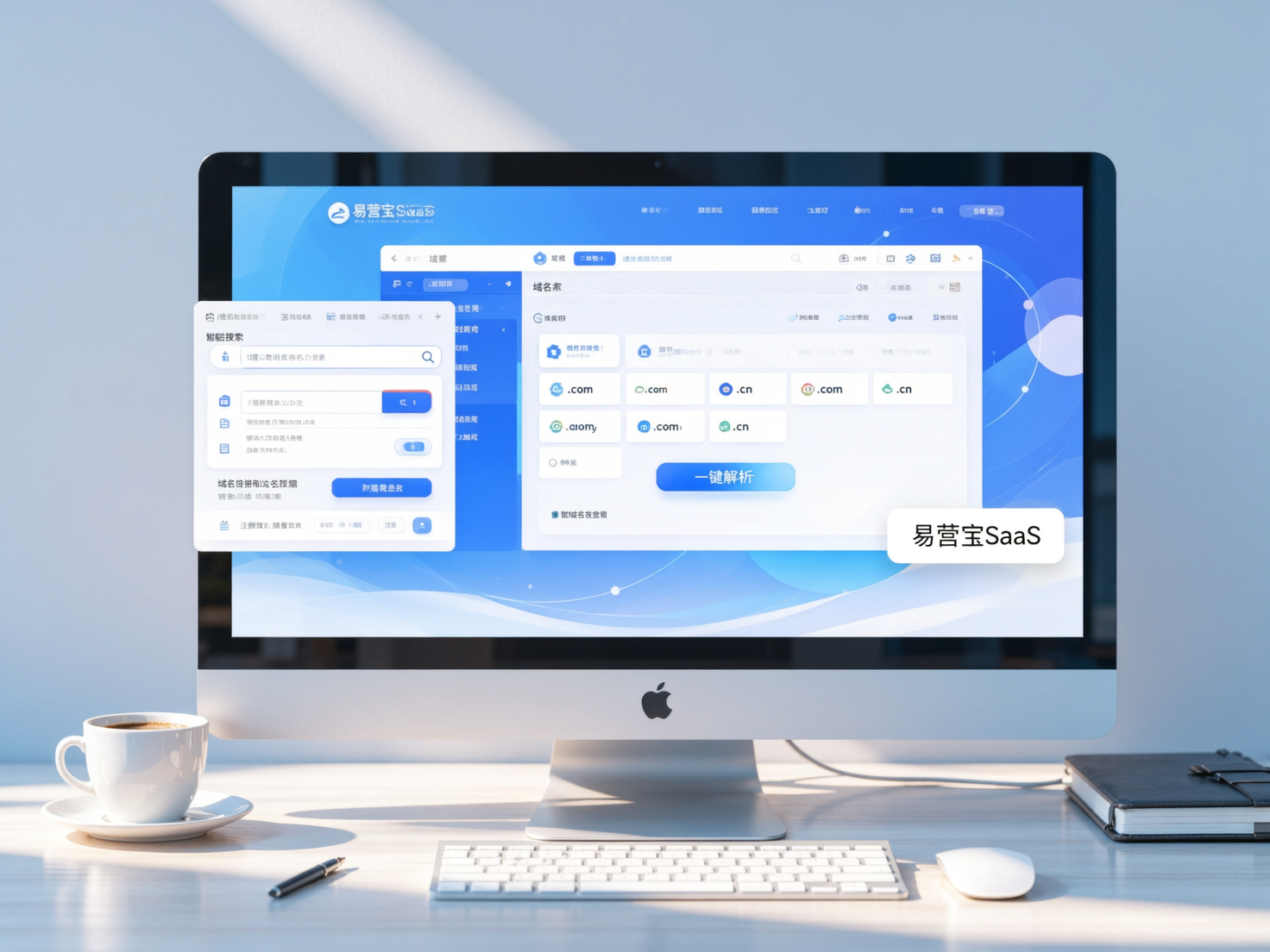
 Domain Name ServicesEasyWin provides professional domain name services, including intelligent queries, one-stop registration, brand protection, and full lifecycle management, helping businesses build a digital brand image.
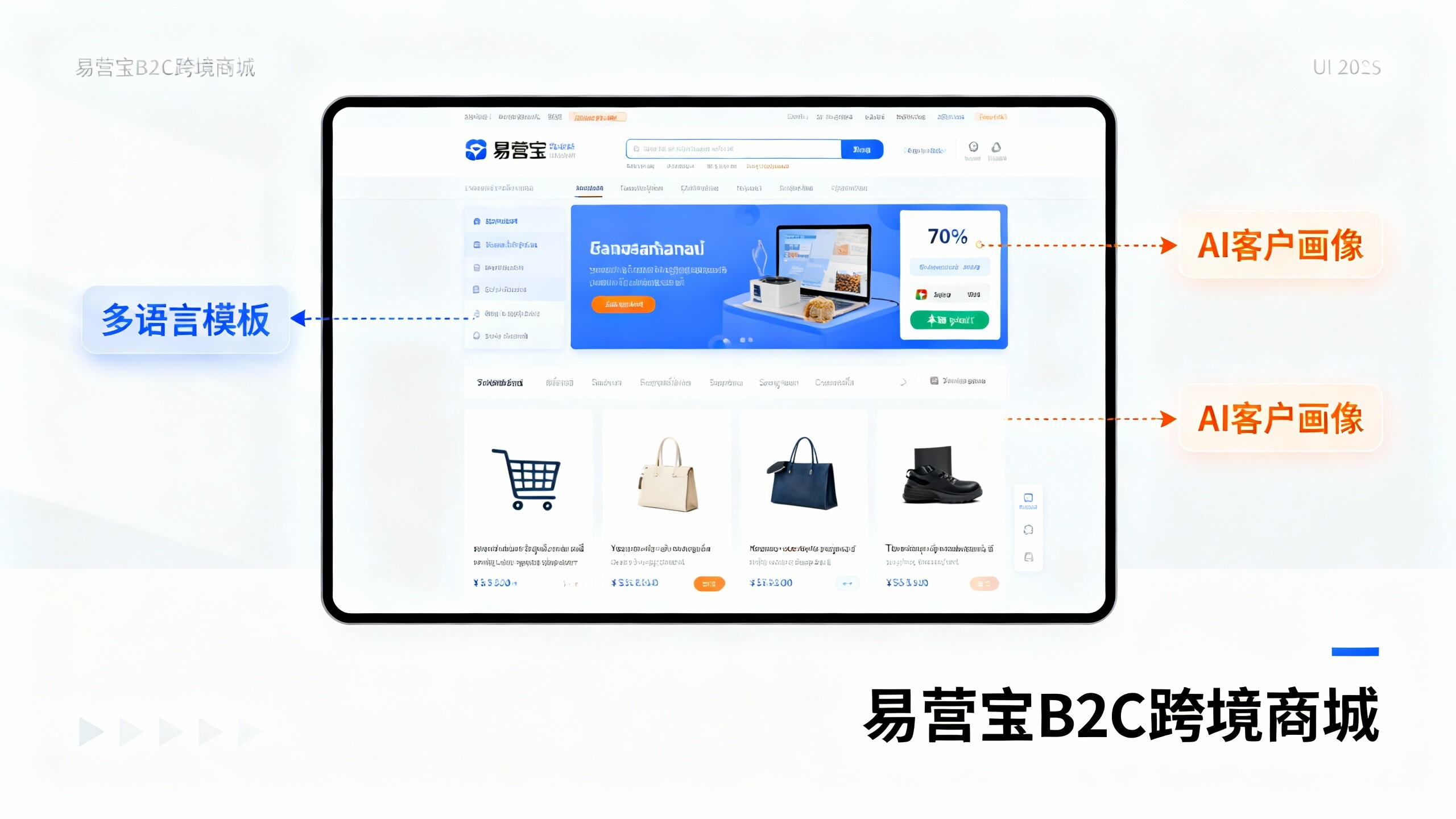
 EasyOperate B2C Cross-Border E-Commerce Platform & Independent WebsiteEasyStore B2C Cross-border E-commerce Independent Store is an intelligent website building and cross-border e-commerce integrated solution independently developed by EasyStore Information Technology (Beijing) Co., Ltd. The system is specially designed for small and medium-sized as well as large export enterprises, integrating 'website building, operation, marketing, advertising, and conversion' into one, helping enterprises quickly establish cross-border e-commerce independent stores to achieve brand globalization and global sales growth.
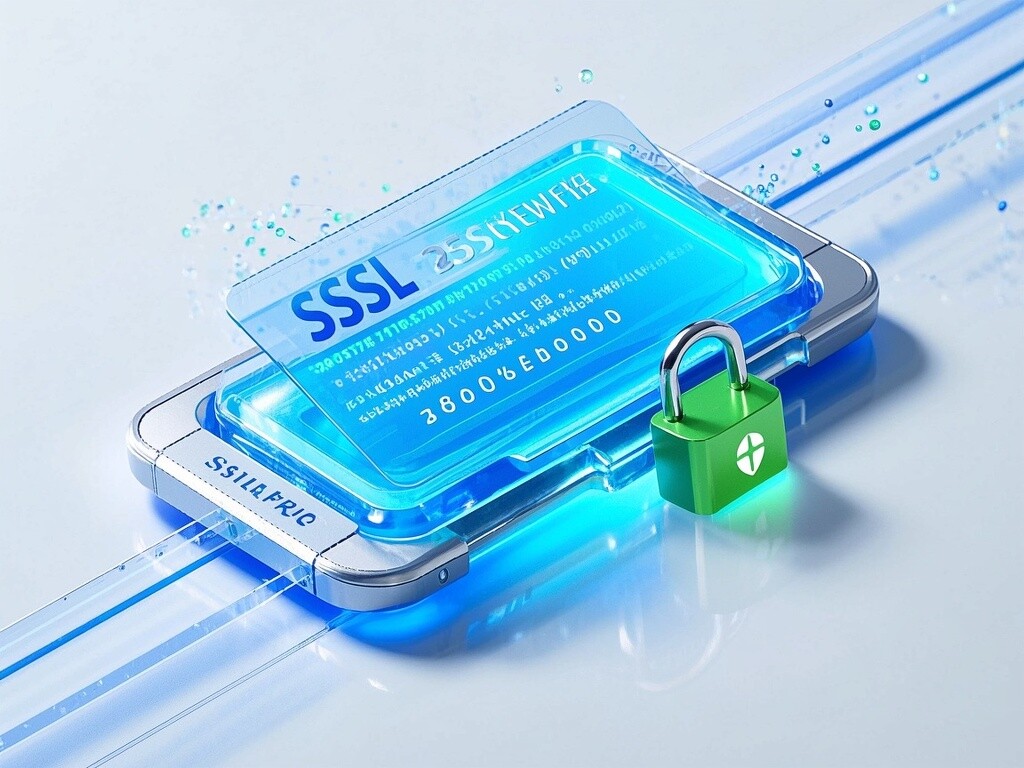
The platform supports multiple languages, multiple currencies, and multi-channel marketing, with built-in AI intelligent translation and SEO optimization systems, suitable for mainstream markets such as Southeast Asia, Europe and America, Latin America, and the Middle East, assisting Chinese manufacturing enterprises in efficiently deploying international e-commerce strategies. SSL证书易营宝提供专业SSL安全证书服务,包括单域名和泛域名证书,确保网站数据传输加密、身份验证和完整性保护,助力企业建立安全可信的在线业务环境。