




- CBP Finalizes Electronic Rail Export Manifest Rule, Effective October 26, 2026Oct 26, 2026View details
- Amazon’s 2026 peak season surcharge takes effect on October 25Oct 26, 2026View details
- AI Is Eating SaaS: Three Real-World Cases in One AfternoonOct 25, 2026View details
- Exiger CEO: The SaaS Apocalypse Is Real, but It Means Something DifferentOct 25, 2026View details
- Hengqin Cooperation Zone Shares Cross-Border E-Commerce Developments, Focusing on Macao-Hengqin Collaboration and International MarketsOct 24, 2026View details
- A Shenyang study highlights the development of the “cross-border e-commerce + industrial cluster” modelOct 24, 2026View details
Can I learn to use a multilingual content management system without a technical background?
You can learn the day-to-day operation of a multilingual content management system even without a technical background. As long as the system provides visual editing, language switching, and publishing options, tasks such as editing text, replacing images, and maintaining product information do not require programming skills. The learning curve mainly depends on how language versions are organized, which pages are affected by edits, and whether you can see an accurate preview before publishing.
To determine whether a multilingual content management system is difficult to learn, start with a specific task: revise the English description of a product and then check whether pages in other languages also need updating. If you can identify the language you are editing, find the relevant content, and understand the difference between saving and publishing, you already have the basics for routine maintenance.
First, understand what you are editing when you switch languages
Some systems group different language versions of the same content together and let you switch between them using tabs. Others manage each language as a separate section or site. The first approach makes it easier to compare versions while editing; with the second, you need to pay attention to the current site and section. Both approaches can be learned, but their workflows should not be mixed up.
You should also distinguish between the language of the admin interface and the language of the website content. Switching the menus to English only makes the buttons easier to understand; the page you are editing may still belong to a website in another language. Before making changes, check the language indicator in the content area instead of relying only on the language used in the admin menus.
Multilingual pages are not necessarily completely independent of one another. Product model numbers and some images may be shared, while titles, descriptions, and image alt text may be maintained separately for each language. If a field is marked “global,” “shared,” or “synchronized,” first confirm its scope. Otherwise, an apparently routine edit could affect multiple language versions.
Working through the process with one piece of content is more effective than memorizing every menu
For your first practice run, choose an unpublished product or article and complete the entire process once. This helps you connect the various buttons to the resulting pages, rather than learning how to edit fields without knowing where the content will ultimately appear.
- Open the content list for the required language, select a draft, and check its title, section, and language indicator.
- Edit a short passage and replace an image. When pasting text, watch for unwanted fonts, blank lines, and links. If necessary, paste as plain text, then restore the subheadings and paragraph formatting.
- After saving, open the preview and check line breaks, image proportions, and whether longer translations cause buttons to shift on desktop and mobile pages.
- Once everything looks correct, submit it for review or publish it according to the system's workflow, then open the corresponding language page on the public website to verify the result.
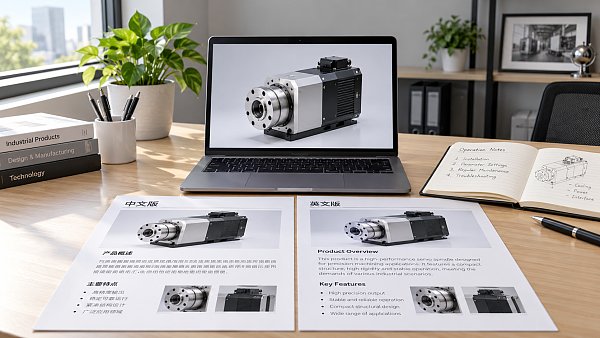
“Save” does not necessarily mean visitors can already see the changes. Some systems handle drafts, items awaiting review, and published content separately; others update the live page as soon as you save. When using the system for the first time, confirming what each button does and how statuses change is more useful than memorizing menu locations. You can learn features for deleting or overwriting content in bulk after you are comfortable working with individual items.
Using the system and assessing translation quality are two different things
Not knowing the target language does not prevent you from entering and publishing content, but it does limit your ability to review it. Even if machine-translated or AI-generated content reads smoothly, it may misrepresent a product's purpose, specifications, or after-sales information. A “translation complete” status in the system only means the generation process has finished; it does not confirm that the content is accurate.
Product model numbers, dimensions, units of measurement, material names, and conditions of use require particular attention. For example, changing the unit while leaving the number unchanged alters the meaning of a specification; omitting a hyphen from a model number can also make the page inconsistent with the source material. Keep the original documentation available for comparison, and have someone familiar with the relevant language and business review technical wording.
You should also confirm what happens when the source text is updated: do other languages remain unchanged, are they marked as needing an update, and will retranslation overwrite manual edits? If the system does not indicate version links, keep a record of the source text's revision date and the languages that still need attention. This helps prevent other pages from retaining outdated specifications after the primary-language page has been updated.
Details that lead to rework are often outside the main text editor
The page title, heading in the body, and title displayed in the browser tab may each correspond to a different field. If you edit only the body, the title or description used in search results may still be outdated; search engine displays also do not refresh immediately after you save in the system. As you learn, understand what these fields are for and then decide which ones need to be updated along with the content.
Links also need to be checked separately. After copying an English product page to create a French version, the contact button or related product links in the body may still point to the English page. Click them in the preview to confirm that they lead to the intended pages in the corresponding language.
Text embedded in images is easy to overlook, too. If the body has been translated but the product image or banner still contains text in the original language, the page will contain mixed languages. If the system supports language-specific images, upload them separately. If an image is a shared asset, confirm the scope of replacement before deciding whether to create a separate version.
URL paths, language directories, and template settings can affect the entire site. Routine maintenance does not require you to master these configurations right away. If an adjustment is needed, first determine whether it affects a single page or the entire language site, then follow the appropriate maintenance process.
How to tell whether you can maintain the site independently
Test your skills with a complete task: add a piece of content, fill in the required language version, set the section and image, preview and publish it, then make an edit. If you can explain which language is active, which fields are shared, and what the publication status means, and can find the corresponding page on the public website, you have the basic skills for site maintenance.
You can also assess how easy the system is to learn during this task: are language indicators easy to spot, are required fields clearly marked, does the preview show the current version, and can you restore previous changes from a history record? When you run into a problem, note the page, current language, action taken, and any message displayed. This makes it easier to identify the cause accurately. As these tasks become familiar, the focus of learning shifts from “Where is the button?” to “What will this change affect?”
Related Articles
 Can I learn to use a multilingual content management system without a technical background?
 How can you evaluate a provider’s translation editing capabilities for AI-powered multilingual website services?
 Building a Website for the Russian-Speaking Market: Is Translating the Website Enough?

Related Products
 Yiyingbao SaaS Intelligent Website Building and Marketing SystemYiyingbao SaaS Intelligent Website Building and Marketing System, AI-powered no-code website building, rapid creation of multilingual B2B international websites in 10 minutes, global server acceleration, AI-powered SEO optimization, helping businesses connect efficiently with global markets. The perfect integration of technology and operation makes building an international trade website remarkably simple
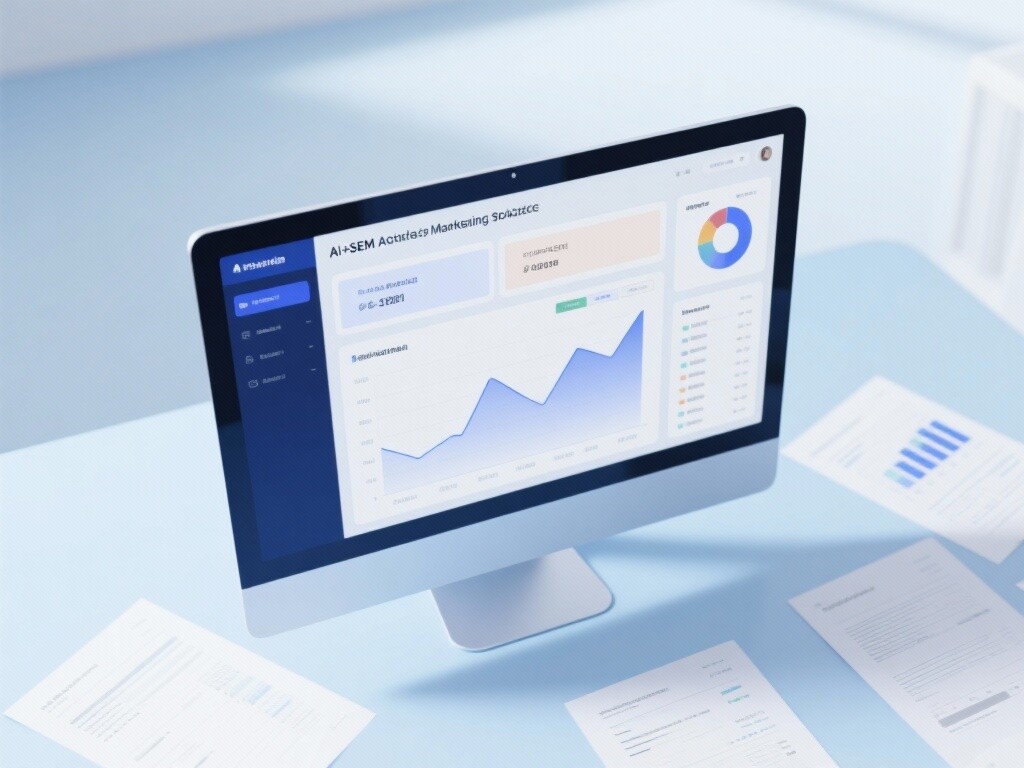
 AI+SEM Intelligent Advertising Marketing SystemAI+SEM drives intelligent ad creation, empowering full-funnel precision advertising marketing. The system automatically generates weekly/monthly reports, AI recommends keywords and target countries, monitors core metrics in real-time with intelligent alerts, and enables one-click high-conversion ad solutions to help quickly acquire customers and improve ROI.
 AI+SEO Dual-Engine System Optimization ServicesYiyingbao’s AI+SEO dual-engine optimization system helps foreign trade enterprises acquire high-quality organic traffic through AI-powered keyword research, content generation, and comprehensive technical optimization, significantly improving search rankings and conversion rates.
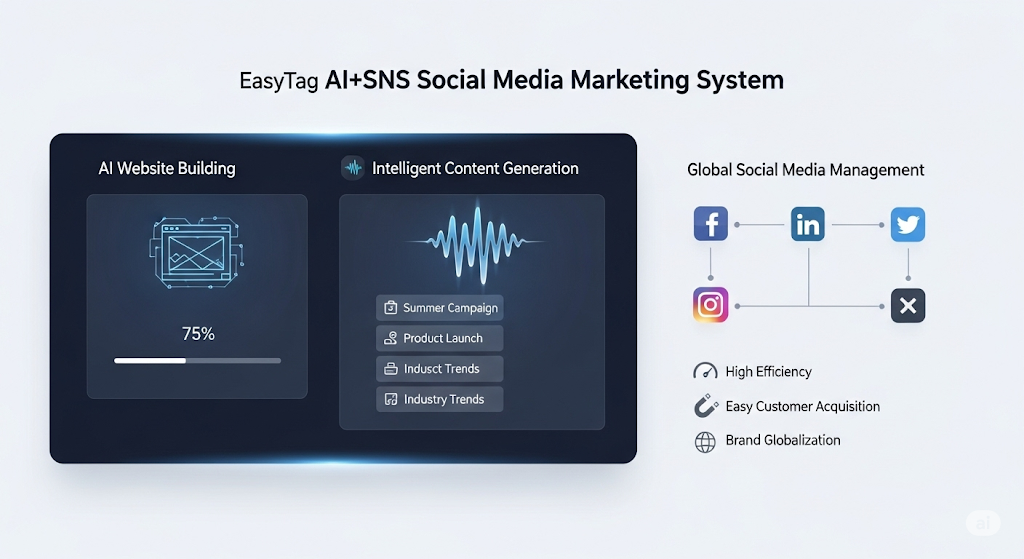
 AI+SNS Social Media Marketing SystemYingbao AI+SNS Social Media Marketing System - Precision social capture for the social media era. Supports one-click content synchronization across major platforms like Facebook and LinkedIn. AI intelligently rewrites posts for enhanced relevance. 24/7 AI customer service and user profiling analysis empower businesses to efficiently expand into global markets.
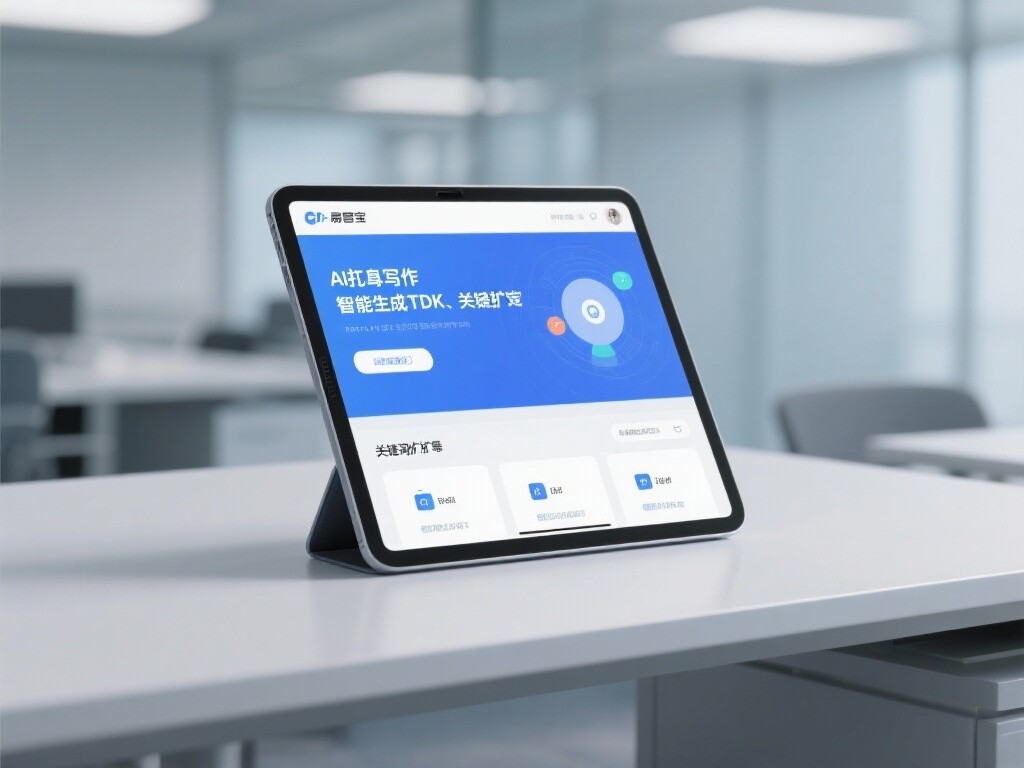
 AI+SEO营销解决方案易营宝AI+SEO营销解决方案,通过AI批量写作、智能生成TDK、精准关键词扩词等功能,全面优化网站SEO效果,提升流量与转化率。助力企业构建高效智能网站新生态。
 AI+SEM Advertising Marketing SolutionsAI+SEM Advertising Marketing Solution leverages AI technology to deeply empower SEM ad campaigns. It automatically generates weekly/monthly reports using AI, presenting account data across multiple dimensions for comprehensive insights into campaign performance and trends. The system precisely recommends keywords and target countries, intelligently generates high-conversion ad copy, and enables one-click activation of efficient campaign plans to help businesses rapidly acquire customers. Simultaneously, it monitors core metrics in real time, intelligently identifies abnormal fluctuations, and issues timely alerts to ensure stable, high-return advertising results.
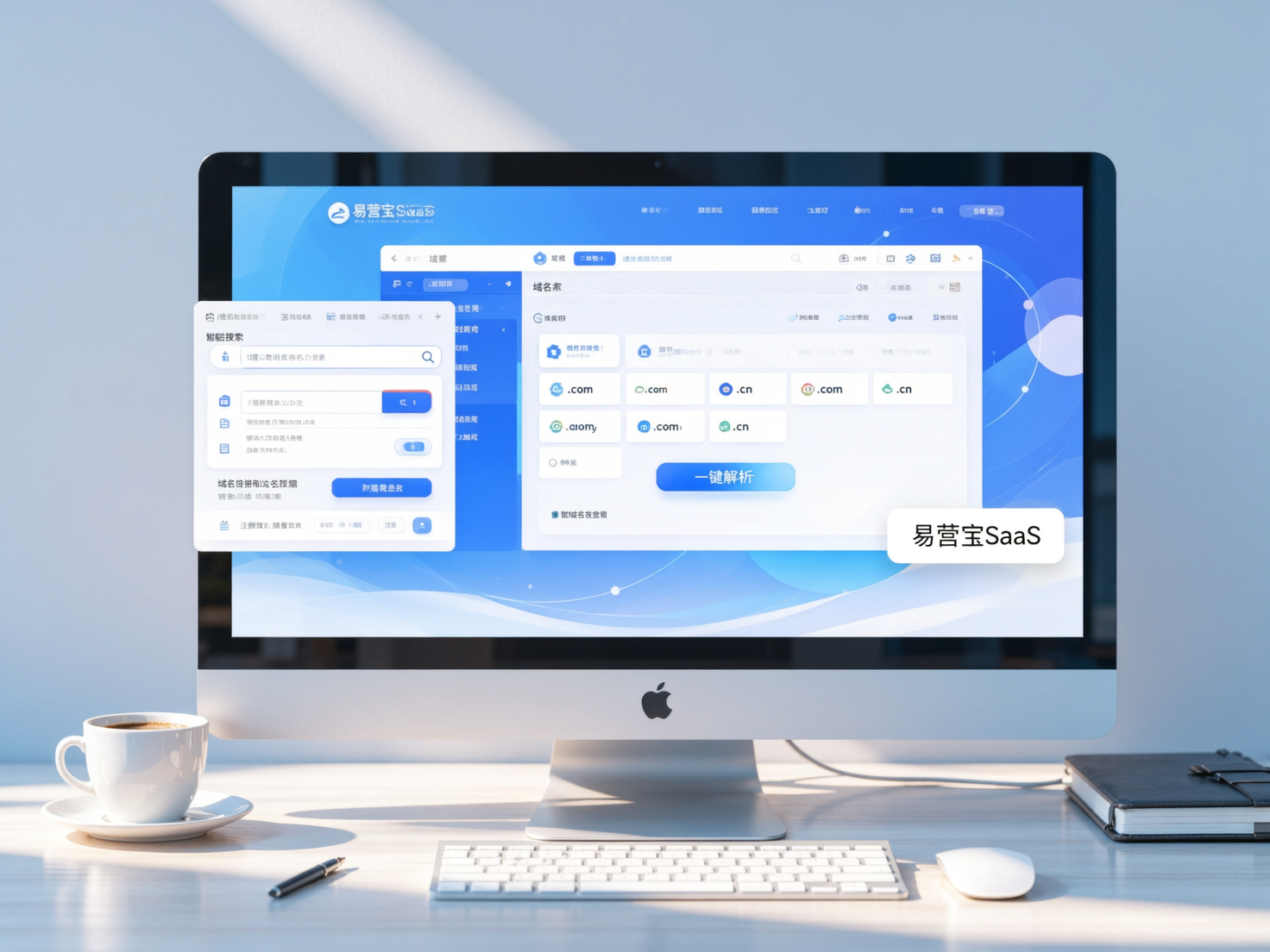
 Domain Name ServicesEasyWin provides professional domain name services, including intelligent queries, one-stop registration, brand protection, and full lifecycle management, helping businesses build a digital brand image.
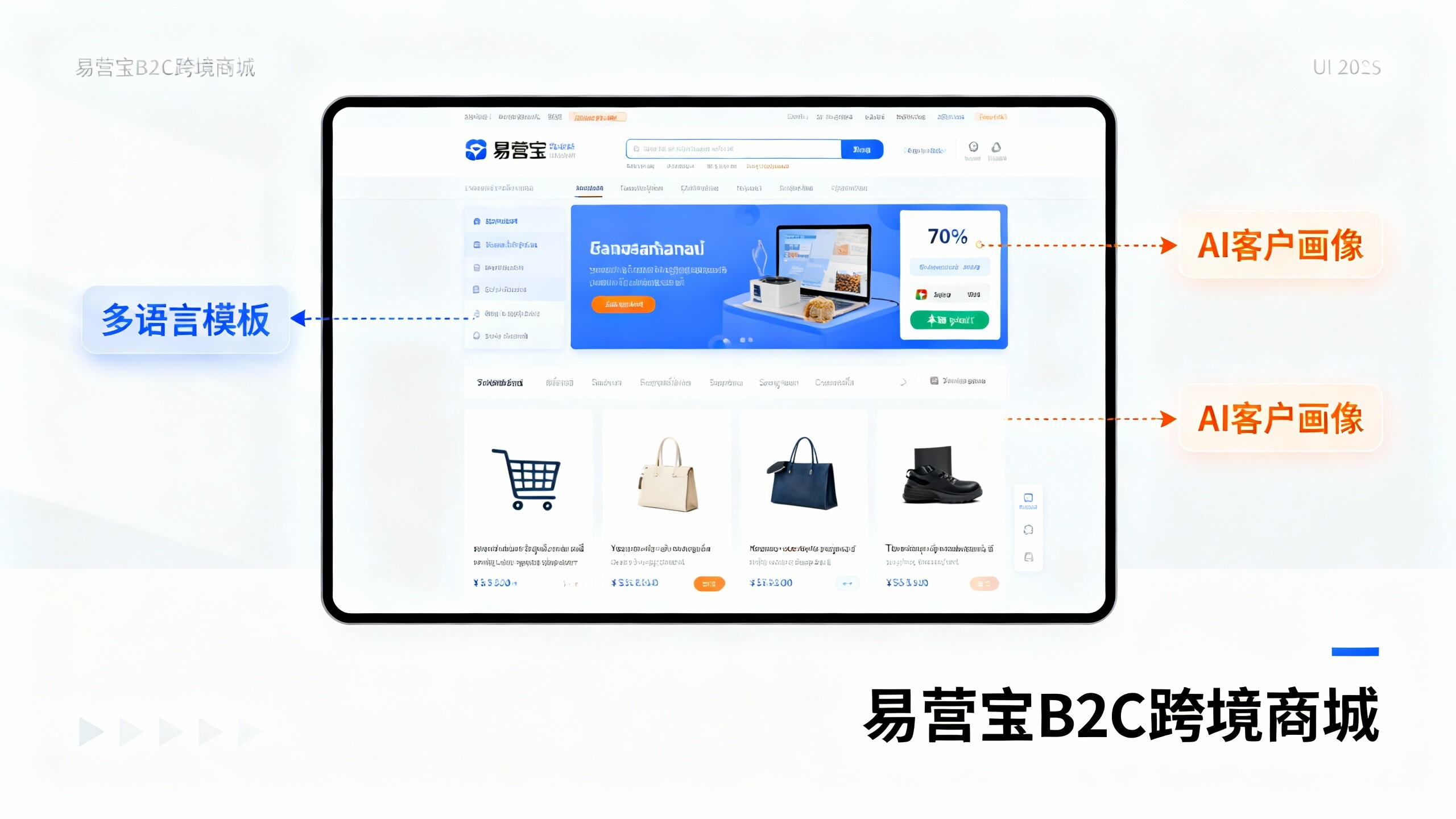
 EasyOperate B2C Cross-Border E-Commerce Platform & Independent WebsiteEasyStore B2C Cross-border E-commerce Independent Store is an intelligent website building and cross-border e-commerce integrated solution independently developed by EasyStore Information Technology (Beijing) Co., Ltd. The system is specially designed for small and medium-sized as well as large export enterprises, integrating 'website building, operation, marketing, advertising, and conversion' into one, helping enterprises quickly establish cross-border e-commerce independent stores to achieve brand globalization and global sales growth.
The platform supports multiple languages, multiple currencies, and multi-channel marketing, with built-in AI intelligent translation and SEO optimization systems, suitable for mainstream markets such as Southeast Asia, Europe and America, Latin America, and the Middle East, assisting Chinese manufacturing enterprises in efficiently deploying international e-commerce strategies. SSL证书易营宝提供专业SSL安全证书服务,包括单域名和泛域名证书,确保网站数据传输加密、身份验证和完整性保护,助力企业建立安全可信的在线业务环境。