









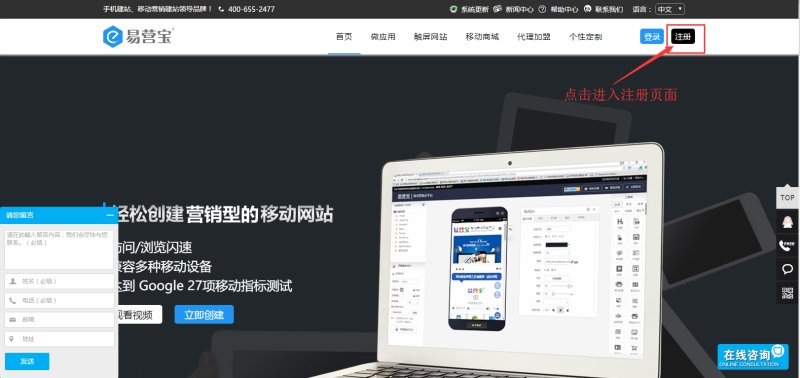
1、Account Registration: Click the "Register" button in the upper right corner of the page
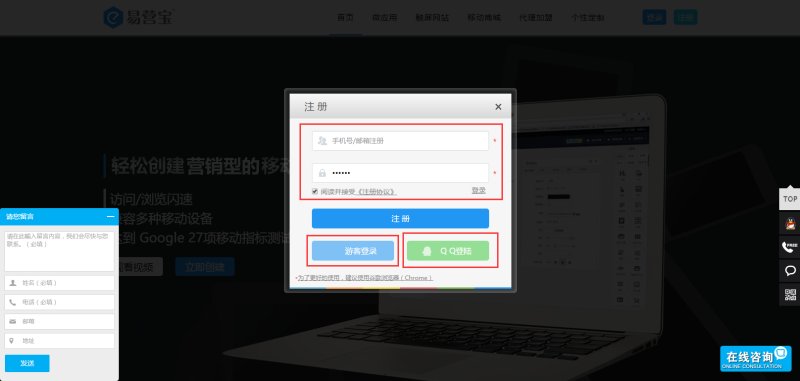
2、Fill in Registration Information: The email address you provide will be your EasyStore platform login account.
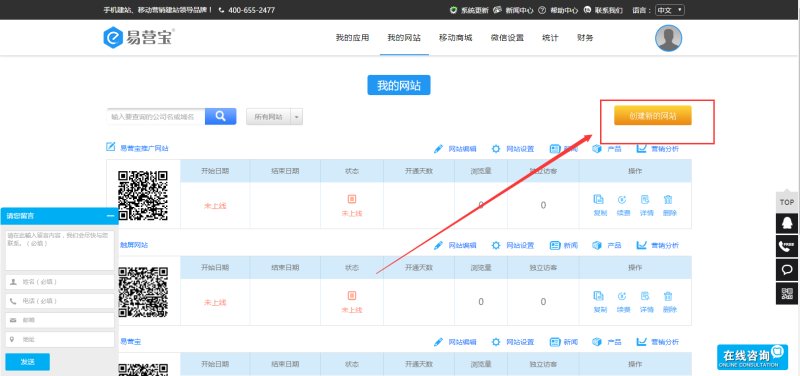
3、After successful registration, log in to the EasyStore platform and click "Create New Website"
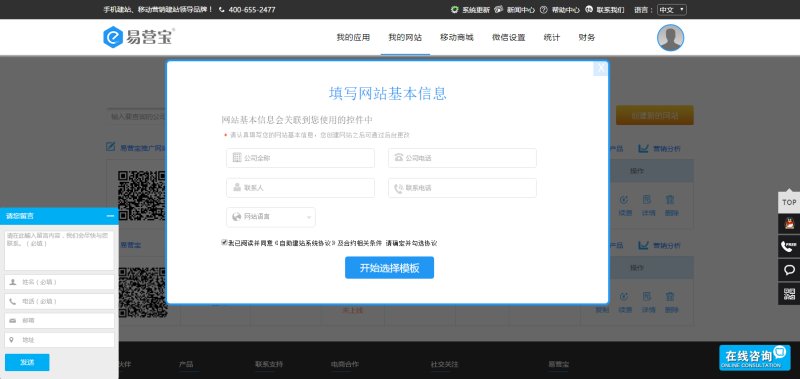
4、Enter basic website information in the pop-up window, then click "Start Selecting Templates"
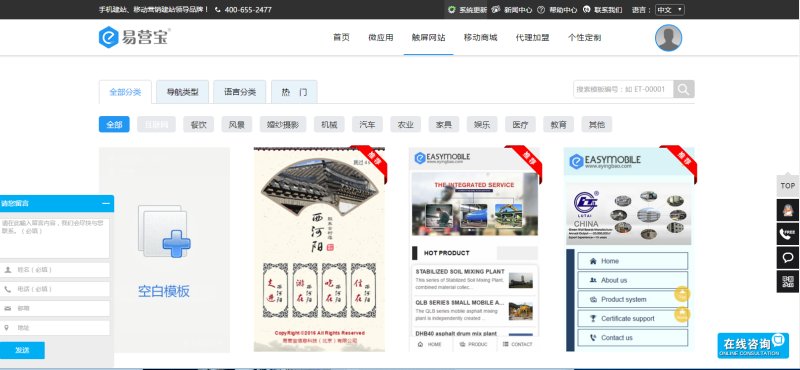
5、On the template selection page, you can filter templates by industry category; after selection, click the template to enter the operation page
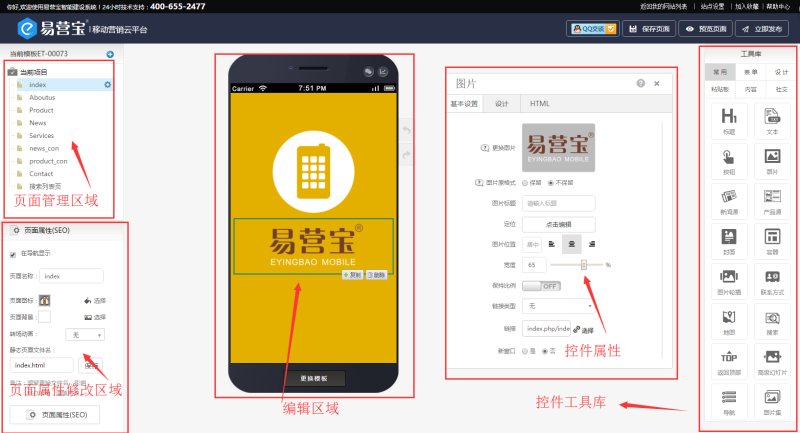
6、The operation page is divided into five areas: Top-left is the page management area where you can add/delete pages; bottom-left is the page properties area for modifying page name, background, icon, and transition animation; center is the editing area for dragging/repositioning components; right side contains the component library and properties panel for selecting/dragging components and modifying colors, borders, shadows, etc.
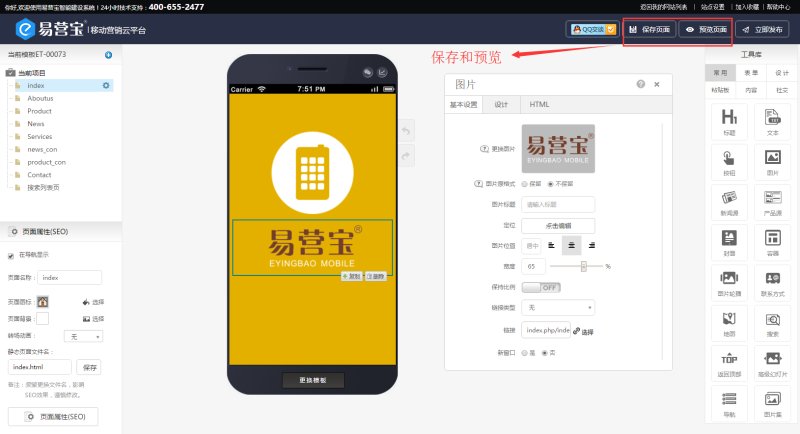
7、After completing the page, click "Save & Preview" in the upper right corner
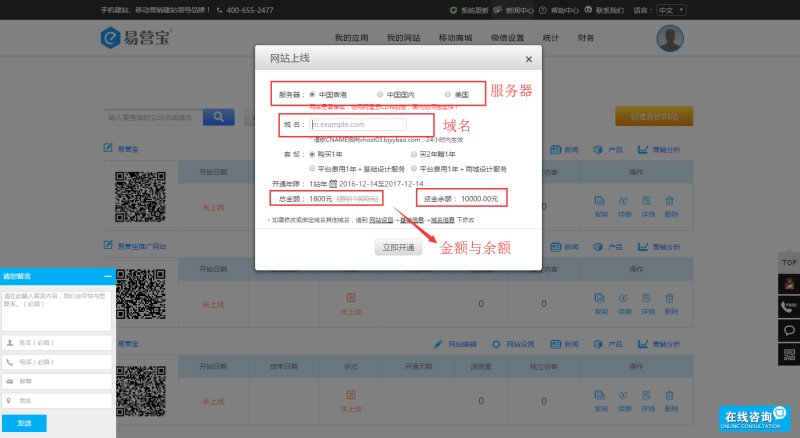
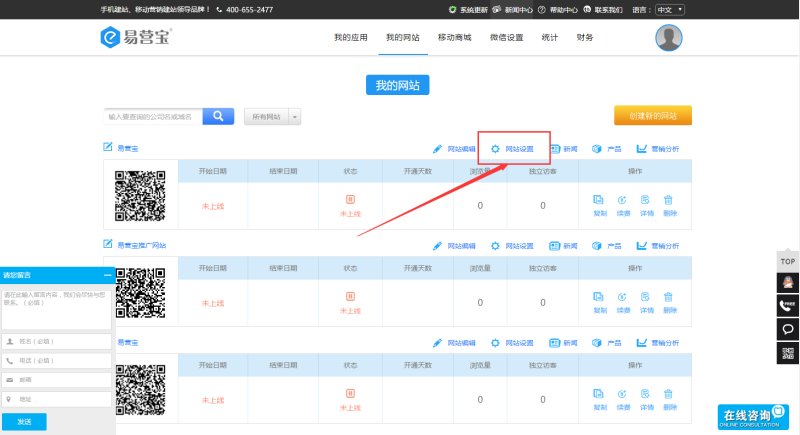
8、In the website list, click the status button to open the activation window, then select server, DNS, and domain binding
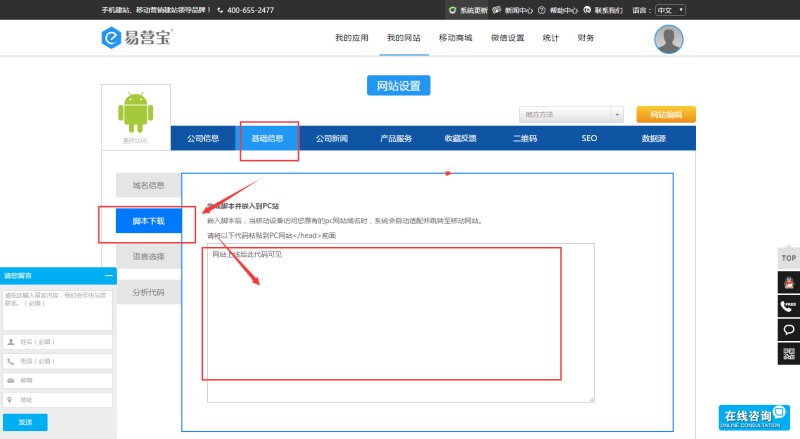
9、After website launch, go to Settings > Basic Info > Script Download to get redirection code. Paste this code into your PC website header - when mobile devices visit your PC domain, the system will automatically redirect to the mobile site.
Online Inquiry