









1, In the EasyStore backend website list, click "Management"
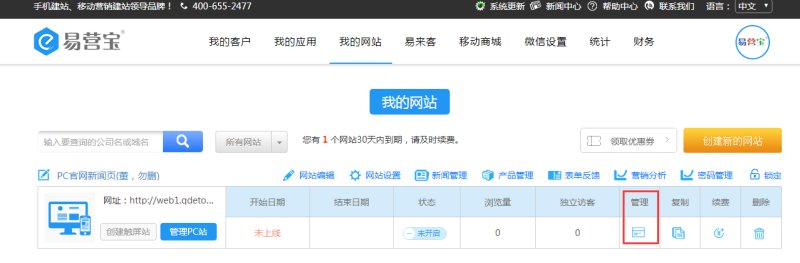
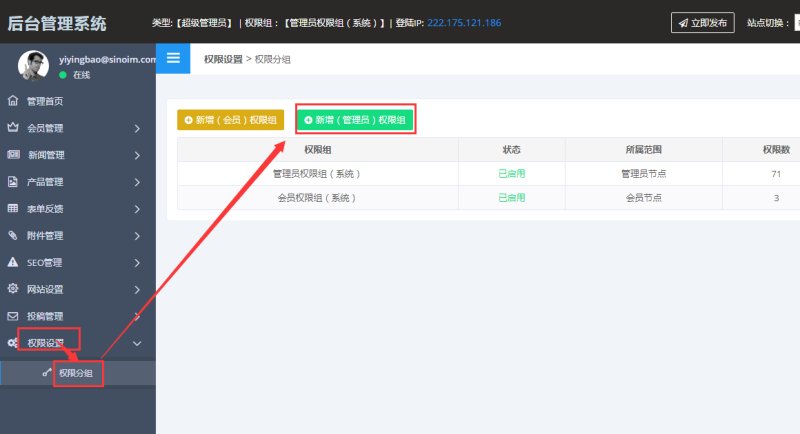
2, In the left-side menu, select Permission Groups, then click Add New Administrator Permission Group
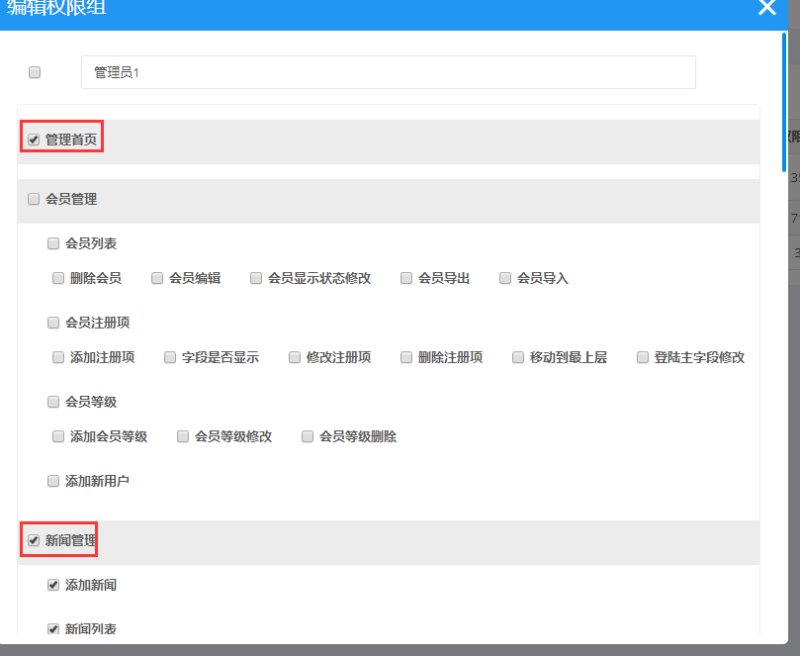
3, Fill in the permission group name, check the permissions needed for the client (e.g., homepage management, news management, product management, form feedback), then click Confirm
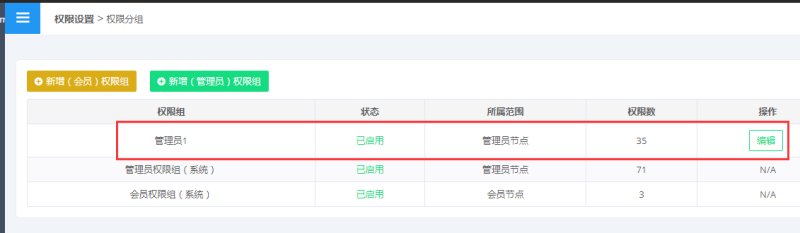
4, You can view and modify the newly added permission group in the list
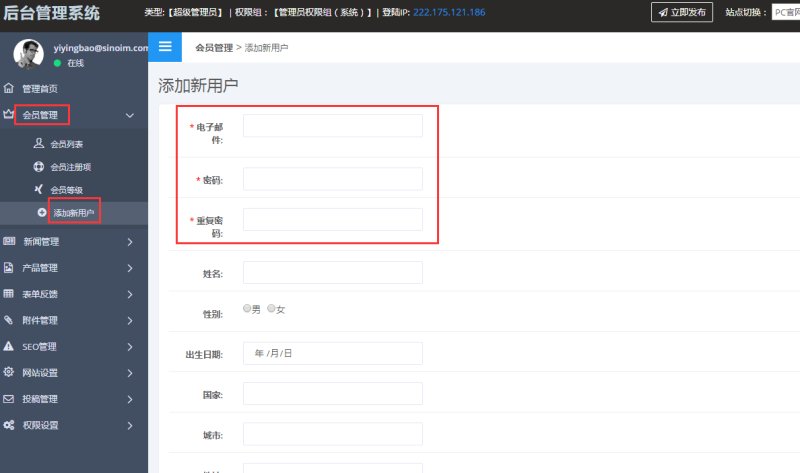
5, In the left-side menu, click Member Management - Add New User, enter the client's email and set a password (this email and password will be the client's login credentials for the backend)
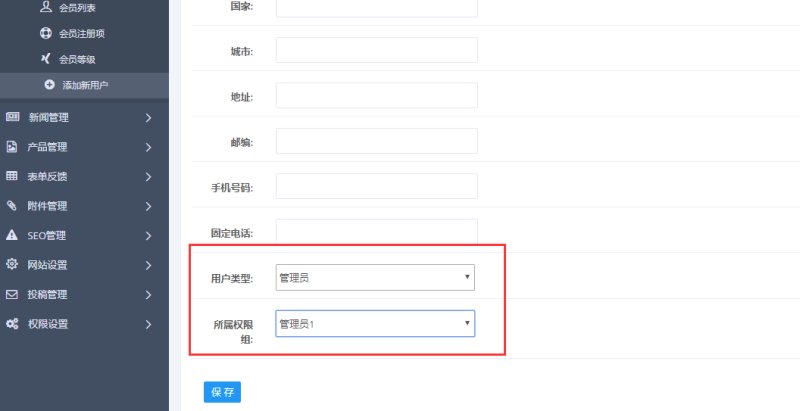
6, Select Administrator as the user type, choose the permission group you just set up, then save.
7, After setup, the client's login address will be: website domain/admin. For example, if the client's website domain is www.123.com, then the backend login address will be www.123.com/admin (accessible only after the website goes live). The login credentials will be the email and password you just set.
Online Inquiry